2/28/2019

Fixes You Can Try for "iPod Touch Won't Sync with iTunes" Issue


Other Fixes You Can Try for "iPod Touch Won't Sync with iTunes" Issue

Following are some other fixes you can try:
Sync Over Wi-Fi

If you cannot sync your iPod Touch with iTunes via USB cable, then it is recommended that you try using Wi-Fi sync. Follow these instructions:


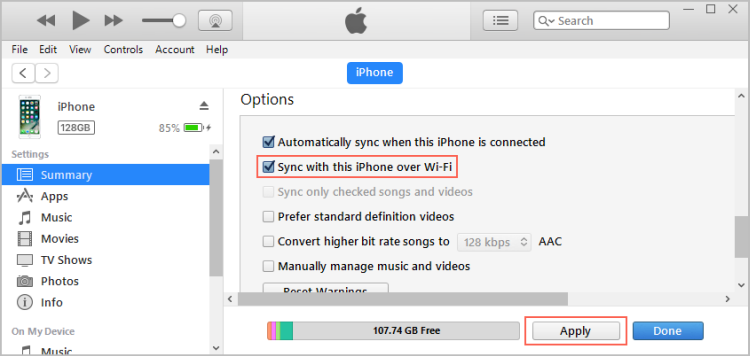
On iTunes, select your iPod Touch and then navigate to Summary and tick Sync with this iPod over Wi-Fi.


Now, on your iPod Touch, open Settings and navigate to General > iTunes Wi-Fi Sync and then tap the Sync now option.


Check the Connection

The problem may be with your iPod USB cable. Try plugging USB cable in another iDevice to see if it works correctly. If it doesn't, then use another compatible cable. You can also try different USB ports of your computer to see if the problem is solved.


Update iTunes to the Latest Version

Updating iTunes sometimes fixes such problems. Check for the latest version of iTunes and if it is available, install it. If you are already using the latest version, then it is recommended that you reinstall it.Sponsor ads:8 Best PDF Reader & Editor Apps for iPhone and iPad in 2019
Sponsor ads:How to Access and Unlock Android Phone with Broken Screen
Sponsor ads:How to Remove Duplicate Contacts on iPhone and Android Quickly
Sponsor ads:How to Download & Save YouTube Videos to iPhone’s Camera Roll
Sponsor ads:Best 2 Free Methods to Fix Slow USB Transfer Speeds


Re-Authorize

If your computer is not authorized, then iTunes won't sync with your iPod Touch. That's why it is recommended that you re-authorize your computer with iTunes.

Follow these instructions:


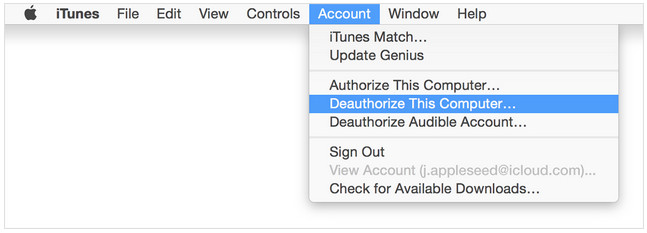
Open iTunes and navigate to Account > Deauthorize This Computer.


Then input your Apple ID and de-authorize the computer by following on-screen instructions.

Now authorize your computer for a second time.


You may also like:

[Fixed] What Password Is iTunes Asking for to Restore Backup 2019


Question: iTunes is asking me for a password when I want to restore a backup, but I haven’t set a password before, what should I do?

Apple has added an iTunes feature a long time ago which allows users to encrypt their backups. Although the idea is great, some users are being asked to enter a password when they didn’t set iPhone backup password. The problem it brings is that you aren’t able to restore your backup if you don’t know the password associated with it, but here we’ll show you how to fix this.

Sponsor ads:6 Best Running Apps For iPhone & Apple Watch to Keep Your Fitness

Sponsor ads:How to Use Motorola Migrate for Transferring Data

Sponsor ads:How to Fix Insufficient Storage Available Problem on Android


Fix 1: Try All Possible Passwords for iTunes


Fix 2: Use iTunes on Another Computer


Fix 3: Alternative Way to Back up Your iPhone without iTunes


Fix 4: Find iTunes Backup Unlocker in Google
Fix 1: Try All Possible Passwords for iTunes

There aren’t any limitations to the number of password attempts you can try when unlocking an iPhone backup, so take the time to try every combination you can think of. Some examples are included below:


Your Apple account’s password;

Sponsor ads:9 Best Apple Watch Music Apps to Enjoy Music Anywhere

Sponsor ads:5 Best Kodi Alternatives You Should Check Out in 2019

Your iPhone screen lock passcode;


Your iTunes Store pasword;


Your previous iTunes backup passwords;


The default password 0000;


PC account password;


Common personal passwords;


Email or other account passwords;


Generic passwords such as “password”, “1234”, or your name.

Try different variations of these examples and hopefully you’ll find out what the password has been set as. It’s more than likely that you’ve unknowingly set a password and didn’t think about it, so this could do the trick.
Fix 2: Use iTunes on Another Computer

If trying different passwords still cannot help, you should try to use iTunes on a different computer. Doing this will require some extra time (given that your device will be wiped, and the backup will be restored), but it’s worth a try.


Connect your iPhone to a computer you haven’t used iTunes on before and open iTunes.


Sync your iPhone and when given the option, choose to restore your iPhone. You should take a backup beforehand.


Once it is restored, you’ll be shown the iOS “Set Up” screen and you can choose the backup.


Still wondering what password is iTunes asking for to restore backup? If so, move on to the next section and find out how an alternative iMyFone D-Port Pro can help you out.
Fix 3: Alternative Way to Back up Your iPhone without iTunes

Sponsor ads:

Gihosoft Free iPhone Data Recovery:https://www.gihosoft.com/iphone-data-recovery-free.html

Gihosoft iPhone Data Recovery Free

Free iPhone Data Recovery Software for Windows/Mac

Recover up to 12+ types of files, including contacts, SMS, photos, WhatsApp, Viber, notes, etc.

Restore lost data from iOS devices directly or from iTunes and iCloud backup

Recover iPhone data lost due to iOS upgrade/jailbreak, accidental deletion, device lost or broken

Support all the latest iPhone, iPad and iPod Touch

Both Free and Pro version.

If you lost data after you updated to a new iPhone, you can always use Gihosoft iPhone Data Recovery to get the data back from the old iPhone or backup.You may also like: iphonerecovery.com

If you use android phones, please choose Gihosoft Android Data Recovery.

With Gihosoft Android Data Recovery, no longer afraid of data loss!

Must read:Youtube video downloader for pc

Gihosoft RePicvid Free Photo Recovery Software provides a free photo recovery software for windows to help users recover the deleted or lost photo for free.

Jihosoft Android Data Recovery: the best Android Data Recovery software for Windows and Mac to recover deleted contacts, messages, photos, videos, WhatsApp and etc from Android devices.Tips:How to transfer messages from iPhone to iPhone

jihosoft Free iPhone Data Recovery Sponsor ads:9 Best Apple Watch Music Apps to Enjoy Music Anywhere


Sponsor ads:5 Best Kodi Alternatives You Should Check Out in 2019

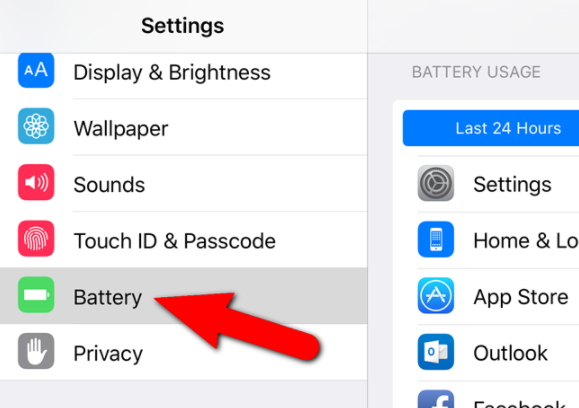
How to Fix Battery Percentage Not Showing on iPhone 2019

How to Fix Battery Percentage Not Showing on iPhone 2019

“My battery usage information doesn't show. It's been like this since iOS 11. I'm currently on iOS 11.3 and it's still not displaying.”

As popular as the iPhone is, it is not without its problems. Some of its problems can be fixed by simply waiting for the problem to go away. Other times the problem is very simple and has a few issues to be fixed. One of these problems can be your battery percentage not showing on the device. Not knowing how long the battery will last can be quite frustrating. But like with most iPhone problems, this one has quite a few potential solutions. This article will share with you the solutions you can try.


Tip 1. Check the Settings on the iPhone


Tip 2. Remove “Batteries” from Settings and Re-add it


Tip 3. Reset the Customizes Features of the iPhone


Tip 4. Fix it with the Control Center


Tip 5. Fix iPhone System with a Professional Tool
Tip 1. Check the Settings on the iPhone

Before you think your device is damaged, it could simply be that you have set the battery percentage to off in settings and therefore you are unable to see the battery status. Follow these simple steps to check;

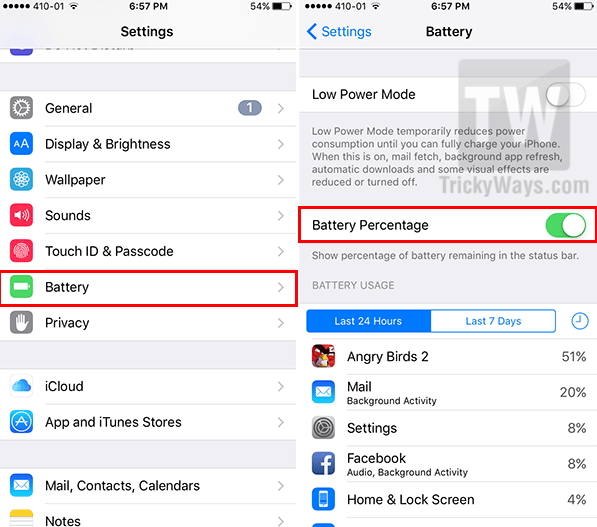
Step 1: Open the settings app on your iPhone and then tap on “General.”

Step 2: Tap on “Usage” and then check under “Battery Percentage.” If it is set to “OFF” move the slider to change it.


Tip 2. Remove “Batteries” from Settings and Re-add it

If it is turned on under “Settings” and you still don’t see the battery percentage, try the following;

Step 1: Swipe right to left to access the Lock Screen.

Step 2: Scroll to the bottom to tap “Edit.”

Step 3: Tap on the red “minus” icon to the left of the batteries widget and then tap “Remove.” Tap on “Done.”

Step 4: Go back to the Lock screen again and tap on the “+” button next to the batteries icon to re-add it. Tap “Done.”

Step 5: Reboot the device and see if battery percentage shows up.


Tip 3. Reset the Customizes Features of the iPhone

If the above solutions still don’t work for you, you may want to reset all customized features. To do that, follow these simple steps;

Step 1: Open the settings app on your iPhone.

Step 2: Tap on General.

Step 3: Tap on “Reset.”

Step 4: Tap on Reset All Settings.

This will remove all your settings including wallpapers, accessibility settings, and stored Wi-Fi codes but will leave all your data intact.


Tip 4. Fix it with the Control Center

If the battery icon still doesn’t appear on your device, you can try to close the Control Center. Try opening and closing the Control Center several times to see if this fixes the problem.
Tip 5. Fix iPhone System with a Professional Tool

If everything you’ve tried so far hasn’t worked, your iOS system may have a bug that’s causing the problem. In this case you want to try and use a tool that can fix your iOS System to normal. One of the best third-party tools to use is iMyFone iOS System Recovery, a tool that is designed to fix any problem you may be having with your device.Sponsor ads:

Gihosoft Free iPhone Data Recovery:https://www.gihosoft.com/iphone-data-recovery-free.html

Gihosoft iPhone Data Recovery Free

Free iPhone Data Recovery Software for Windows/Mac

Recover up to 12+ types of files, including contacts, SMS, photos, WhatsApp, Viber, notes, etc.

Restore lost data from iOS devices directly or from iTunes and iCloud backup

Recover iPhone data lost due to iOS upgrade/jailbreak, accidental deletion, device lost or broken

Support all the latest iPhone, iPad and iPod Touch

Both Free and Pro version.

If you lost data after you updated to a new iPhone, you can always use Gihosoft iPhone Data Recovery to get the data back from the old iPhone or backup.You may also like: iphonerecovery.com

If you use android phones, please choose Gihosoft Android Data Recovery.

With Gihosoft Android Data Recovery, no longer afraid of data loss!

Must read:Youtube video downloader for pc

Gihosoft RePicvid Free Photo Recovery Software provides a free photo recovery software for windows to help users recover the deleted or lost photo for free.

Jihosoft Android Data Recovery: the best Android Data Recovery software for Windows and Mac to recover deleted contacts, messages, photos, videos, WhatsApp and etc from Android devices.Tips:How to transfer messages from iPhone to iPhone

jihosoft Free iPhone Data Recovery

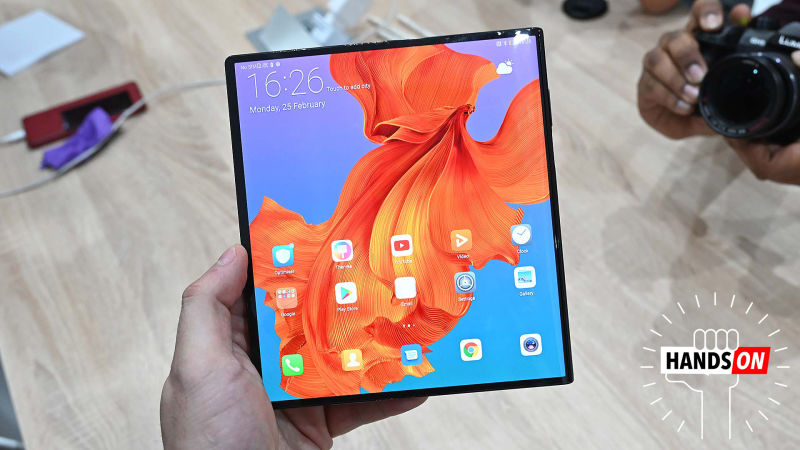
The Huawei Mate X Is Even More Exciting Than You Think It Is


By now, anyone even remotely interested in tech has probably heard about the Mate X—Huawei’s fantastically expensive bendable phone that despite launching second, somehow managed to steal the spotlight from Samsung’s Galaxy Fold.

The Mate X even managed to turn some skeptics into bendy phone believers. But not me, I’ve always been bullish about flexible display tech. Foldable screens aren’t like notches. They’re not just some incremental stepping stone on the way to achieving a bigger goal like an all-screen phone. Flexible displays have the power to transform the way people create and design entire categories of gadgets, most notably wearables and phones.


But after checking out the Mate X, what surprised me the most is that despite being first-gen tech in a space that still has a lot of room for refinement, the Mate X was even more enticing in-person than I thought it’d be.


You may also like: Samsung Galaxy Fold vs Huawei Mate X: Foldable Phones Comparison


However, before we go deeper, all this sort of comes with the caveat that at least initially, we need to ignore how much this thing will cost. Yes, with a listed price of $2,300 euros (about $2,600), the Mate X is ungodly expensive, and under almost no circumstances will it warrant paying a 150 percent premium over phones like the Mate 20 Pro or Galaxy S10, which are already pricey devices. High prices are common for new technologies. Consider that when the Motorola DynaTac, the first cell phone, was released in 1983 it cost $4,000—and that’s before you even consider inflation. Bendy tech will be expensive at first, and if it catches on, it will get more affordable.


So back to the device itself. From the moment I picked it up, the Mate X felt way more substantial than its hinged, bendy-screen design might suggest. A big part of that stability comes from the Mate X’s asymmetrical body, which features a large bar on the right side that holds much of the phone’s guts and a USB-C port, while also serving as a more substantial handhold.


Even when you hold it in one hand and shake, the screen doesn’t really flop around, and while if you really try, you can bend the screen in the opposite direction of the hinge, it’s not something that happens without provocation. Huawei also opted for a surprisingly old-school solution to keeping the phone firmly closed when folded in half: a simple button below the Mate X’s triple cams.


It’s a surprising addition; so many new phones lean towards more streamlined appearances (and some even brag about not having any ports at all). But it works. The click you hear when you close the Mate X’s screen leaves you with a reassuringly satisfying audible cue that lets you know its screen is closed.


Tip: Lost data from your Huawei mobile phone? Try this free Android data recovery tool to recover them!


Huawei also worked on the Mate X’s software so that regardless of if you’re using the camera app, surfing the web, or checking your calendar, the transition between switching from using one half of the foldable display to full-screen mode is quite smooth. Unlike the Royole FlexPai, there’s no jitter or graphical artifacts that appear when transitioning between modes.


Meanwhile, in one-handed mode, the Mate X doesn’t feel all that different from a normal device. Thanks to reinforced panels behind the display, the screen doesn’t have the screen squishiness found on old Nintendo 3DS displays, and the way the screen curves to the side when folded almost gives the same impression you get from modern phones with rounded “3D” glass displays.


As for the screen itself, it looks damn good. Colors appear rich and saturated, and for people who like taking pictures with a tablet or just don’t have great eyesight, being able to use the camera app or view photos with the Mate X’s full 8-inch screen is a real treat. For something that is essentially a pioneer of a whole new class of device, it doesn’t seem to have the first-gen frustrations of something like the dual-screen ZTE Axon M.


That said, there are still some very important questions that the Mate X needs to answer, most notably regarding the screen’s long-term durability. When Samsung first teased its bendable Infinity Flex displaylast year in November, the company stressed all the work it did to create a new flexible OLED layer and backplane, an ultra-thin polarizer, and even new types of flexible adhesives that would allow its fordable phone to survive thousands of bends.


Huawei has made similar claims for the Mate X, but unlike Samsung, has provided way less detail about how the Mate X’s screen was made, or even where it came from. When I asked Huawei for more detail about the origins of the Mate X’s screen, a spokesperson only said that Huawei does not disclose the names of its suppliers. In total, there are only a handful of companies across the world that can even make flexible screens, and with Samsung almost certainly not the company responsible for the Mate X’s screen, that only leaves a few other possible suppliers like LG or TCL.


However, there is one scenario that suggests that even without Samsung’s direct involvement, the Mate X and Galaxy Fold’s screens may be based on the same underlying tech. In late 2018, a Samsung supplier was caught and charged with stealing flexible screen tech and selling it to a Chinese display maker, with some rumors claiming the display maker on the other side of the transaction was BOE, a manufacturer known to have supplied components for use on previous Huawei devices.
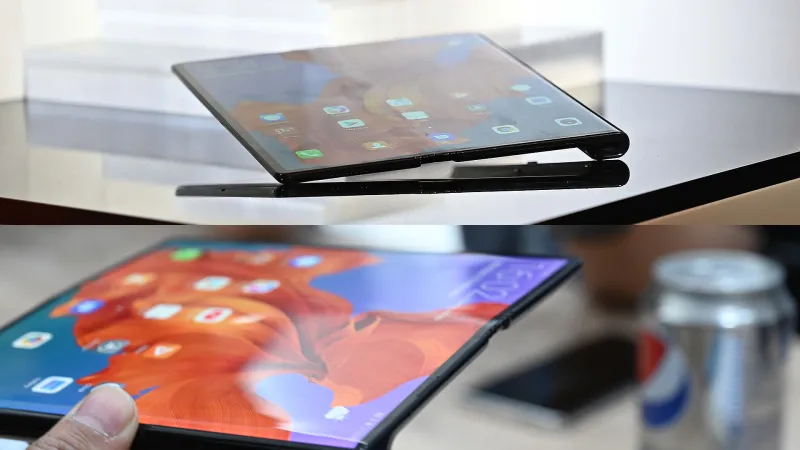


Not knowing the origin of the tech can be a concern for those worried about durability, and there are signs the Mate X could have problems. Huawei had a handful of Mate X’s on display, some of which showed a suspicious wrinkle down the middle of its screen. This had some questioning the veracity of Huawei’s durability claims.


Though in some ways, the wrinkle itself could be a non-issue, because when viewed from head-on, or from anything other than very acute viewing angles, you can’t actually see the wrinkle. The wrinkle also wasn’t present on every Mate X I saw, though that’s not very surprising, as some units probably saw a lot more use than others.


Also Read: How to Download and Install Huawei USB Drivers for Windows

The other concern is that with the use of plastic instead of glass for the top protective layer on flexible displays, they could be more prone to drops damage from otherwise innocuous things like coins or keys, objects which for the past few years haven’t really posed a threat to modern smartphone displays. Regardless, until devices like the Mate X and Galaxy Fold actually become available in the wild, we won’t know how tough bendable phones really are.


Another small worry is Huawei’s claims over the Mate X’s purported 5G abilities, which allegedly can hit download speeds up to 4.6 Gbps on a sub-6GHz network. If true, that would be twice the max download speeds obtainable by Qualcomm’s X50 5G modem, though as industry analyst Patrick Moorhead pointed out on Twitter, only something running on millimeter wave 5G should be able to reach transfer speeds that fast.


But even with the questions, what Huawei showed off at MWC with the new Mate X was still revolutionary. And even more than before, I’m convinced that unlike 3D TVs and LaserDisc, devices with flexible screens aren’t just some fad. I’m just hoping that by the time bendy gadgets actually become affordable, most of the kinks will be worked out by then.Sponsor ads:Odin Flash Tool for Samsung Devices

The Mate X is scheduled to go on sale this June, two months after Samsung releases the Galaxy Fold.
Sponsor ads:Best 5 Android Apps to Change Photo Backgrounds
Sponsor ads:5 Best Video to MP3 Converter to Extract Audio from Video FilesSponsor ads:How to Go Live on Tik Tok/Musical.ly in 2019
How to Easily Solve “iTunes Won’t Open” on Windows 7


Is iTunes driving you crazy again? Have you set up everything for an awesome jamming experience but iTunes just won’t open? Don’t worry. You are at the right place to learn everything you can do to get iTunes working perfectly again.
iTunes may fail to start for various reasons:

The presence of corrupt application files that prevent iTunes from opening

An outdated security system

Even outdated drivers on your system
No matter what is causing iTunes’ failure to start, there’s a lot you can do to solve the problem.

Method 1: Use iTunes Repair Tool to Fix “iTunes Won't Open Windows 7”

Method 2: Start iTunes in Safe Mode

Method 3: Disconnect Your Computer from the Internet

Method 4: Configure Your System Firewall on Windows 7

Method 5: Create a New User Account

Method 6: Create a New iTunes Library

Method 7: Reinstall iTunes by the Right Order

Also Read:How to Recover Files and Data from Formatted Hard Disk Drive

Also Read:5 Best Volume Booster Apps for iPhone/iPad to Make Your Music Louder 2019


2. Start iTunes in Safe Mode


If you prefer to try and fix the problem by yourself, you can try starting iTunes up in safe mode.


Press and hold “Shift” and “Ctrl” keys at the same time on your keyboard while starting iTunes. This will open it in safe mode. Safe mode isolates iTunes from 3rd party plugins and scripts that may affect its performance.


Sponsor ads:MBR vs GPT: Which One is Better? Sponsor ads:Download Twitch Videos for Free

Also Read:How to Recover Lost Files after System Restore

Also Read:How to Permanently Delete Photos on Android Phone without Recovery

Also Read:Best Package & Shipment Tracking Apps for iPhone/iPad in 2019


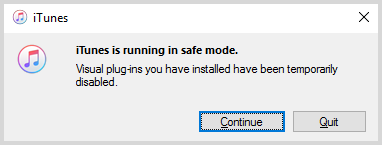
When iTunes starts, you will see a message says “iTunes is running in Safe Mode. Visual programs you have installed have been temporarily disabled.”. If iTunes opens and functions smoothly in Safe Mode, you just need to remove all non-Apple external plug-ins and try iTunes again.


3. Disconnect Your Computer from the Internet


You can also try disconnecting your windows 7 PC from the internet by simply disabling your Wi-Fi or unplugging the Ethernet cord.


This is because errors in communication with the Apple Store may cause iTunes to stop working. If iTunes works well without an internet connection, then you need to update your PC drivers.
4. Configure Your System Firewall on Windows 7


The problem could be from your firewall. In certain situations, firewalls may block a program’s ability to connect to the internet.


Step 1: Press the Windows key on your keyboard to open Start menu.


Step 2: Type "firewall.cpl" in the search bar and press Enter to open the Windows Firewall window.


Step 3: Choose "Allow an app or feature through Windows Firewall" and then "Change settings".


Step 4: Select iTunes for both private and public networks and Bonjour for private networks only.


Step 5: If you cannot see iTunes or Bonjour listed, tap "Allow another program" and locate the iTunes or Bonjour.


Step 6: Once located, tap "Add" and then "OK" to exit the firewall.
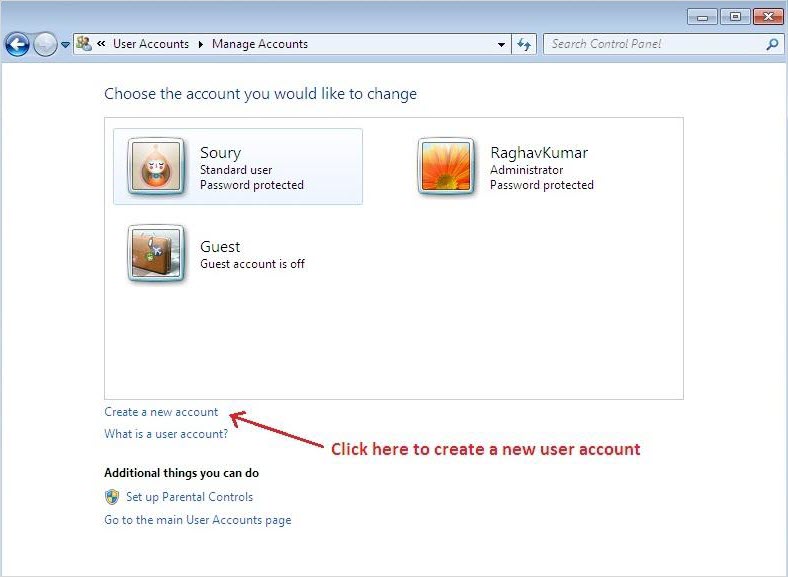
5. Create a New User Account


At times, the problem could be caused by a particular user account. You can try creating a new user and account and changing to it. If the problem goes away, then it was caused by your user account.


Step 1: You can change your user account on Windows 7 by going to Control Panel.


Step 2: Choose User Accounts and Family Safety and then User Account.


Step 3: Click on Manage another account. You will be asked for the administrator password.


Step 4: Click on Create a new account and enter a name for this account. Finally click on Create Account.


If the issue continues, then it may be a system issue. You need to thoroughly uninstall iTunes and its related software componentsand reinstall iTunes again.


If the problem goes away, then it means that there are some content files in the earlier account that affect iTunes. You can fix this by following the next tip.
6. Create a New iTunes Library


Try this if your iTunes won’t open just on some certain Windows user accounts.


Step 1: Open your iTunes folder in “C:\users\username\My Music\iTunes”.


Step 2:Move iTunes library.itl to your desktop. Your library will now be empty when you start iTunes.


Step 3: On the iTunes, go to File > Add Folder to Library.


Step 4: Open your music folder, then select and drag a file to the iTunes window. If it adds and playsback, continue adding more. If it fails to add, then it is the file that has a problem. Add other files and leave out the ones that failed to add.Sponsor ads:


Gihosoft Free iPhone Data Recovery:https://www.gihosoft.com/iphone-data-recovery-free.html


Gihosoft iPhone Data Recovery Free


Free iPhone Data Recovery Software for Windows/Mac


Recover up to 12+ types of files, including contacts, SMS, photos, WhatsApp, Viber, notes, etc.


Restore lost data from iOS devices directly or from iTunes and iCloud backup


Recover iPhone data lost due to iOS upgrade/jailbreak, accidental deletion, device lost or broken


Support all the latest iPhone, iPad and iPod Touch


Both Free and Pro version.


If you lost data after you updated to a new iPhone, you can always use Gihosoft iPhone Data Recovery to get the data back from the old iPhone or backup.You may also like: iphonerecovery.com


If you use android phones, please choose Gihosoft Android Data Recovery.


With Gihosoft Android Data Recovery, no longer afraid of data loss!


Must read:Youtube video downloader for pc


Gihosoft RePicvid Free Photo Recovery Software provides a free photo recovery software for windows to help users recover the deleted or lost photo for free.


Jihosoft Android Data Recovery: the best Android Data Recovery software for Windows and Mac to recover deleted contacts, messages, photos, videos, WhatsApp and etc from Android devices.Tips:How to transfer messages from iPhone to iPhone


jihosoft Free iPhone Data Recovery

Top 5 Methods to Fix iPad 'Cannot Connect to iTunes Store' Issue


'Cannot connect to iTunes Store' is a common problem that many iPad users face. The problem can show up for a number of reasons and it can be very annoying because it stays there even after you restart the device. Fortunately, there are a number of solutions to fix this issue.
Top 5 Methods to Fix iPad 'Cannot Connect to iTunes Store' Issue


Following are some fixes you can try:


Method 1: Sign Out and Then Sign Back into Apple ID


Method 2: Check the Internet Connection


Method 3: Update to the Latest iOS


Method 4: Check Date and Time


Method 5: Reset Network Settings


Bonus Tip: Best iTunes Alternative in the World
Before Attempting Other Fixes, Check Apple's System Status First

Sponsor ads:MBR vs GPT: Which One is Better?

Sponsor ads:Download Twitch Videos for Free


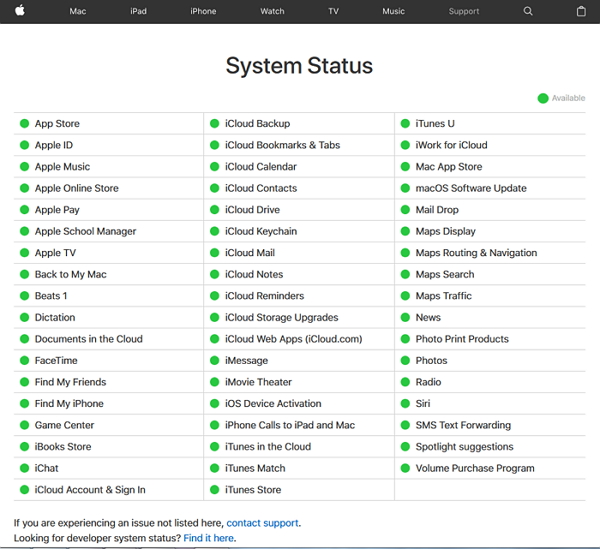
Apple System Status is a webpage that lists all the important services (iCloud, Stores, etc.) from Apple and their working status. You can visit that page (https://www.apple.com/support/systemstatus/) to check the status of iTunes Store. If there is a green circle beside the service, then it means it is working. If there is an orange triangle beside a service, then it means that there is some issue.


Sign Out and Then Sign Back into Apple ID


This is a simple fix for 'Cannot Connect to iTunes Store' on iPad. You can sign out/sign in using Settings app on your iPad.


Open Settings on your iPad and navigate to iTunes & App Store.


Select your Apple ID and then tap the Sign Out option.


Now sign in again by returning to iTunes & App Store section, and selecting the Sign in option.


Check the Internet Connection


Poor internet connection is one of the primary reasons iPad cannot connect to iTunes Store. That's why it is recommended that you check your internet connection and make sure that it is working as expected. Try these troubleshooting step one by one:


Turn off Wi-Fi on your iPad, wait for a few minutes and then turn it back on.


Switch to another Wi-Fi network, if it is available.


Check your internet connection by opening a website on your web browser.


Contact your internet service provider if you cannot open any website on your web browser.
Update to the Latest iOS


iOS updates are equipped with many fixes and improvements, that's why they are very important and you should always use the latest iOS version in your iPad. If your iPad is facing connectivity issue with iTunes Store, then it is highly recommended that you update your iPad to the latest iOS. There is a high possibility that your problem will be fixed. Follow these instructions:


Make sure your iPad is connected to a working Wi-Fi network.


Open Settings and navigate to General > Software Update.


Tap Download and Install to proceed.


Check Date and Time


This is one of the most popular methods that is used to solve various iDevice problems. Although it may seem like a smaller fix, it has been proven to solve issues such as "iPad cannot connect to iTunes Store" issue. That's why it is highly recommended that you check date and time and make sure that they are set automatically in your iPad. Follow these instructions:


Open Settings on your iDevice.


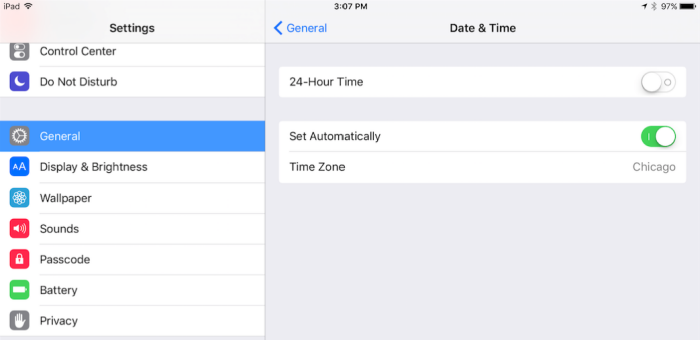
Navigate to General > Date & Time


Now find an options called 'Set Automatically' and make sure that it is set to ON.


After performing the above mentioned steps, open iTunes Store and see if the problem is fixed.
Reset Network Settings


This is another fix that has been proven to solve many iPad issues. Whether you are using mobile data or a Wi-Fi connection, you can attempt this fix and see if it solves iTunes Store connectively problem in iOS.


First, perform these steps before proceeding to resetting network settings:


Switch off your mobile data and then switch it back on.


Make sure that your data plan is active.


Open other applications or a website on Safari web browser and see if its opening without any issue. If it isn't then it means that the problem is related to your data carrier.


Then proceed to resetting your network settings. Follow these instructions:


Open Settings on your iPad.


Navigate to General > Reset and find and select Reset Network Settings.


Input your passcode to confirm your action.


Keep in mind that once you reset the network settings, you will need to re-enter your Wi-Fi password to access the internet.


Sponsor ads:MBR vs GPT: Which One is Better? Sponsor ads:Download Twitch Videos for Free


Bonus Tip: Best iTunes Alternative


Sponsor ads:


Gihosoft Free iPhone Data Recovery:https://www.gihosoft.com/iphone-data-recovery-free.html


Gihosoft iPhone Data Recovery Free


Free iPhone Data Recovery Software for Windows/Mac


Recover up to 12+ types of files, including contacts, SMS, photos, WhatsApp, Viber, notes, etc.


Restore lost data from iOS devices directly or from iTunes and iCloud backup


Recover iPhone data lost due to iOS upgrade/jailbreak, accidental deletion, device lost or broken


Support all the latest iPhone, iPad and iPod Touch


Both Free and Pro version.


If you lost data after you updated to a new iPhone, you can always use Gihosoft iPhone Data Recovery to get the data back from the old iPhone or backup.You may also like: iphonerecovery.com


If you use android phones, please choose Gihosoft Android Data Recovery.


With Gihosoft Android Data Recovery, no longer afraid of data loss!


Must read:Youtube video downloader for pc


Gihosoft RePicvid Free Photo Recovery Software provides a free photo recovery software for windows to help users recover the deleted or lost photo for free.


Jihosoft Android Data Recovery: the best Android Data Recovery software for Windows and Mac to recover deleted contacts, messages, photos, videos, WhatsApp and etc from Android devices.Tips:How to transfer messages from iPhone to iPhone


jihosoft Free iPhone Data Recovery

How to Block a Number on iPhone


How to Block a Number on iPhone
You may want to block a certain number for a variety of reasons. Sometimes it is those hoax marketing calls which get us nervous and at other times it might be the guy you have recently broken with or the friend you just don’t get along with anymore. So, in any of the cases, knowing the tricks of how to block a number on iPhone will definitely turn out to be handy. Let us see the details.


Part 1. How to block a number on iPhone from the Phone App

Sponsor ads:View & Share Saved WiFi Password on iPhone Xs Max/X/8/7/6s

Sponsor ads:Top 7 Best Free DVD Burner for Mac You Should Know | 2019 Edition


Part 2. How to block a phone number on iphone via Message App


Part 3. What if the caller hides their caller ID? How to Block Hidden Number
Part 1. Block a number on iPhone from the Phone App

If you want to block numbers that have been calling you recently, here is what you need to do.


Open the phone app and then head to the ‘Recent’ tab.


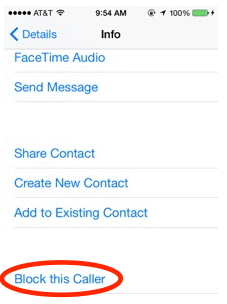
Now, tap on the blue information icon and scroll down in the list that follows.


Tap on ‘Block this caller’.

Sponsor ads:Transfer Calendar from Android to Android

Sponsor ads:6 Best Running Apps For iPhone & Apple Watch to Keep Your Fitness


You will get a confirmation alert. Tap on ‘block contact’ to confirm the action.


Part 2. Block a phone number on iPhone from Message App

If you want to block a number that has been messaging you, here is what you need to do.


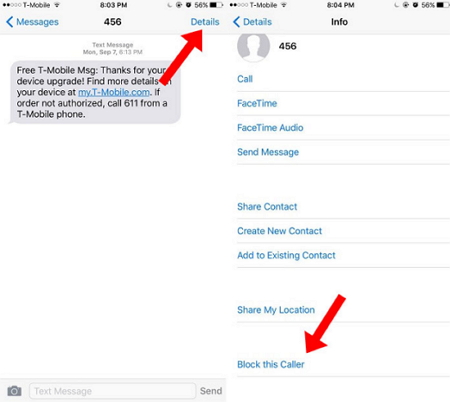
Open the ‘Messages’ app on your phone and then tap on the conversation you had with them.


Now, once again tap on the blue information con and then tap on the number which would be present at the top of the details.


Now, tap on ‘block this caller’ and then when the confirmation pops, tap on ‘block contact’ and you will be all set.


Part 3. What if the caller hides their caller ID?

Let us see the steps for the times when the caller is smart enough to hide the details.

Download a call-blocking app from App Store

You can find lot of apps that seem to offer this feature. Ever since iOS10 was launched, Apple offered the option to developers to allow them to do a lot more. With Call Kit, they can screen the incoming phone calls to the device.One of the possible app you can use has to be Callblock. Download this app and then select the kind of call you want to block and that is it.

Use do not disturb mode

The do not disturb mode can help you silence the calls from those contacts which your phone doesn’t recognize. Here is how you can do it.

Head to ‘Settings’ and then scroll down the list and you will find ‘Do not disturb’.

Tap on it and then for the option ‘Allow calls from’, you can tap on ‘All contacts’. This means that you will not receive calls from numbers which are not saved in your contact list. This can however silence a lot of useful calls too which you may not have saved as contacts.


Contact local Apple company

Also, you can contact your local phone company and see the kind of help they can offer. Some of them have a monthly plan which allows you to steer clear of marketing alls. If you are being harassed or threatened by a certain number, the Company may help you get details of the number for police investigation.
Part 4. How to Retrieve Deleted Contacts on iPhone without Backup

Sponsor ads:

Gihosoft Free iPhone Data Recovery:https://www.gihosoft.com/iphone-data-recovery-free.html

Gihosoft iPhone Data Recovery Free

Free iPhone Data Recovery Software for Windows/Mac

Recover up to 12+ types of files, including contacts, SMS, photos, WhatsApp, Viber, notes, etc.

Restore lost data from iOS devices directly or from iTunes and iCloud backup

Recover iPhone data lost due to iOS upgrade/jailbreak, accidental deletion, device lost or broken

Support all the latest iPhone, iPad and iPod Touch

Both Free and Pro version.

If you lost data after you updated to a new iPhone, you can always use Gihosoft iPhone Data Recovery to get the data back from the old iPhone or backup.You may also like: iphonerecovery.com

If you use android phones, please choose Gihosoft Android Data Recovery.

With Gihosoft Android Data Recovery, no longer afraid of data loss!

Must read:Youtube video downloader for pc

Gihosoft RePicvid Free Photo Recovery Software provides a free photo recovery software for windows to help users recover the deleted or lost photo for free.

Jihosoft Android Data Recovery: the best Android Data Recovery software for Windows and Mac to recover deleted contacts, messages, photos, videos, WhatsApp and etc from Android devices.Tips:How to transfer messages from iPhone to iPhone


jihosoft Free iPhone Data Recovery

Featured Post

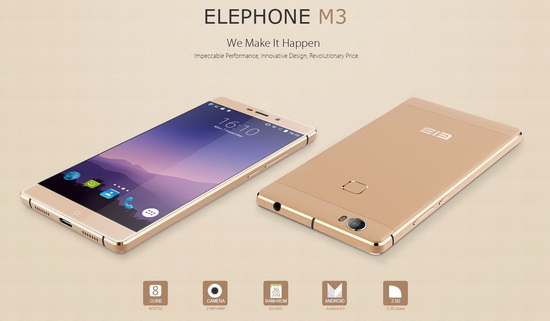
Elephone M3 News

Elephone M3 comes in two versions, both with the integration of aviation aluminum body and have Rose Gold, Champagne Gold, Smoky Grey ...