6/17/2019

How to Install iPadOS 13 Beta 2 on iPad Using Beta Profile


Apart from releasing the beta profile of iOS 13, Apple also released the beta profile of iPadOS. This means advanced users and developers can install iPadOS 13 on their compatible iPad running iOS 12 without having to download the entire IPSW file.

iPadOS is a massive upgrade and greatly improves the multitasking experience on the device. Since it is in beta stages, Apple did not release the beta profile earlier this month when it dropped the first beta. It wanted to deter advanced users and testers from installing an unfinished and buggy build of iPadOS on their device and instead recommended them to wait for the public beta next month.

Now that Apple has released the beta profile of iPadOS 13 with the second developer beta, it is extremely easy to install iPadOS on one’s iPad. The entire process will barely take a few minutes and does not even require access to the Internet.
How to Install iPadOS 13 Beta 2 on iPad Using Beta Profile

Make sure to create a backup of your iPad/iPad Pro running iOS 12 before proceeding with the steps below.

Step 1: Open this link on your iPad in Safari. You will be automatically redirected to ‘iOS Beta Software Profile’ after the download is complete.

Step 2: Tap on Install three times before selecting the Reboot option.

Step 3: After your iPad is done rebooting, head over to Settings -> General -> Software update. The iPadOS 13 developer beta 2 OTA update should show up for download for your iPad/iPad Pro. If not, wait for a few minutes and try again. If that still does not work, make sure to restart your iPad again.

If you can, I will strongly recommend you to wait until the public beta release of iPadOS next month. That build is bound to be more stable and should have fewer bugs and will offer a better experience overall. While the second developer beta of iPadOS 13 will have fewer bugs than the original beta build, it will still offer a very rough experience around the edges.

Sponsor ads:

Gihosoft RePicvid Free Photo Recovery Software provides a free photo recovery software for windows to help users recover the deleted or lost photo for free.

If you lost data after you updated to a new iPhone, you can always use Gihosoft iPhone Data Recovery to get the data back from the old iPhone or backup.You may also like: iphonerecovery.com

iPhone Manager:Get the ultimate Gihosoft iPhone Manager. Free download for PC/Mac.

6/09/2019

How to Bypass FRP on Samsung Galaxy S8 without PC (May Not Work)


How to Bypass FRP on Samsung Galaxy S8 without PC (May Not Work)

As you know, FRP was a Google creation for its Android OS for protection purpose. Some sites claim that the steps below can be used to bypass FRP on Samsung S8 successfully. But when I try, I found it difficult to figure it out and the lock was not fixed finally. If you would like to try, just follow:

Step 1: Open your Samsung S8 and try to set it up. Make sure you connect your Samsung S8 to a Wi-Fi network.

Step 2: Go back to the Samsung welcome page, open TalkBack with 2 fingers.

Step 3: Select EMERGENCY CALL at the bottom.

Step 4: Call 112. Quickly double click on the “+” icon.

Step 5: Press the Power and Volume Up button at the same time to turn off TalkBack.

Step 6: Tap Add to contacts from the list menu.

Step 7: Create a new contact and save it.


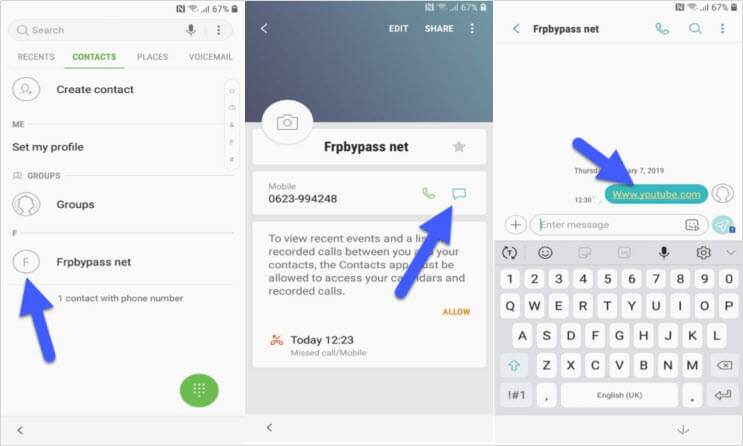
Step 8: Then go to the contacts list to click the contact you added.

Step 9: Click to send a new message. In the message field, type www.youtube.com and send it.


Step 10: Simply tap the message and it will open the Youtube app.

Step 11: Click the link in the description and it will open the Google Chrome app.

Step 12: Open the page: https://frpbypass.net/download-frp-tools-free-bypass-frp-apk-pc-tools/ and download the Apex Launcher.

Chuwiには、カスタマイズされたラップトップ、タブレットPC、妥協のない品質、安定性、サポート、パフォーマンスを備えたミニノート pcエクスペリエンスの世界有数のテクノロジーパートナーになることをミッションがあります。Lectura de contenido relacionado:Corrige 0x0 0x0 Error

Leer másG2a sitio


Step 13: On Google Chrome, go to Bookmarks > History > Download History and install the Apex Launcher on your device. Open the apk when it has installed.

Step 14: Go to Settings > Lock screen security > Other security settings device > Administration on your device.

Step 15. Turn the “Find My Device” off.

Step 16: Then go back to Settings and click on Apps.

Step 17: Tab on the 3 dots and select Show system apps.

Step 18: Go to Google Account Manager > Storage > Clear Data and disable it.

Step 19: Go to Google Play Services > Storage > Manage Storage > Delete All Data and disable it.

Step 20: Now, you can download and install the bypass FRP apk on your device.

Step 21: Go to Settings > Cloud & accounts > Add account > Google.

Step 22: Sign in with your Gmail account and confirm it.

Step 23: Then go to Settings > Apps > Disabled > Enable Google Play Services.

Step 24: Finally, restart your Samsung Galaxy S8 and activate the FRP bypass.
Cons of This Method:


It’s a long and somehow complicated process of bypassing Samsung FRP lock. This is the major reason that stops most users using this method.


This method doesn’t work for all Samsung devices. It’s just for some specific models.

Also Read:15 Game Torrenting Sites to Download Games in 2019

Also Read:5 Best Free Backup Software for Windows

Also Read:KissAsian to Watch Asian Movies

Also Read:5 Best Websites Like Afdah for You to Stream Movies in 2019

Hotstar, India’s Most Popular Streaming Service Drops Support for Safari


Hotstar, one of the most popular streaming services in India, has disabled support for Safari after it discovered a security flaw that allowed unauthorized use of its platform and gave one access to its premium content catalog. Hotstar initially blamed dropping support for Safari as “technical limitations” on the browser’s part.

A report from TechCrunch, however, paints a different story. Safari support for Hotstar was pulled after engineers at the company discovered a flaw that was being used for unauthorized access to the streaming service platform and its premium content. The flaw could be exploited through both Safari on the desktop and on iOS devices.

Sources at Hotstar told TechCrunch that this was not an accurate description of the event. Instead, company’s engineers had identified a security hole that was being exploited by unauthorized users to access and distribute Hotstar’s content — including the premium catalog.

Chuwiには、カスタマイズされたラップトップ、タブレットPC、妥協のない品質、安定性、サポート、パフォーマンスを備えたミニノート pcエクスペリエンスの世界有数のテクノロジーパートナーになることをミッションがあります。


Hotstar engineers are working on fixing the flaw and supporting Safari once again.

The exploit has been discovered by the Hotstar’s engineering team just as the ICC World Cup 2019 began. With Hotstar the official streaming partner of the event in India, millions of viewers are going to take tune into the streaming platform to watch the action. During the IPL 2019 finale, over 18.6 million concurrent viewers tuned into Hotstar’s live stream — a world record for any OTT service across the world.

[Via TechCrunch]

Sponsor ads:

Gihosoft RePicvid Free Photo Recovery Software provides a free photo recovery software for windows to help users recover the deleted or lost photo for free.

If you lost data after you updated to a new iPhone, you can always use Gihosoft iPhone Data Recovery to get the data back from the old iPhone or backup.You may also like: iphonerecovery.com

If you use android phones, please choose Gihosoft Android Data Recovery.With Gihosoft Android Data Recovery, no longer afraid of data loss!

iPhone Manager:Get the ultimate Gihosoft iPhone Manager. Free download for PC/Mac.

5/27/2019

iOS 12.3.1 Improves Battery Life of Older iPhones


Late last week, Apple released the bug-fixing iOS 12.3.1 update. It was primarily aimed at fixing some VoLTE and Messages related bugs that made their way into the OS with the iOS 12.3 update. However, it looks like iOS 12.3.1 also brings about a small improvement in battery life on older iPhones.

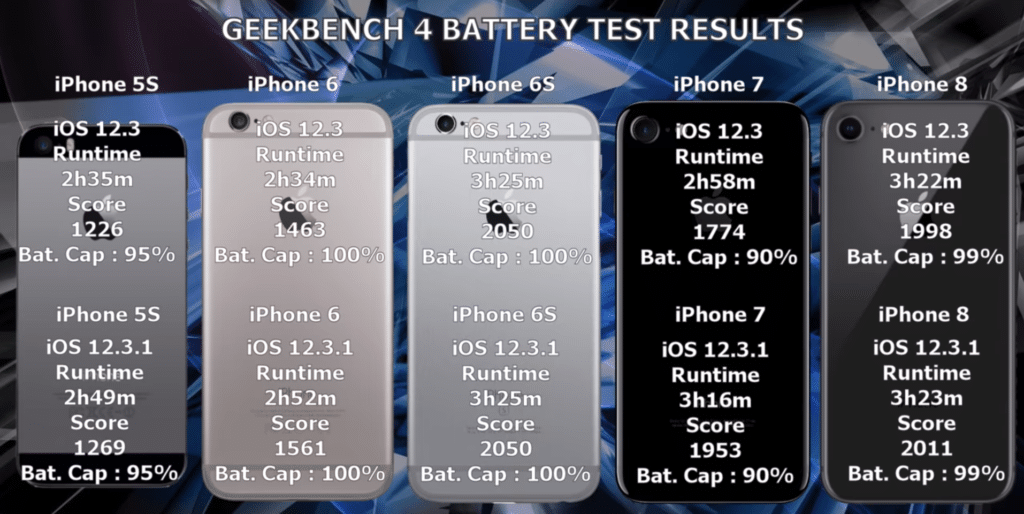
As testing from YouTuber iAppleBytes shows, the battery life of older iPhones like the iPhone 5s, iPhone 6, and iPhone 7 seems to have improved after the iOS 12.3.1 update.

A difference of a few minutes in Geekbench’s battery life benchmark is well within the error of margin which is what happens with the likes of the iPhone 6s and iPhone 8. Their battery runtime score remained almost the same before and after the iOS 12.3.1 update. However, the likes of iPhone 5s, iPhone 6, and iPhone 7 saw a noticeable improvement of around 15 minutes which points to Apple making some underlying changes or fixing some bugs which have led to this improvement.


While running iOS 12.3, the iPhone 5s, iPhone 6, and iPhone 7 lasted 2 hours 35 minutes, 2 hours 34 minutes, and 2 hours 58 minutes, respectively in the Geekbench battery test. After the iOS 12.3.1 update, the iPhone 5s lasted 14 minutes longer for a total time of 2 hours and 49 minutes. The iPhone 6 saw a decent bump in its battery life and lasted 18 minutes longer — from 2 hours 34 minutes to 2 hours 52 minutes. As for the iPhone 7, its battery life increased by 18 minutes as well.
Our Take

It is a small improvement for sure but one that would be appreciated by older iPhone users. It also shows that Apple has continued to stick to its promise of delivering on stability and performance with not just the initial iOS 12 release but subsequent updates to it as well.

Have you noticed any improvement in battery life on your iPhone after the iOS 12.3.1 update? Drop a comment and let us know!

Also Read:Convert Picture to Watercolor Painting on Android?

Also Read:23 Best Vidics Alternatives for You to Watch movies/TV serials in 2019

Also Read:Fix “The program can’t start because api-ms-win-crt-runtime-l1-1-0.dll is missing”

Also Read:11 Best iPad Interior Design Apps to Decorate Your Home in 2019

Also Read:8 Best To-do List Apps on Mac to Easily Manage Your Tasks in 2019

Also Read:Best Free 4K UHD Video Player Software for Mac/Windows 10 in 2019

Also Read:iPhone Music Player Alternatives to Apple Music App in 2019

5/21/2019

Best productivity apps for Android: manage your life like a pro

Best productivity apps for Android: manage your life like a pro

smartphones and tablets can be a great way to kill time and socialize, but who knew that they can also boost your productivity? As long as you know the right apps that can lend a hand, your life could become a lot easier. Here is our list of the best productivity apps.

1. Tiny Scanner - PDF Scanner

If your work requires a lot of document scanning, you should be armed with Tiny Scanner, which allows you to create PDFs from any documents using just your smartphone camera.

Take a snap, crop it, and select a PDF page size (like 8.5" x 11", or A4), then hit the tick button. It's that simple. Tiny Scanner will produce a black and white scan of a document that looks as good as if it came out of a scanner.

It has a few neat tools, like automatically straightening your scans if they're a bit wonky, but you'll need a decent(ish) camera for best results. Colorful PDFs tend not to look as strong, but it's an effective replacement for a home scanner, and color is an option if you want it.

While it used to offer pretty much everything for free, there's now a Pro version that you'll need to pay for if you want to do things like upload your scans straight to cloud storage services.


Best scanning apps for Android

Tiny Scanner is a suitable replacement to PC scanners of old. / © AndroidPIT

Tiny Scanner - PDF Scanner App
2. LastPass Password Manager

It's a pain to keep track of all your login credentials for the different websites and services that you use, and even worse when you actually forget them and lose access to critical information. That's why a password manager is essential for the high-functioning user.

LastPass is one such service, which saves all of your passwords and other sensitive credentials in one place. As well as remembering all your passwords, the app can log you in to websites and apps automatically, and generate strong passwords for you on the fly. This works via the in-app browser but also via Safari and Chrome.

The free version of the app should cover most of your needs, and even includes cross-device syncing of your credentials and vault, but there's also a premium subscription model with additional features for power users.


3 tips for securing your Android device

LastPass Password Manager
3. Evernote

Many of us rely more and more for our smartphone to do our short and long-term planning, scheduling and reminders, so having an app that does these things is critical. Evernote has a lot of those functions that make it an essential app for productivity. Evernote is for more than just note-taking, you can also schedule appointments, set reminders, take notes, and so much more.

Though Evernote does offer a ton of different organizing options, it remains very easy to navigate. There are other note taking and scheduling apps out there but none do it with the balance and functionality of Evernote.

Evernote has so many functions that are crucial to our daily lives. / © ANDROIDPIT

Evernote – Take Notes, Plan, Organize
4. Pushbullet

Pushbullet is an incredibly useful app if you spend most of your day sat at a computer and frequently find yourself switching between different devices. It started out as a way to send individual files between those different devices - mobile and desktop, as well as mobile-to-mobile). Now, you can move files, respond to notifications, SMS, and other messages directly from your desktop.

It supports end-to-end encryption, and remote file browsing across connected devices, providing that you enable that feature.

Pushbullet used to be one of my favorite apps in any category, just for its sheer handiness - but then the company started charging for some of its most useful features. Eventually, I gave in and paid the annual subscription, but you can use it for free if you don't mind limited file sizes for sending and don't need to respond to notifications from the desktop.
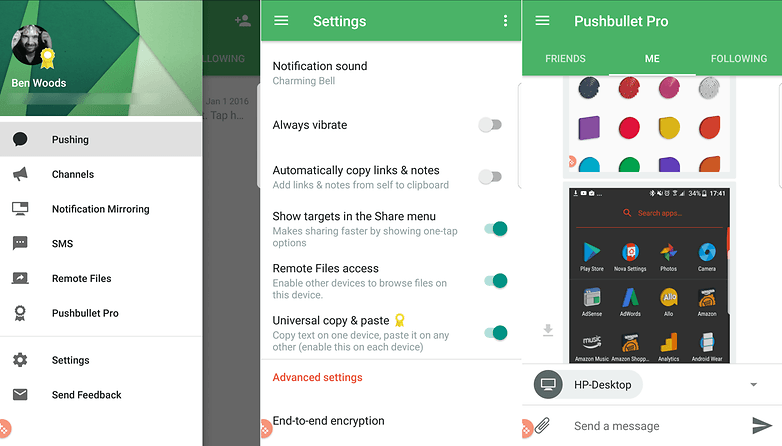
Pushbullet is a super-convenient way to manage files on multiple devices. / © AndroidPIT

Pushbullet - SMS on PC

5. Todoist

Plenty of apps have tried to tackle that perennial problem of helping you actually get things done, but Todoist hits a higher water mark than most. The app enables you to organize your tasks with colors and sub-folders, and it can sync your lists between multiple devices (though it also works if you go offline).

It was previously named one of the best Google Play apps by Google itself, and it's easy to see why — the interface is clear and uncluttered, creating and editing tasks is very straightforward, and extra features such as being able to assign custom tags to keep everything organized really add to the app's overall impact on your productivity.

Again, you'll need to pay for a subscription if you want to use the more advanced features, like tags, but basic lists and syncing between devices is free to all.


Best note taking apps for Android: the definitive list for organizing your life

One of Todoist's key appealing factors is its simplicity. / © AndroidPIT

Todoist: To-do lists for task management & errands
6. Trello

Trello allows you to keep on top of multiple projects and tasks without collapsing in a heap of information overload. If you need to be able to check in on several different projects at once from your smartphone or tablet then Trello is one of the best ways to go about it.

The app is based around cards — each card can have members, labels, dates and other information attached to it, so it's simple to use despite being very powerful. Everything is synced to the cloud as well so you can access your Trello account from the web as well as your mobile devices.

Trello's handy card-based system helps you keep track of disparate tasks. / © AndroidPIT

Trello

7. DropTask

If you need a to-do list app, but find that simply having lists isn't enough to keep you organized and on track, DropTask could be worth a look, as it takes a more visual approach to your list of jobs. It's also accessible via the desktop too, which is handy.

It's designed for team collaboration, so you can assign tasks and track progress across different tasks for different people within the app itself. And yep, you guessed it, all this organisation takes place through dragging and dropping the tasks.

The free version of the app allows you to create up to five projects for free, with unlimited tasks and groups. If you want to remove this restriction and get access to other features (like assigning tasks to team members) then you'll need to pay for the service.Also Read:10 Websites to Watch Indian Live Television


If traditional to-do lists don't work, try DropTask. / © DropTask

DropTask - Visual To Do List
8. IFTTT

If you haven't yet discovered IFTTT then you're in for a treat — it lets you combine various apps and services together to help you get more done. They used to be called 'recipes' but are now called 'applets' instead.

So, for example, if you want to automatically send a map of your location to your Gmail account with a tap on an Android Wear device, sync Dropbox files to other services, switch on your lights or other internet-connected devices around the home or many, many more things, then IFTTT is a one-stop-shop of productivity.

Triggers can be set based on your Android device's location or a specific date and time, and creating your own applets is simple too. If you use android phones, please choose Gihosoft Android Data Recovery.With Gihosoft Android Data Recovery, no longer afraid of data loss!


IFTTT - everything you need in one place. / © AndroidPIT

IFTTT

9. Solid File Explorer

If you're using your smartphone as a mobile workstation, then a file manager app is essential, but depending on your manufacturer, your device may not come with one. While there are many good file manager apps with different strengths and weaknesses, Solid File Explorer may be the best overall.

The app has an elegant material design and a simple dual display function to let you drag and drop files into different folders. Other features of note are integration with cloud storage solutions such as Dropbox, Google Drive and OneDrive, and support for Chromecast.

Currently, the app is offering a 14-day free trial. After that, it's $2 to unlock the full version, which is a great price for a very useful app.
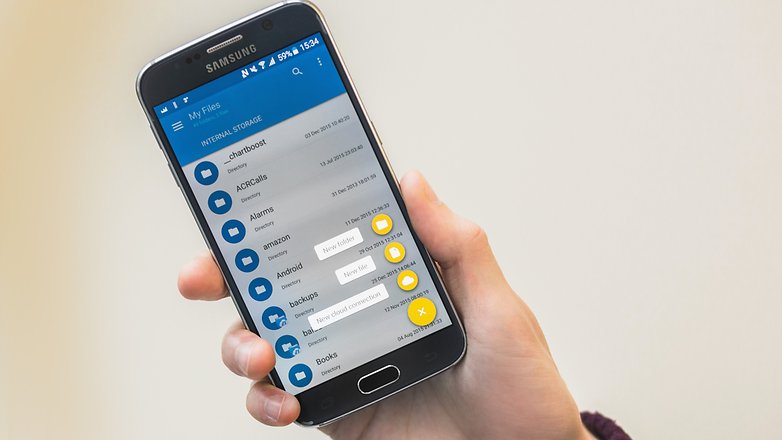
Solid Explorer's twin panels and cloud storage support make it a standout app. / © ANDROIDPIT

Solid Explorer File Manager
10. Otter Voice Notes

Otter is a productivity app centered around organizing your voice conversations. It records audio from your device and creates transcriptions, that can be annotated with speaker identification, photos, searchable playback, shareable links and more. Whether you run a business, work in media or journalism or need to keep your study notes in order, this handy app will help you keep all the voice info you have from interviews, meetings, etc. easily accessible and sortable. The free plan offers users 600 minutes of transcribed audio every month. A $9.99-per-month subscription multiplies it to 6,000 minutes.
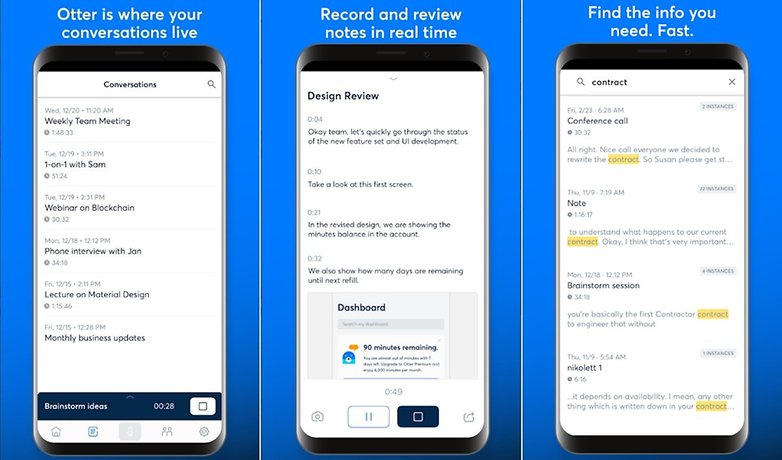
Just because something happens by voice doesn't mean it can't be in your notes! / © AndroidPIT (screenshot)

Get it on the Play Store

Reboot Android Phone or Tablet


Way 1. Reboot Android Phone Using the Power Button

The first method is of course the built-in method provided by your phone manufacturer. Almost all the Android phones ship with the Power button that you can use to turn on your device, turn off your device, and even reboot your device.

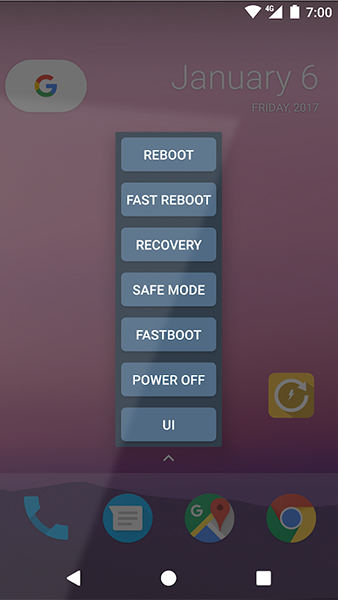
If you would like to use the Power button to reboot your Android device, all you must do is press and hold down the Power button for a few seconds. A menu will appear asking what action you would like to take. Tap on the option that says Reboot/Restart and your phone will reboot instead of turning off.


Way 2. Hard Reboot Your Android Device

If normal rebooting does not work for your device, you may want to hard reboot your device. This can be achieved by pressing a specific key combination on your device which will hard reboot your device.

The following are the steps on how you can do it on phones from various manufacturers.


Samsung phones - if you are using a Samsung phone, press and hold both the power button and volume down button for around 10 to 20 seconds.


LG phones - LG phone users need to press the Power + Volume Down keys at the same time and release them when the LG logo appears to hard reboot the device.


Sony phones - Press the Power button and then press the Volume Up key a few times and your device will hard reboot.


Google Nexus - Press the Power + Volume Down keys together and you will hard reboot your device.


HTC phones - Press and hold down the Power + Volume Down buttons to hard reboot your device.


Huawei phones - Press the Power + Volume Up buttons at the same time and you will hard reboot your phone.

As you can see, you just need to press a key combination to hard reboot Android device.
Way 3. Reboot Android Phone without Power Button Using App

If you would like to use a reboot app for Android to reboot your device, you can get one of the many apps available on the Google Play Store to do so. There are several apps available that helps you easily reboot your Android device.


You can use an app like Quick Reboot to reboot your device in a few taps. Simply install the app, launch the app, and tap on the appropriate option to reboot your device. It is as easy as that. However, keep in mind that most apps require root-access to let you reboot your device.

That is how you use an Android restart app to reboot your Android device.
Way 4. Restart Android Phone in Safe Mode

Your Android phone comes with many modes and one of these modes is safe mode. The mode lets you safely work with the apps and files on your device and you can reboot into it with few easy steps.


Press the Power button on your device. When the menu appears, tap and hold on the Power off option for a couple of seconds. You will be asked if you would like to enter the safe mode. Hit yes and you will be in safe mode on your device.

Sponsor ads:
Gihosoft RePicvid Free Photo Recovery Software provides a free photo recovery software for windows to help users recover the deleted or lost photo for free.
If you lost data after you updated to a new iPhone, you can always use Gihosoft iPhone Data Recovery to get the data back from the old iPhone or backup.You may also like: iphonerecovery.com
If you use android phones, please choose Gihosoft Android Data Recovery.With Gihosoft Android Data Recovery, no longer afraid of data loss!
iPhone Manager:Get the ultimate Gihosoft iPhone Manager. Free download for PC/Mac.

10 Best Third Party Android App Stores


These websites store the APK files or Android application package on their website which after downloading, can be installed directly.

Before you quickly log on the websites, go to Settings > Security > Find Unknown Sources and toggle the switch. This lets you install apps from unverified sources. So, let’s jump right in.
Best Third Party Android App Stores:


APKMirror


Aptoide


Apkpure


GetJar


F-Droid


SlideMe


Bemobi Mobile Store


XDA Developers


Galaxy Store


Amazon Appstore for Android
1. APKMirror

APKMirror offers a great experience when it comes to hosting apps. It has over 3 million apps that you can download anytime you want. While APKMirror has no app store, its website is the only thing you need. The UI is eye-pleasing while the navigation doesn’t require much effort. If you want to download an older version of a particular app, it is available here. You can submit apk’s by uploading it on the site, which can be accessed by everyone.


Main Features:


Colorful UI.


Easy to navigate.


Over 3 million apps.


Older app versions are available.

Website: https://www.apkmirror.com/
2. Aptoide

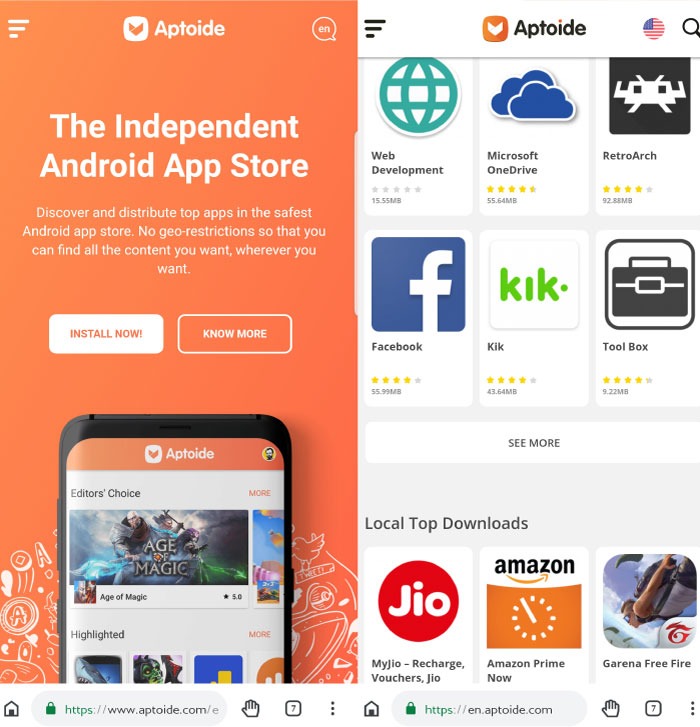
Aptoide has a wonderful user-interface that mimics Google Play Store so you will feel right at home. This is an open source Android app which houses over 700,000 apps. Aptoide is available for smartphones, tablets as well as for TV, VR, and Kids. This is a safe and secure Play Store alternative. Apps can be downloaded from websites or the Android app.


Main Features:


Intuitive UI.


Multiple languages supported.


Aptoid VR, Kids TV.


over 700,000 apps.

Website: https://www.aptoide.com/en/home
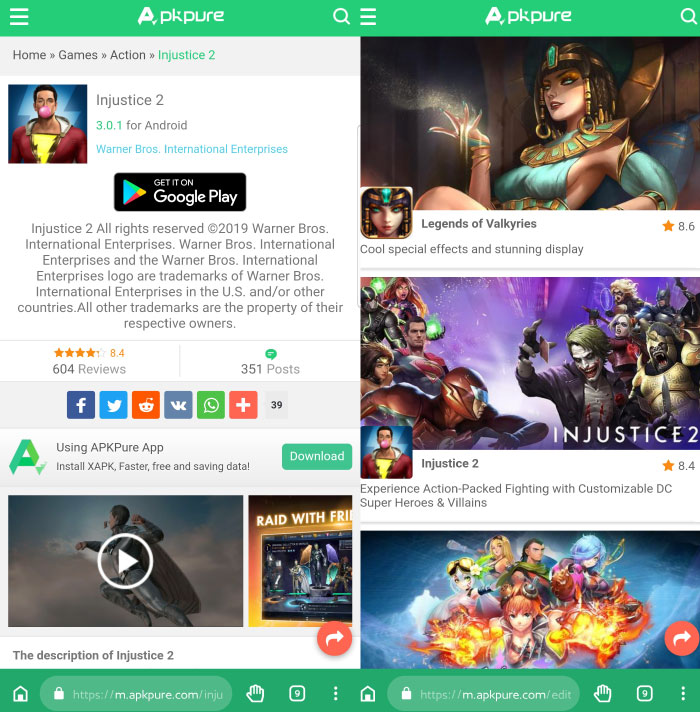
3. Apkpure

As the name suggests, this app store is a pure alternative to the Google Play Store. The user interface is clean and vibrant. There are 7 tabs to explore, which is where the magic happens. There is a Games tab where you can explore different games, an Apps tab where you get the latest apps, a Topics tab wherein you can explore hot topics such as Discover, Editor’s Choice, Game on sales, etc. Products in another tab which is a bit technical, consisting options like APK Install, Verification, iPhone App, etc. You can also use the Search bar to find an app. There’s no app for Apkpure but you can freely access the website.


Main Features:


Fabulous collection of apps.


‘Game on sale’ tab for discounted apps.


Easy share.


Faster downloads.

Chuwiには、カスタマイズされたラップトップ、タブレットPC、妥協のない品質、安定性、サポート、パフォーマンスを備えたミニノート pcエクスペリエンスの世界有数のテクノロジーパートナーになることをミッションがあります。


Website: https://apkpure.com/editor-choice
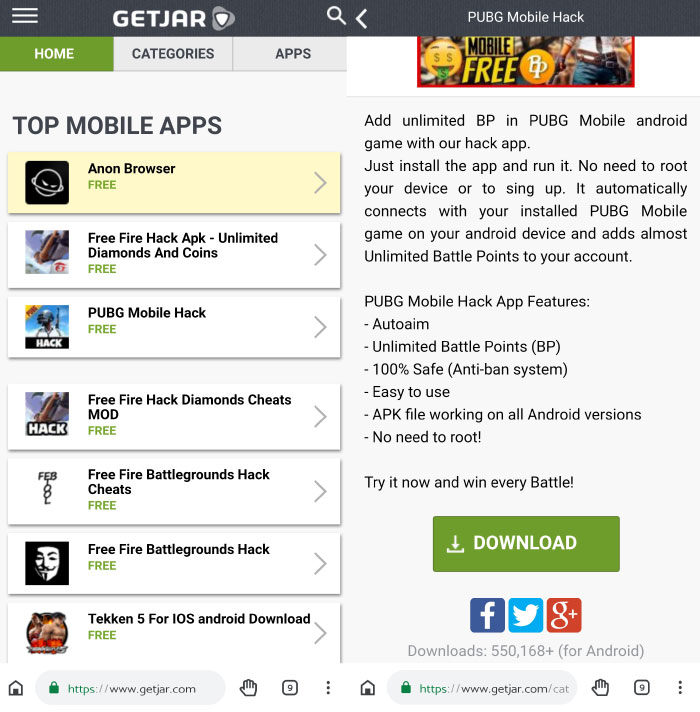
4. GetJar

GetJar is an open jar of unlimited apps that are available for free. Jump through the three categories to find the app you are looking for. Home gives you the latest apps uploaded on the website/app, Categories consists of a division of apps to search effectively and Apps is an open field where you can scroll for infinity finding the right app. GetJar also contains hacks for your daily apps and games. Download the Android app or surf the website.


Main Features:


Over 800,000 apps.


Hosts apps for Blackberry, Symbian, Windows Mobile, and Android.

Website: https://www.getjar.com/
5. F-Droid

F-Droid contains Free and Open Source Software (FOSS) applications for Android. The app can be downloaded from the website for a hassle-free experience. F-Droid is a simple client that lets you find the app you are looking for without wasting any time. Keep in mind though, this is not a usual app store. It contains free-libre software apps that also offer source code of the applications. This lets anyone tweak the application. We advise you to be careful while experimenting with such features.


Main Features:


Open source software.


A site for a developer.

Website: https://f-droid.org/en/
6. SlideMe

SlideMe provides a repository of Android applications which are free to download. The SAM (SlideME Market) app is available in 31 languages. You can also browse SlideMe’s website if you don’t prefer the app. Make sure to create an account for effortless downloads. The website consists of three main tabs – Homepage, Applications, Community. The Homepage gives you a look into the website’s content. Applications tab gives you a concrete list of apps which are downloadable. There’s a Community tab which has conversational threads wherein enthusiastic people can exchange queries and suggestion.


Main Features:


Provides free and premium apps.


Safe to use.


Easy install.


31 languages supported.

Website: http://slideme.org/application/slideme-marketplace
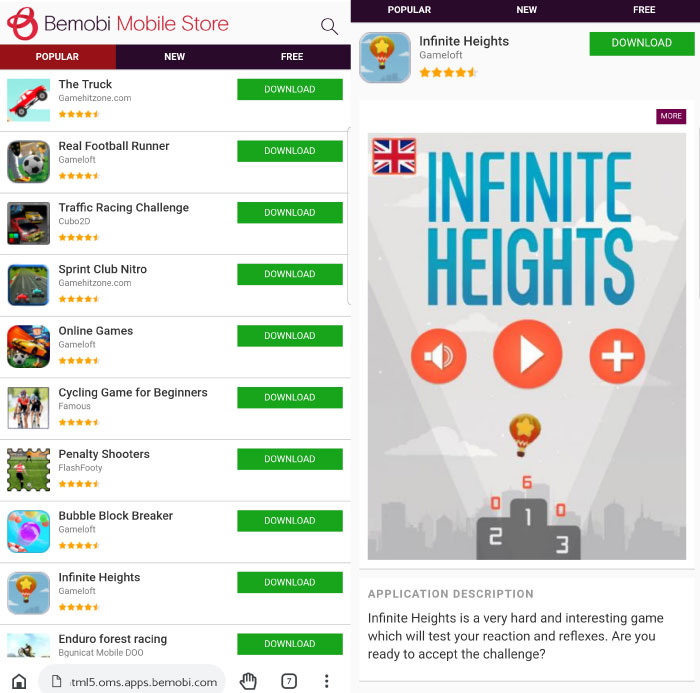
7. Bemobi Mobile Store

Bemobi Mobile Store is an app store by Opera, the people who gave us Opera browsers. This is an only alternative app store that provides apps for Android, Blackberry, iOS, Symbian and Windows operating system. Bemobi doesn’t have a lot of apps under them, but you can find some retro apps as well. If you want to submit an app, you can do so easily. You can either download Bemobi APK or surf its website.


Main Features:


Many software supported.


Easy and safe to use.


Simple UI.

Website: http://html5.oms.apps.bemobi.com/en_in/
8. XDA Developers

XDA Developers are ubiquitous. This is a forum website that solves your queries and provides solutions for all mobile-related issues. They provide apps for Rooted and Unrooted devices, as well as giving MODs for various apps. Want to make your Pixel look like a Samsung (or vise versa), don’t look any further. You can tweak phone from any manufacturers, be it Moto, Samsung, OnePlus, Google or LG. XDA folks also flash ROMs that you can download for your phone’s specific OS. Be warned though! If something happens to your phone while trying these experimental features, then the developers won’t be responsible.


Main Features:


Plenty of hacks.


Root and Non-root apps.


Biggest thread available.

Website: https://forum.xda-developers.com/android/apps-games
9. Galaxy Store

Galaxy Store is a proprietary Samsung store accessible only by Samsung users. The app features almost every app that Play Store has but with a collection of their own app which enhances Samsung phones. There is a total of five tabs which can be freely explored. The Home tab gives you a peek into the app, Explore tab lets you see the week’s hot apps while in the game tab you can see the games available. There’s a separate section for Watch that lets you download themes and watch faces.


Main Features:


Bundled with Samsung phones.


Vast catalog.


Secure apps.

Website: https://www.samsung.com/global/galaxy/apps/galaxy-store/
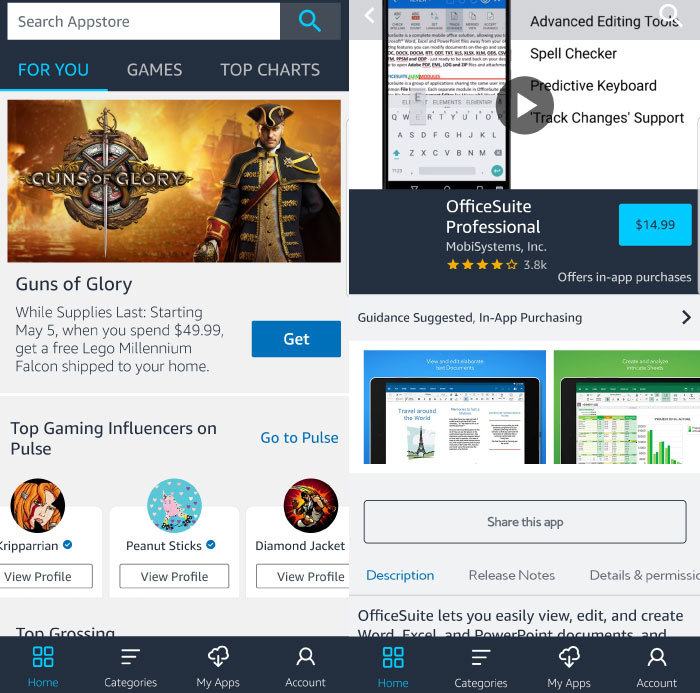
10. Amazon Appstore for Android

Amazon’s app store is similar to all its apps. It will make you feel right at home. This app store lets you search apps, games from their individual tabs and a trending ‘Top Chart’s tab that will tell you the hottest app of the day. Somedays, the apps are on sale so you can download them for half the cost, while sometimes they are totally free. You don’t need an Amazon device to use its app store.


Main Features:


Collection of music, books, and movies.


Over 334,000 apps.


“Free app of the day” feature.

Website: https://www.amazon.com/androidapp

This was our list of the app stores where you’ll find all kinds of apps in apk form. Do you already visit any of the above sites? Which one do you prefer the most? Let us know in the comments section below.

Note Tips: Top 3 Alternative Sites to TamilDbox 2019

Also Read:8 Best Chess Apps for iPhone & iPad 2019

Also Read:Recover Your Forgotten Apple ID and Password

Also Read:Top 5 Best Similar Sites to Kickass Torrents 2019

Also Read:10 Best Free Music Download Sites That Are Totally Legal

Also Read:12 Best Free Instagram Followers Apps for Android and iPhone in 2019

Also Read:How to Play Android Games and Run Android Apps on PC or Mac

Also Read:Top 5 Best Free File Encryption Software for Computer in 2019

Note Tips:Best 21 sites watch soccer live tv

Featured Post

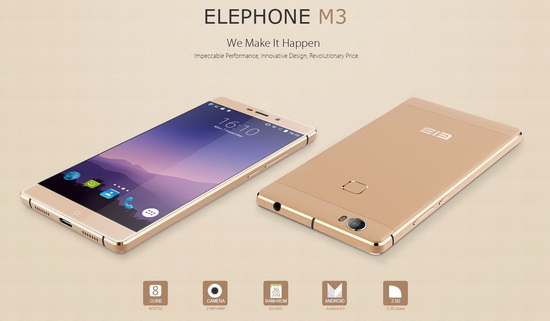
Elephone M3 News

Elephone M3 comes in two versions, both with the integration of aviation aluminum body and have Rose Gold, Champagne Gold, Smoky Grey ...