3/10/2019

iPhone Stuck on Startup Screen

iPhone Stuck on Startup Screen
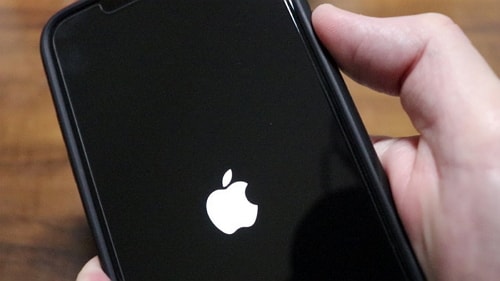
The most annoying thing one can come across is getting their iPhone stuck on startup screen. When you can't move past the startup screen only, what options do you have to use the iPhone? Well, there are numerous reasons, starting from iOS glitches to hardware or software glitches, which might have resulted in this issue. But, worry not! We are not going to leave you stay stuck there. In this article, we are going to introduce top 5 solutions to fix this iPhone stuck on restart screen problem.
Why Your iPhone Gets Stuck on Startup Screen
Before we move on to the solutions, let's first get to know 'why your iPhone gets stuck on startup screen'! As we have already discussed, iPhone stuck on restart screen can occur due to software and hardware issues. In most cases, software issues are the main causes. The software issues particularly include, carrying out operations like restoring iPhone to factory settings, iOS updates and restoring backup that went futile. Other operations that you didn't realize can also result in On the other hand, the hardware problems include underlying hardware issues, battery not having enough charge to power up, or losing connection in internal circuits due to physical damage to device.


2. Do Some Checks

You got to verify that the following points are well taken care of before you proceed.
2.1. Check If Your USB Cable Is Connected Well

A weak, faulty USB cable disrupts the connection and prevents iPhone from starting properly, during an update, restore or factory resetting. Take an Apple approved USB cable and then try fixing your iPhone issues.


2.2. Check If Your iTunes Is the Latest Version

An outdated iTunes might conflict with the latest iOS you have in your device. TO prevent it and allow your device run smoothly, you can always make sure to update iTunes to the latest version. It ensures harmony in functioning of your iPhone and iTunes.


2.3. Check If Force Reboot Works or Not

You can try force rebooting the iPhone to fix the stuck on startup screen trouble.


For iPhone 8/X/XS (Max)/XR:

Tap 'Volume Up' then release> repeat for 'Volume Down' key> hold 'Sleep/Wake' key till Apple logo appears.


For iPhone 7/7 Plus:

Hold 'Volume Down' + 'Sleep/Wake' keys together for 10 seconds > release the keys when Apple logo glows.


For iPhone 6 and older:

Push down 'Home' + 'Sleep/Wake' keys for 10 seconds> leave them when Apple logo shows up.


3. Restore iPhone with iTunes (All Data Erased)

You can also try restoring it with iTunes and fix the iPhone stuck on startup screen problem.


Launch iTunes > link your iPhone and PC.


Follow the guide here to put your device into DFU mode.


On iTunes, you will see a pop-up saying that iTunes has detected an iPhone in recovery mode. Click OK and then "Restore iPhone...".


iPhone will be restored and all data on it will be erased now. It will restart once it is successfully restored to factory settings.Also Read:10 Best Android File Transfer Apps to Transfer Data from Android to Android

Also Read:How to Recover Deleted Contacts with Gmail Account on Android

Also Read:How to Unblock Blocked Websites with 5 Methods 2019


4. Comparison Table

3/06/2019

How to Remove Bloatware from Android Phones (No Root) 2019

How to Remove Bloatware from Android Phones (No Root)

Lately, Android smartphones are coming with bloatware like Cleaners, Facebook app managers and dubious voice assistants. These kinds of apps regularly hog necessary resources like RAM, processing power, and battery, not to mention the privacy concerns that come with it. These stealthy apps would not have mattered if we had the option to uninstall them just like we can do with normal apps.


OEMs partner with various software companies to pre-install their apps, and manufacturers, in turn, categorize those apps as system apps, making them part of the OS. System apps are integrated deeply into the OS so they can’t be uninstalled normally, hence requires privileged permission to do so. But you don’t need to worry, we have got some handy tricks which can easily uninstall these apps with just an ADB command.

Also Read: How to Disable or Delete Preinstalled Apps on Android without Root
Set up ADB

First of all, you need to set up ADB (Android Debugging Bridge) to proceed further. We have already written an extensive guide to make things easy for you. Just click on the link and follow the instructions step by step and you will be all set for the next step.
Remove Bloatware without Root

Here, we are going to learn about the different ways to remove apps. First, we will remove bloatware using a universal method which works on all Android devices irrespective of the manufacturer. In this method, the process will be manual so that you can learn how the whole thing works. After that, we will remove bloatware on Samsung and Xiaomi smartphones using some automated tools which do the work in a few clicks. That being said, let us start with the universal method.
Remove Bloatware from Any Android Smartphone


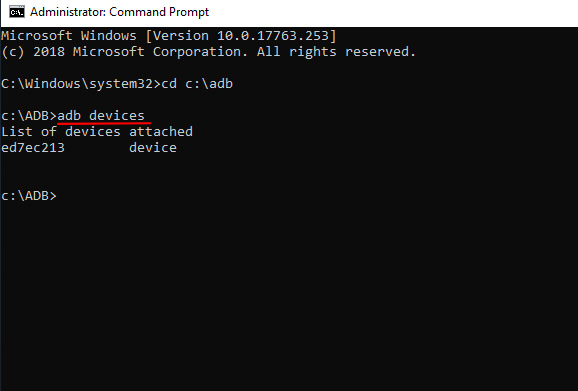
Connect the smartphone to your PC. Type adb devices either in Command Prompt, Powershell or Terminal and hit enter. If your device is listed with a serial number, you are good to go. If not, go through our guide again and set things up correctly.


The next step is to find out the package name of the apps you want to remove. You can download App Inspector (free) on your smartphone, and note down the package names that you want to uninstall. To do so, open App Inspector and tap on the app of your choice. It will show the package name on the top.Also Read:How to Download & Save Facebook Videos to Camera Roll on iPhone/iPad 2019

Also Read:How to Make a Folder Password Protected


Also Read: How to Block Unwanted Text Messages on Android for Free


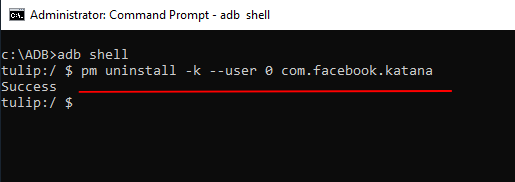
Back to the PC, type adb shell in your terminal and hit enter. After that, type pm uninstall -k --user 0 <name of package> where you will have to type the actual package name into <name of package> . For example, if you want to uninstall the Facebook app, type pm uninstall -k --user 0 com.facebook.katana and hit enter. The Facebook app will be instantly uninstalled.


This is how you can easily uninstall annoying apps one by one. While the process can be tiresome if you have a long list of apps to remove, you must be diligent while doing so. There are lots of system apps which are interdependent, so removing any one of those core apps may make your smartphone unusable. So be careful while removing core system apps.
Remove Bloatware on Xiaomi and Poco Phones:

In this method, we are going to use a simple application to remove intrusive apps. Before proceeding, make sure ADB is enabled in Developer Options. To reconfirm, just open Settings and go to About Device on the top. There, tap on MIUI version continuously for 7 to 8 times, it will enable the Developer Options. After that, go back to Settings again and open Additional Settings. There, you will find the said Developer Options. Open it and scroll down, find the USB debugging option and enable it.


Now download the Xiaomi ADB Fastboot Tools app. It’s a simple application which streamlines the whole uninstalling process in just a few clicks.
Also Read:7 Best VPN Apps for iPhone & iPad to Keep You Safe
Also Read:How to Fix iPhone Volume Low in the Music AppAlso Read:9 Best Karaoke Apps for iPhone and iPad – Enjoy Singing in 2019

Note: Xiaomi ADB Fastboot Tools is a jar application so your PC must have Java installed. In case the application doesn’t launch, download java from here and install it. Now, the application should work fine.


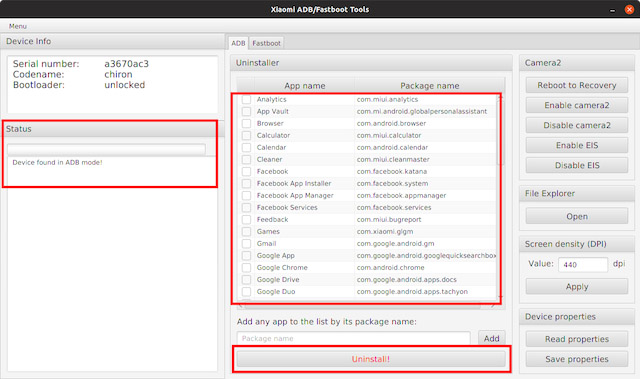
Next, connect the smartphone to your PC and launch the application. You will get a pop-up on your smartphone asking for USB debugging permission. It’s an ADB permission required to remove the bloatware, allow it and the Status would change to Device found in the left side of the application. If it doesn’t detect your device, it means ADB is not setup correctly.


Now, the application will load all the apps installed on your smartphone. You can choose the apps which you want to remove and just click on the Uninstall button. Voila, in just a few seconds, the bloatware will be removed.

Note: uninstalling these apps will not brick your device. The pre-fetched list only shows apps which are safe to uninstall.


After uninstalling the apps, disconnect your smartphone. Then, restart it for the changes to take effect. Now your Xiaomi device will be free of bloatware and you can use it without any issue.

You don’t need to worry about breaking OTA updates, it will work as intended. However, Xiaomi may add all the removed apps after a system update. So you may have to repeat the process again. All in all, this a great way to debloat your Xiaomi smartphone and will bring far better mobile experience without annoyances.
Remove Bloatware from Samsung Smartphones

To remove bloatware from Samsung smartphones, we’ll be using a paid third-party app called Package Disabler Pro ($3.49) from the Play Store which can uninstall bloatware in few taps. It’s a pretty straight-forward process without dangling with a PC and that’s why we are using this method. However, the app uses Device Administrator privilege to uninstall apps, which is very sensitive permission to grant. If you are comfortable with granting the permission, you can go ahead and use this method, or else you can use the universal method we described above.


Download Package Disabler Pro+ ($3.49) from the Play Store and install it. Now, simply select the apps by tapping on the checkbox and they will be disabled. To confirm the changes, just tap on the Disabled section below to see all the disabled apps. Similarly, you can uncheck the boxes to enable them.


Download Latest Samsung USB Drivers for Mobile Phones on Windows


You may find the process of disabling bloatware time consuming, so there is a neat hack which disables all the bloatware using an XML file. XDA user BAYmustafa96 has collated all the debloated apps in an XML file which are safe to disable. You can download the XML file and import to the app.


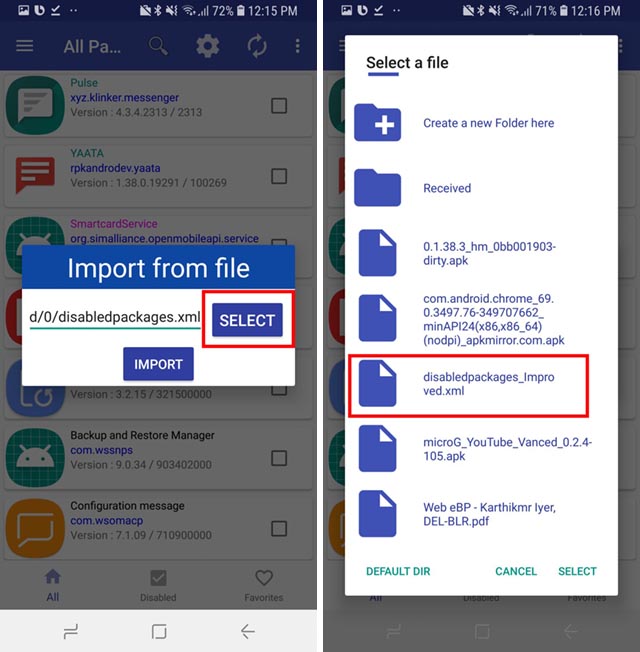
Just tap on the three-dot menu and open ‘Import from XML‘ option. Thereafter, tap on Select and scroll down to the Download folder. Open it and you will find your downloaded XML file. Now, select the XML file and tap on Import.


What If Something Goes Wrong?

Well, things can go south if you are not careful. However, there is nothing to worry as you can get your smartphone back in the fully usable state. You just have to factory reset your smartphone through the recovery mode and your smartphone will be restored completely to factory default settings. So it’s recommended to backup all your data before pulling the trigger. Because if things don’t go as expected, you may lose your data and we don’t want you to experience this.

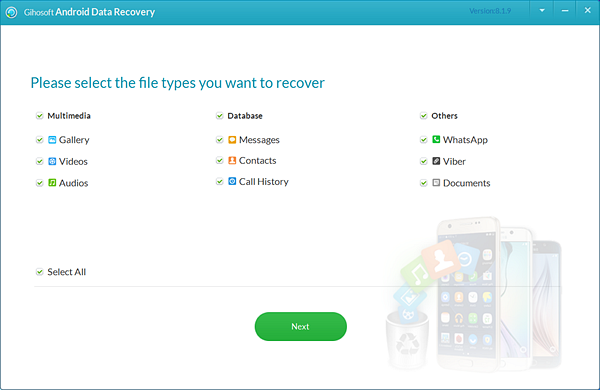
Download Gihosoft Free Android Data Recovery Software

to Get Lost or Deleted Back from Your Android Phone


Remove Bloatware from your Phone without Root

Well, so that’s how you can remove bloatware from your phone without having to root it first. Removing bloatware is great not only because it cleans up your app-drawer, but also because it saves your smartphone’s resources from being wasted, and in some cases might even stop (or at least reduce) the number of ads seen on certain phones, which is great. So, have you removed or disabled bloatware from your phone? Let us know in the comments down below.

Top 6 Ways to Find Hidden Apps on iPhone 2019


As of today, there is no shortage of apps for iPhone. These apps serve variety of purposes.

However, due to various reasons, users tend to hide some apps on their iPhone.

Well, this article explains how to find hidden apps on iPhone.


Top 6 Ways to Find Hidden Apps on iPhone


Bonus Tip: How to Find App Data from iPhone
Top 6 Ways to Find Hidden Apps on iPhone

If you need to find the apps installed in your iPhone, there are several options to consider. In this part of the article, we will explain the top ways for you.
Way 1. Find Hidden Apps on iPhone via Spotlight Search

One of the easiest ways you can consider in order to find the hidden apps on iPhone is spotlight search. Here’s how to do it.

Step 1: From the middle of any home screen, swipe down and open Search option.

Step 2: Key in the name of the app precisely. If you don’t see the app appeared already, tap on Search.

Step 3: Now, the app must be at the top of the search list. If the respective app is hidden in a separate folder, its name will be shown towards the right of the app icon. Tap it to open the app. If you don’t have the app on the iPhone, you can see View option next to the app icon. Tap on that to download the app from Apple’s App Store.

Step 4: If it still doesn’t appear, see if you have typed the name of the app correctly.


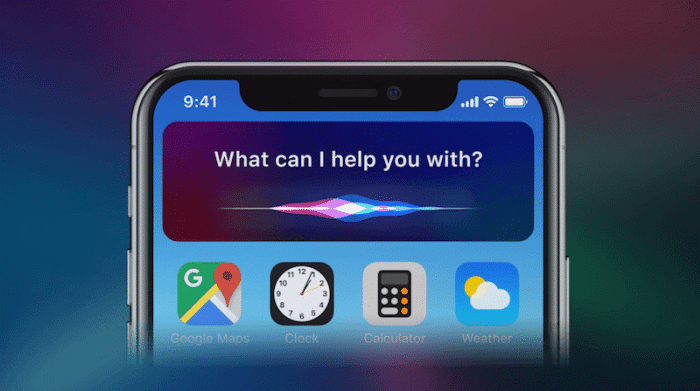
Way 2. Find Hidden Apps on iPhone via Siri

For most of the users, it can be really convenient to get the job done through virtual assistant, Siri. To find hidden apps through Siri, all you have to do is to tell what app should be opened.


However, Siri doesn’t tell you the folder that comprises of the hidden app.
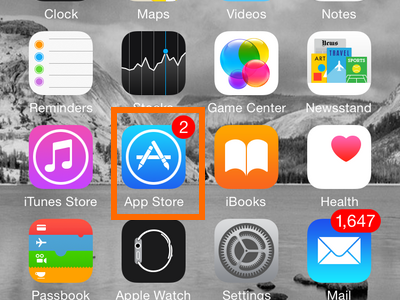
Way 3. Find Hidden Apps on iPhone via App Store

This is another method to try if you wonder how to find hidden apps on iPhone. You can try this method if none of the above options worked for you.

Step 1: First of all, you should unlock your iPhone and go to its App Store.

Step 2: Towards the right of the App Store, you will see the profile icon – click on it.

Step 3: Choose the option labelled “Purchased”. In order to reveal the hidden apps, click on the option “Not on this iPhone”.


Way 4. Find Hidden Apps in iPhone App Folders

In most of the cases, hidden apps are located inside the app folders that are on Homepage itself. In fact, this is a very tricky way to hide the apps. Here’s how to view them.

Step 1: Open an App folder on your iPhone.

Step 2: If there are two dots towards the bottom of the screen, there is a second screen of that folder.

Step 3: View it by swiping left. You can now see if the respective folder has apps that you aren’t aware of. You can repeat the process with all the app folders.


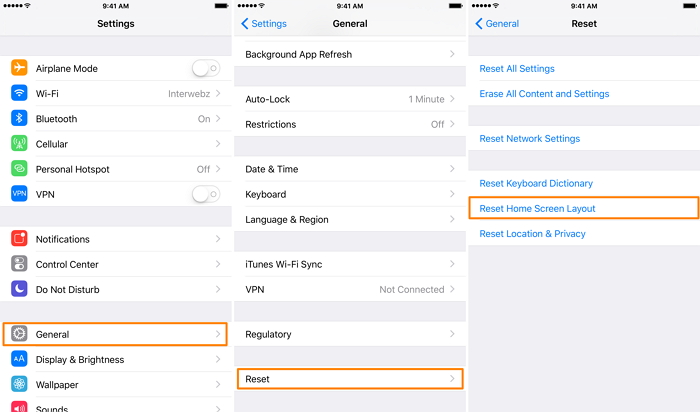
Way 5. Find Hidden Apps on iPhone by Resetting Home Screen Layout

If you are still yet to succeed and you have actually forgotten the name of the app, you can try resetting the Home Screen Layout. When the layout is set to the original, you can find the app. However, you should remember that this method deletes all the folders. You may have to create them after the process, therefore. Here’s how to do it.
Also Read:How to Setup Dual Monitors in Windows 10 Computer 2019
Also Read:Top 6 Best Alternative Sites to YTS Torrent Movie Website 2019Also Read:5 Best Free Movie Streaming Sites like Pubfilm to Watch Movies Online 2019

Step 1: Go to Settings app and tap on General and then Reset.

Step 2: Then, select the option Reset Home Screen Layout.

Step 3: The Home Screen layout will be reset and no apps will be lost.


Way 6. Find Hidden Apps on iPhone by Restoring iPhone Backups

Apple offers two official backup options called iTunes and iCloud. You can use these backups to find your hidden apps. Let’s see how to do it.

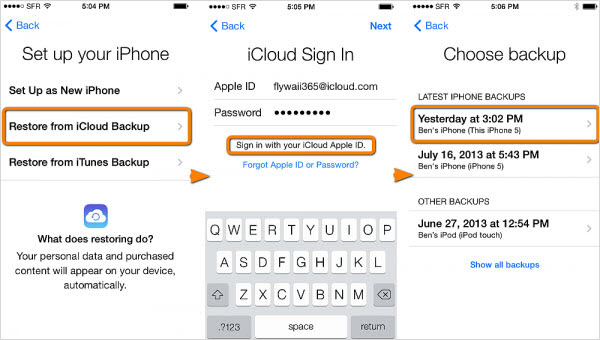
Restoring the iPhone from iCloud Backup

Step 1: Switch the device on and erase all the contents before the beginning of the process.

Step 2: Go to Apps & Data screen and select the option Restore from iCloud Backup.

Step 3: Now, sign in to the account using the Apple ID.

Step 4: Select a backup determining the date and time.

Step 5: Sign into the Apple ID when prompted.

Step 6: All the apps and purchases will be restored now and your hidden apps will also be visible.


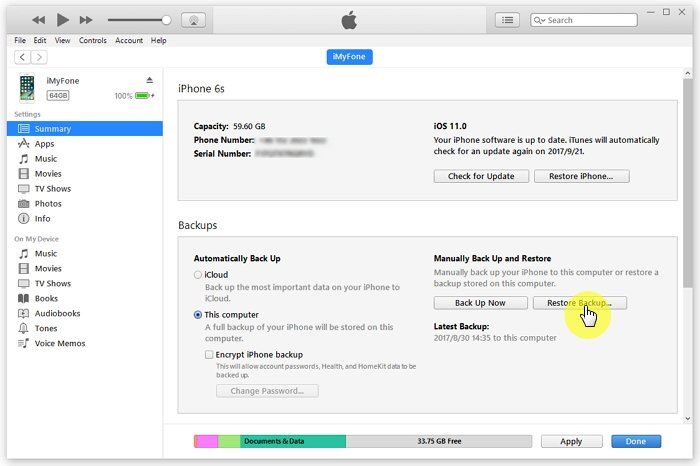
Restoring the iPhone from iTunes Backup

Step 1: Launch iTunes on your computer (on which you tend to keep your device’s backups).

Step 2: Now, connect the iOS device into the same computer through a USB cable.

Step 3: Select the iOS device when you can see it on iTunes.

Step 4: Select the option Restore Backup in iTunes.

Step 5: Determine the date and size and choose the backup. Click on the option Restore and wait until the process is completed.

Step 6: Don’t disconnect the device until the synchronization is finished.


Bonus Tip: How to Find App Data from iPhone

Also Read:jihosoft Free iPhone Data Recovery

Sponsor ads:

Gihosoft Free iPhone Data Recovery:https://www.gihosoft.com/iphone-data-recovery-free.html

Gihosoft iPhone Data Recovery Free

Free iPhone Data Recovery Software for Windows/Mac

Recover up to 12+ types of files, including contacts, SMS, photos, WhatsApp, Viber, notes, etc.

Restore lost data from iOS devices directly or from iTunes and iCloud backup

Recover iPhone data lost due to iOS upgrade/jailbreak, accidental deletion, device lost or broken

Support all the latest iPhone, iPad and iPod Touch

Both Free and Pro version.

If you lost data after you updated to a new iPhone, you can always use Gihosoft iPhone Data Recovery to get the data back from the old iPhone or backup.You may also like: iphonerecovery.com

If you use android phones, please choose Gihosoft Android Data Recovery.

With Gihosoft Android Data Recovery, no longer afraid of data loss!

Must read:Youtube video downloader for pc

Gihosoft RePicvid Free Photo Recovery Software provides a free photo recovery software for windows to help users recover the deleted or lost photo for free.


Jihosoft Android Data Recovery: the best Android Data Recovery software for Windows and Mac to recover deleted contacts, messages, photos, videos, WhatsApp and etc from Android devices.Tips:How to transfer messages from iPhone to iPhone

Fitbit Unveils the $160 Versa Lite


Fitbit today announced a ‘lite’ version of the Fitbit Versa which skips on some features found on the regular model. Dubbed Fitbit Versa Lite, the fitness-oriented smartwatch is priced at $159.95. Fitbit hopes the lower price tag and the attractive new colors will help attract customers to Versa Lite.

Compared to the Fitbit Versa, the Versa Lite skimps on offering the ability to track one’s swimming session, store music locally for offline playback, Fitbit Pay support, and track the floors climbed. The Versa Lite will also not show workout details on its display. Other key features including sleep tracking, a heart rate monitor, and 4-day battery life are all still present on the Versa Lite.

The regular Fitbit Versa costs $199 and Fitbit was already undercutting Apple Watch with its pricing. With the lower price tag of the Fitbit Versa Lite, Fitbit is hoping to attract even more customers. It will be available in four different colors in a design that’s largely similar to the Versa itself.

In addition to the Versa Lite, Fitbit also announced that it will be giving the Fitbit app a major revamp which will make it easier to view one’s health data, fitness stats, exercise logs, and more. The Fitbit Versa Lite will go on sale in America, Asia Pacific, and other parts of the world from March 2019.
Our Take

With its lower price tag, the Fitbit Versa Lite is definitely going to do very well from a sales perspective. However, instead of Apple Watch, I think it will end up cannibalizing sales of the Fitbit Versa and Charge 3 itself. Fitbit simply does not have the resources to take on the Apple Watch so it is playing the price card to expand its user base.

[Via Fitbit]
Also Read:How to Permanently Delete Photos on Android Phone without Recovery


Also Read:Best Package & Shipment Tracking Apps for iPhone/iPad in 2019

Apple Adding 1,200 New Tech Jobs to San Diego, CA Starting Later This Year

Apple Adding 1,200 New Tech Jobs to San Diego, CA Starting Later This Year


Apple touts its jobs numbers whenever it gets a chance, especially as it relates to developers. But of course, its retail and other hubs make a huge impact on that number as well.

And Apple is adding even more this year. Company spokespeople and San Diego’s mayor confirmed on Wednesday that it will be adding 1,200 new jobs in San Diego, California starting later this year. As a result of the new jobs, Apple will position San Diego as a primary hub for its engineering efforts, both software and hardware. (Related: Apple has been on a hiring spree for software engineers as of late.)

Apple’s Chief Executive Officer, Tim Cook, said he is proud of the presence the company will have in San Diego moving forward:

“Apple has been a part of San Diego for nearly 20 years through our retail presence and small, fast-growing teams – and with this new investment we are proud to play an even greater part in the city’s future. You don’t have to try too hard to convince people that San Diego is a great place to live, work and do business, and we’re confident our employees will have a great home among the community there.”

At the time of publication there is no specific word just yet on where this new hub will be located. However, KGTV out of San Diego believes the company is looking at a specific building that is located just southwest of Qualcomm’s main building in that region.

This announcement is a continuation of one Apple made in late 2018. Apple is looking to launch job opportunities across the United States. That includes a $1 billion new campus in Austin, Texas. As for these jobs, Apple will start to add the engineers later this year, with the first 200 expected to start work before the end of 2019.

[via KGTV; SD Gov]
Also Read:What to Do If Your Android Phone won’t Turn On or Charge?
Also Read:6 Best Sites to Download Royalty-Free 4K Movies or Ultra HD Videos


Also Read:How to Crop Images into Circle Shapes?

3/05/2019

Best 9 Cut Instagram Apps for Android


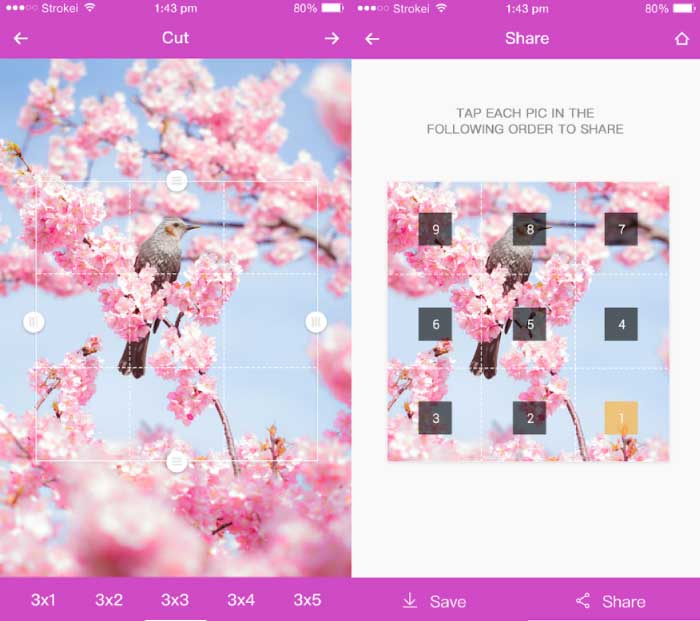
Among these different styles, it’s quite sure that the 9Cut split style photos on their Instagram feed have already blown your mind at least once. Well, we are definite that most of you guys too love to try such enticing styles on your Instagram timeline as well.

So, let us take a peek at some of the best 9 Cut Instagram apps lying around, which can assist you to cover your Instagram feed with excellent 9Cut grid photos.

Worth Reading: How to Split Pictures on Instagram And Make a Giant Square
Best 9 Cut Instagram Apps for Android:


9Cut Insta – Grid for Instagram


9square for Instagram


Nine Grid Crop for Instagram


9Cut for Instagram


Grid photo maker for Instagram
1. 9Cut Insta – Grid for Instagram

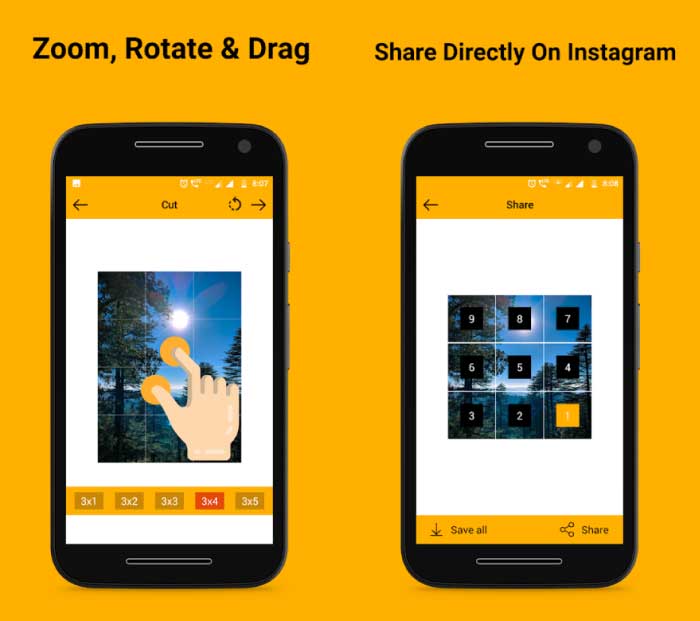
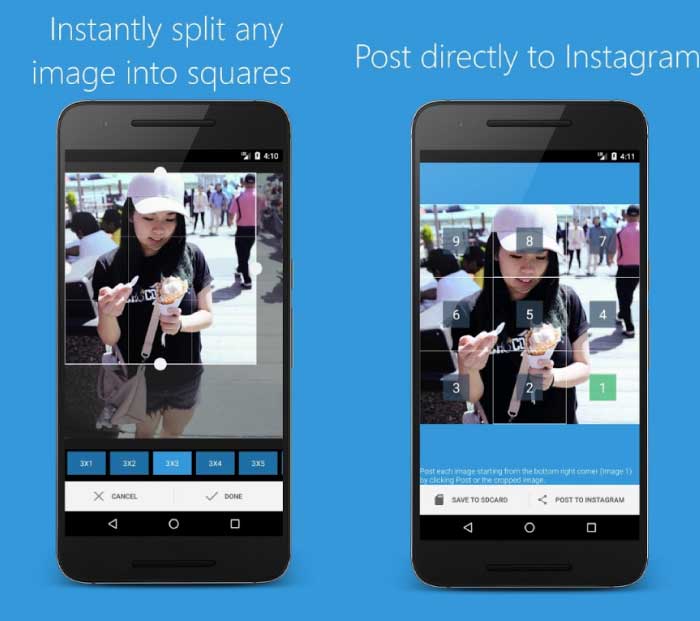
9Cut Insta is a simple app which helps you to create stylish grid photos for your Instagram feed. The app has a simple and direct user interface which immediately takes you to your photo gallery as soon as you open the app.

It hosts a total of 5 different grid styles in which you can choose from. You can also perform simple modifications to your photo using the zoom and rotate buttons provided.

The app presents photo outputs in decent quality and in a very low storage size which helps you save your memory without wasting it.


Main Features:


Easy Crop


Rotate Image


Zoom to fit


Direct post to Instagram

Download 9Cut Insta
2. 9square for Instagram

9square for Instagram is undoubtedly one of the best 9 cut Instagram apps which provide high-quality image outputs in bigger file size. Also Read:Top 5 Best Similar Sites to Kickass Torrents 2019

It sports a total of 10 different grid styles which makes it clear dominant compared to the all other 9 cut apps. The app also has some useful implements including zoom, rotate and mirror image to accommodate your photo accordingly.

The app also lets you choose images from your gallery as well as from your Camera app.


Main Features:


High-resolution images


Save to SD Card


Easy to handle


Post direct to Instagram

Download9square for Instagram
3. Nine Grid Crop for Instagram

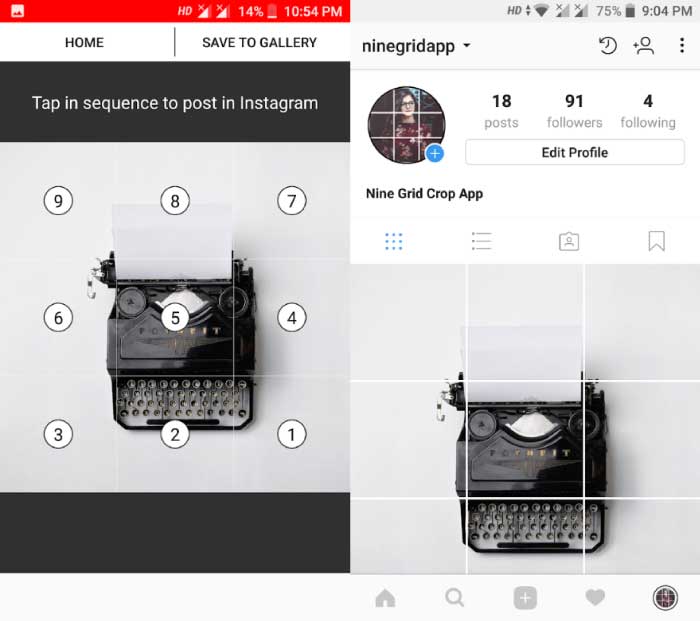
Nine Grid Crop for Instagram is a nice 9Cut app which let you split out any images available in your phone storage.

The app has only 3 different grid styles along with added zoom and rotate functions in it. The UI seems a bit laggy but it still gives outputs of higher image resolution without consuming a huge amount of storage.

You can directly process the image from your gallery and upload it to Instagram using this single app.


Main Features:


Easy to use


Move pics


Quality Outputs

Also Read:How to Make Funny Memes on iPhone & Best Meme Maker Apps in 2019
Also Read:How to Convert SWF File to HD Video
Also Read:10 Best Photo Collage Apps for iPhone/iPad to Create Photo Collages 2019
Also Read:How to Post Instagram Story Longer than 15 Seconds on Android?
Direct Instagram Upload

DownloadNine Grid Crop for Instagram
4. 9Cut for Instagram

9Cut for Instagram is a cool 9Cut app with a Simple and Straight UI on top. It includes a total of 5 different grid variants to select from.

The app accepts image inputs from both gallery as well as your camera. Although the UI is simple and snappy, the images are sorted from the older to recent order which may feel annoying to some users, as you have to scroll all the way down to locate a recent picture of yours.


Main Features:


Five different Grids


Easy to Crop


Zoom in Pics


Instant Instagram Upload

Download9Cut for Instagram
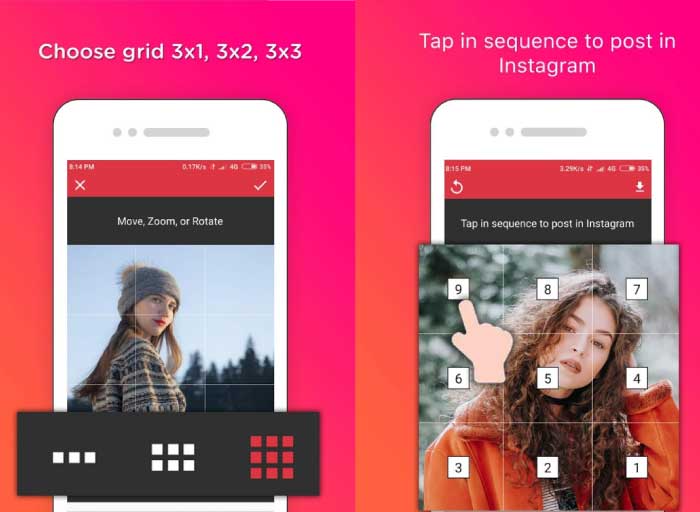
5. Grid photo maker for Instagram

Grid photo maker is yet another amazing 9Cut app for Instagram which has the feature to access photos from both gallery and camera.

The app has a total of 3 different grid styles with added tools like zoom and rotates which helps you alter your image in a few clicks.

It gives out one of the highest quality image outputs without consuming a lot your phone memory.


Main Features:


Preview Split Images


Align, rotate and zoom pics


High-Resolution Images


Direct post to Instagram

DownloadGrid photo maker

These were our top picks for the best 9 cut Instagram apps for your Android device. Hope you enjoyed the content, don’t forget to share it with your friends as well.
Also Read:10 Best Weather Apps for Your Apple Watch in 2019
Also Read:How to Schedule SMS Messages on Android Phone
Also Read:How to Download YouTube Age Restricted Video
Also Read:Mirror Android Screen to TV Wirelessly or with Cable

Pwn20wnd to add full A7-A8 support to iOS 12 2019

Pwn20wnd to add full A7-A8 support to iOS 12 2019

Pwn20wnd recently announced a new unc0ver update that will bring full A7/A8 support to iOS 12. Here’s all you need to know about it.

Table of Contents


4K support coming soon to iOS 12


How to prepare your A7/A8-chip device for unc0ver jailbreak


1. Remove OTA update


2. Download Cydia Impactor


3. Follow us on Twitter
4K SUPPORT COMING SOON TO IOS 12

Pwn20wnd, the developer behind unc0ver jailbreak, has confirmed full support for A7-A8 devices running iOS 12.

The upcoming unc0ver beta update – Beta 40 – will add full-blown Cydia and Substrate support for 4K models.

For the uninitiated, 4K devices like the iPhone 5S and 6 are those which contain 4K virtual pages for the kernel of the operating system.

Though devices with an A7-A8 (4K) chip are theoretically already compatible with iOS 12, they lack Cydia and Substrate compatibility.

Thankfully, Saurik, the godfather of jailbreaking, came through in the clutch just in time and upgraded Substrate.

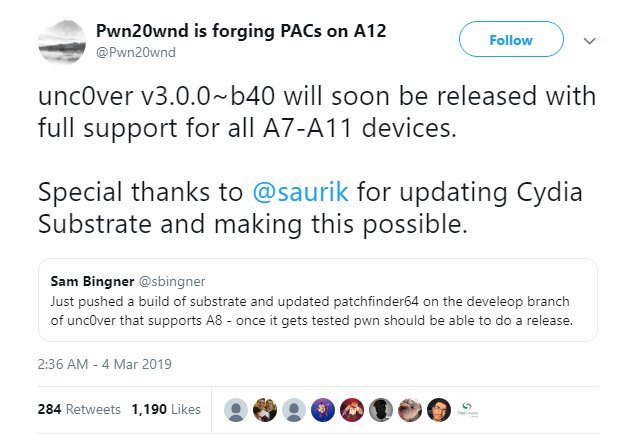
Here’s what Pwn20wnd posted on his personal Twitter handle.


Pwn20wnd@Pwn20wnd

unc0ver v3.0.0~b40 will soon be released with full support for all A7-A11 devices.


Special thanks to @saurik for updating Cydia Substrate and making this possible.https://twitter.com/sbingner/status/1102513380013662209?s=21 …

Sam Bingner@sbingner

Just pushed a build of substrate and updated patchfinder64 on the develeop branch of unc0ver that supports A8 - once it gets tested pwn should be able to do a release.

2,930

6:36 PM - Mar 4, 2019

Twitter Ads info and privacy

1,143 people are talking about this

In a short Reddit post, the hacker also confirmed that Saurik needs to update Cydia Substrate for PAC for A12-chip devices.

As far as exploits go, the new beta update will likely utilize the all-new mach_swap exploit by Meridian developer Ben Sparkes. The mach_swap exploit is ultra-reliable and supports A7-A11 chip devices.

In initial tests, this exploit was able to jailbreak a device in under four seconds, something which is unheard of in the jailbreak community!
HOW TO PREPARE YOUR A7/A8-CHIP DEVICE FOR UNC0VER JAILBREAK
1. REMOVE OTA UPDATE

First things first, you should delete any OTA update that’s currently occupying space on your device.

The development team behind unc0ver has strictly warned users that devices must not have any OTA update during installation.

An OTA update will cause unc0ver to fail and may cause serious damage to your Apple device.

So, remove it before you attempt to jailbreak your device by following the steps given below.


Open the Settings app.


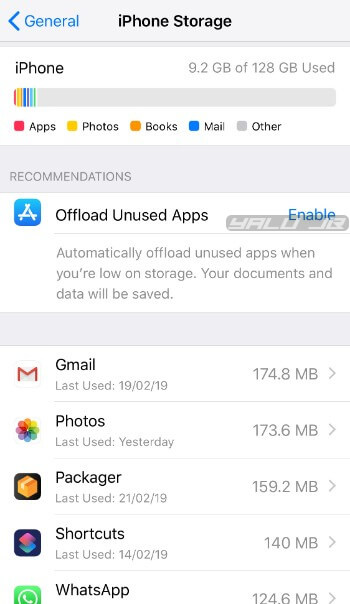
Go to General > iPhone Storage.


Remove any OTA firmware update present in this section.


Reboot your iPhone/iPad.


2. DOWNLOAD CYDIA IMPACTOR

Cydia Impactor is essential for sideloading the app onto your device.


If you don’t have it installed on your PC or Mac, then please do yourself a favor and download it before the jailbreak drops from this link.
3. FOLLOW US ON TWITTER

If you are into jailbreaking and haven’t followed us on Twitter yet, please press that follow button. We post new scene releases and updates over on Twitter that you can’t find here.

View image on Twitter


Yalu Jailbreak@Yalujb

unc0ver jailbreak v3.0.0 Beta 40 coming soon with full support for A7-A8 devices (dev - @Pwn20wnd). #unc0ver #jailbreak

193

7:43 PM - Mar 4, 2019

36 people are talking about this

Twitter Ads info and privacy

We also recommend bookmarking this page just in case. Remember! Check the compatibility sheet and ensure your iPhone, iPad or iPod is present therein before you jailbreak it.Also Read:jihosoft Free iPhone Data RecoveryAlso Read:Best 6 Photo Organizer – Photo Organizing Software for Windows & Mac
Also Read:How to Fix Insufficient Storage Available Problem on Android
Also Read:5 Best Photo Resizer Apps for Android 2019
Also Read:10 Best Translation App for iPhone or iPad in 2019

Sponsor ads:

Gihosoft Free iPhone Data Recovery:https://www.gihosoft.com/iphone-data-recovery-free.html

Gihosoft iPhone Data Recovery Free

Free iPhone Data Recovery Software for Windows/Mac

Recover up to 12+ types of files, including contacts, SMS, photos, WhatsApp, Viber, notes, etc.

Restore lost data from iOS devices directly or from iTunes and iCloud backup

Recover iPhone data lost due to iOS upgrade/jailbreak, accidental deletion, device lost or broken

Support all the latest iPhone, iPad and iPod Touch

Both Free and Pro version.

If you lost data after you updated to a new iPhone, you can always use Gihosoft iPhone Data Recovery to get the data back from the old iPhone or backup.You may also like: iphonerecovery.com

If you use android phones, please choose Gihosoft Android Data Recovery.

With Gihosoft Android Data Recovery, no longer afraid of data loss!

Must read:Youtube video downloader for pc

Gihosoft RePicvid Free Photo Recovery Software provides a free photo recovery software for windows to help users recover the deleted or lost photo for free.

Jihosoft Android Data Recovery: the best Android Data Recovery software for Windows and Mac to recover deleted contacts, messages, photos, videos, WhatsApp and etc from Android devices.Tips:How to transfer messages from iPhone to iPhone


Featured Post

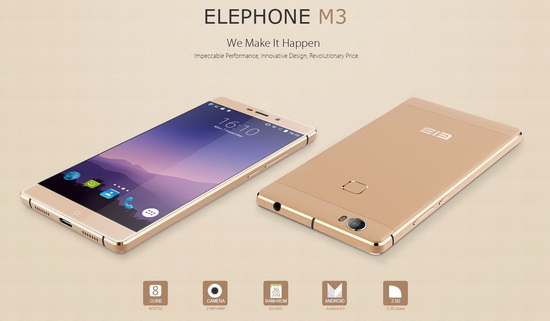
Elephone M3 News

Elephone M3 comes in two versions, both with the integration of aviation aluminum body and have Rose Gold, Champagne Gold, Smoky Grey ...