9/01/2019

How to Share Audio to Multiple AirPods from iPhone


Apple has made it easier to share audio from one device to AirPods. If you and your friend both have a pair of AirPods, you can both listen to the same audio from the iPhone quite seamlessly. Audio Sharing is a new feature in iOS 13 and this is how it works.

If you’ve got two AirPods, sharing audio this way is much more elegant and seamless compared to the old ways of using a splitter or just handing one AirPod to another friend. This process also works with Powerbeats Pro.
Share Audio to Multiple AirPods from iPhone Running iOS 13

If both you and your friend are running iOS 13 on your respective iPhones, and both of you have AirPods paired with your iPhones, all you really need to do is put the two devices near each other while one iPhone is playing audio from an app. You can put one iPhone on top of another to make the process simpler.

The following devices support this feature (devices with Bluetooth 5.0):


iOS 13: iPhone 8, iPhone 8 Plus, iPhone X, iPhone XR, iPhone XS, iPhone XS Max; or an iPod Touch (seventh-generation).


iPadOS 13: iPad Pro 11-inch; iPad Pro 12.9-inch (second-generation or later); iPad Air (third-generation); iPad mini (fifth-generation).


When you put the iPhones next to each other, you’ll get a prompt asking if you want to share audio with the other device. Just tap on “Share Audio” button to start sharing.
How to Share Audio Directly to AirPods from iPhone

What if the other person doesn’t have their iPhone but does have a pair of AirPods. You can still use this feature to manually pair the second pair of AirPods.

And it’s exactly the same as the normal AirPods pairing process.

Open the AirPods case near the iPhone and press and hold on the button at the back of the AirPods case. Tap on Connect when the pairing popup shows up.

Once connected, two AirPods will show up in the AirPlay menu. So start playing the media, tap on the AirPlay button and then from the outputs screen, select both AirPods. The audio will now play on both devices.
More iOS 13 How-tos

We’re working on bringing you more detailed guides for how to use the new and awesome features in iOS 13. Once you’ve read our iOS 13 tips and tricks article, read our how-tos below.

Tips:

In fact, you might even create some of those videos yourself. But what about going live so that your followers can see you in real-time? After all, Instagram, Twitter, and Facebook are all social media platforms that allow you to “Go Live”, so what about TikTok? How To Go Live & Stream on TikTok

8/26/2019

Patent Infringement Lawsuit against TSMC Seeks Ban on iPhone Import in the U.S, Germany


Apple has been named in yet another patent infringement case. This time around Global Foundries has filed a lawsuit against TSMC, the company that makes Apple’s A-Serieschips. The company wants to half import of such processors and is seeking “significant damages from TSMC based on TSMC’s unlawful use of GF’s proprietary technology in its tens of billions of dollars of sales.”

Global Foundries intends to stop the import of chipsets that are covered by its patents. Apparently TSMC doesn’t directly import the chips to the U.S, however, its customers do. It is also worth noting that the scope of the lawsuit is very vast. Companies like AMD, Nvidia, Apple, MediaTek, and many other companies are likely to be affected. In fact, Apple has been named in three out of 16 cases of infringement.

GLOBALFOUNDRIES (GF), the world’s leading specialty foundry based in the United States, today filed multiple lawsuits in the U.S. and Germany alleging that semiconductor manufacturing technologies used by Taiwan Semiconductor Manufacturing Company Ltd. (TSMC) infringe 16 GF patents. The lawsuits were filed today in the U.S. International Trade Commission (ITC), the U.S. Federal District Courts in the Districts of Delaware and the Western District of Texas, and the Regional Courts of Dusseldorf and Mannheim in Germany.

In filing the lawsuits, GF seeks orders that will prevent semiconductors produced with the infringing technology by Taiwan-based TSMC, the dominant semiconductor manufacturer, from being imported into the U.S. and Germany. These lawsuits require GF to name certain major customers of TSMC and downstream electronics companies, who, in most cases, are the actual importers of the products that incorporate the infringing TSMC technology. GF also seeks significant damages from TSMC based on TSMC’s unlawful use of GF’s proprietary technology in its tens of billions of dollars of sales.”

TSMC and the others named as co-defendants are yet to issue an official reply. Apart from TSMC, the list also includes Apple, Broadcom, Qualcomm, Xilinx, Lenovo, Motorola, ASUS, BLU, Cisco, and OnePlus. At this point in time, we are unsure of how the import ban will affect iPhone production in the U.S and Germany.If you lost data after you updated to a new iPhone, you can always use Gihosoft iPhone Data Recovery to get the data back from the old iPhone or backup.You may also like: iphonerecovery.com


[via GlobalNewsWire]

8/11/2019

iOS 13: All the New CarPlay Features


While it might not seem like it, CarPlay in iOS 13 is a huge leap forward when it comes to the user experience. The Dark mode now matches iOS 13’s UI, there’s a new Light mode to boot and the new Dashboard gives you control of Maps and Music all in one screen. Plus, screen independence is finally here. Here are all the new CarPlay features for iPhone in iOS 13 you should know about.
CarPlay in iOS 13: All The New Features
1. New Dashboard Design
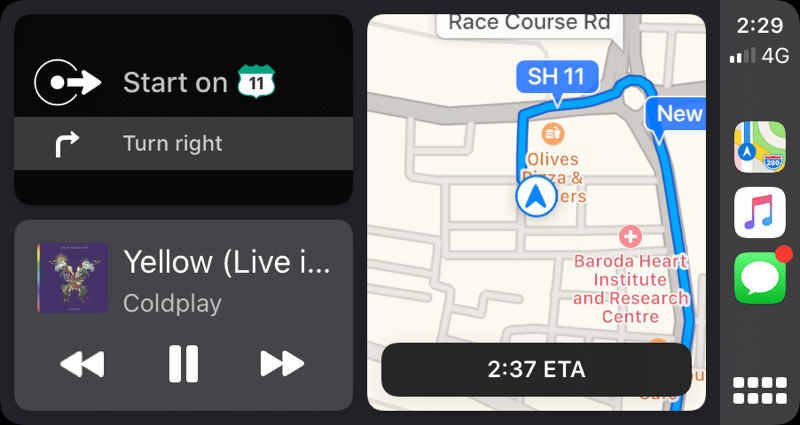


The changes are apparent the minute you connect your iPhone to your car. When CarPlay starts up, you’ll now see a Dashboard UI. And it will be in the new dark mode. The Dashboard view shows Maps on one side and three different widgets on the other.

The first widget is for Apple Maps. You’ll see shortcuts to your frequent locations here. When you’re navigating, you’ll see directions here. The middle widget is for Now Playing. You’ll see the album art for the currently playing media and buttons for Play/Pause and skip. You can tap on it to open the Now Playing app.

The last widget is for Siri Suggestions. This will depend heavily on your usage. You’ll find suggestions for launching apps, initiating Siri Shortcuts and more here. In the sidebar, you’ll find the three recently used apps.
2. How to Switch to The Old Icons View


In the Dashboard view, the old Home button is gone. It is now replaced by a new icon that depicts the current Home screen view. You can tap on it to switch back to the old Icons view. Weirdly enough, the button still behaves like the Home button when you’re in an app. Tap on it to go back to the Home. Tap on it again to change the Home screen view.

You can also swipe left/right on the Dashboard to switch to the old view.
3. New Management Screen on iPhone in Settings


If you go to Settings -> General -> CarPlay, you’ll find a new Customize option. Previously, you had a virtual screen for CarPlay view that you would tap to change the app orders or to remove them. Now, when you tap on Customize, you’ll see a list of all available apps. Tap on the “-” (minus) icon to remove an app from CarPlay. To rearrange an app, tap and drag the handlebar icon.
4. Updated Settings
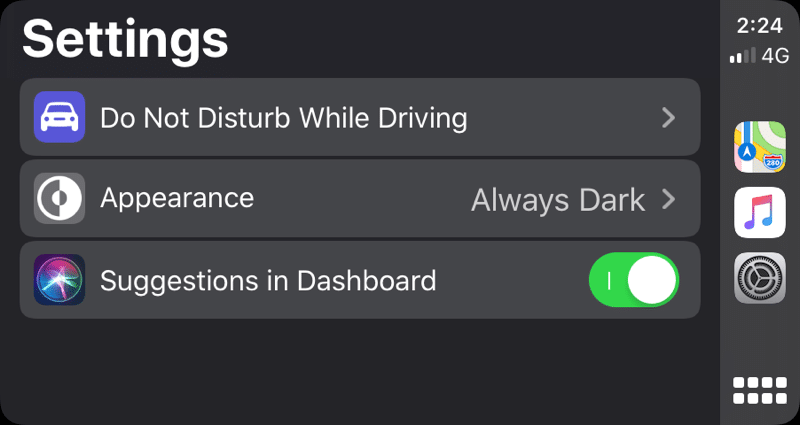


The Settings screen in CarPlay has also been updated.

Do Not Disturb While Driving: You can now set up this feature right from CarPlay. It can be set up to automatically engage Do Not Disturb While Driving mode when you connect to CarPlay.

Automatic Dark Mode: Tap on the Appearance button and you’ll be able to switch between Automatic and Always Dark option. The Automatic option will switch between the new Light and Dark mode based on the time of the day and the ambient light in your car or your environment.

But this doesn’t always work reliably. It’s best to use the Always Dark option. The new Dark Mode theme in iOS 13 makes good use of muted colors and solid backgrounds. It’s much better on the eyes. The new Light mode can in fact be a bit too bright unless you’re in a very sunny area.

Turn off Siri Suggestions: You’ll also find the toggle to turn off Siri Suggestions here. Tap on it and the widget in the Dashboard that shows Siri Suggestions will go away.

Show Album Art: Tap on the toggle to enable/disable the Album Art for the Now Playing widget in the Dashboard.
5. New Light Mode
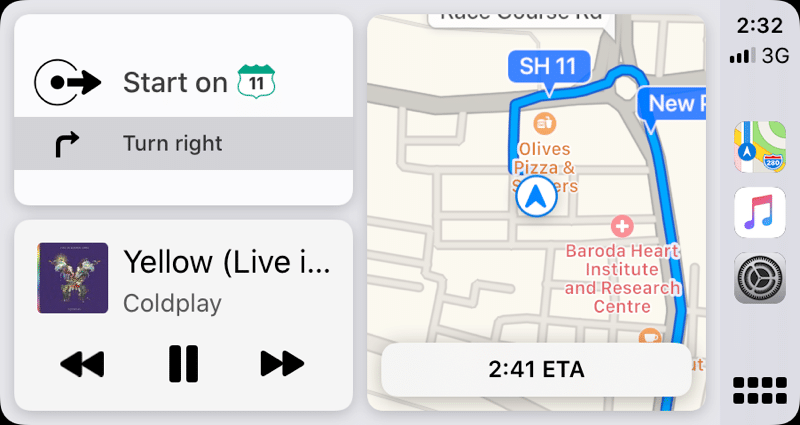


iOS 13 and iPadOS 13 get a new dark mode. And CarPlay gets a new Light mode.
6. New Siri View Over The Screen
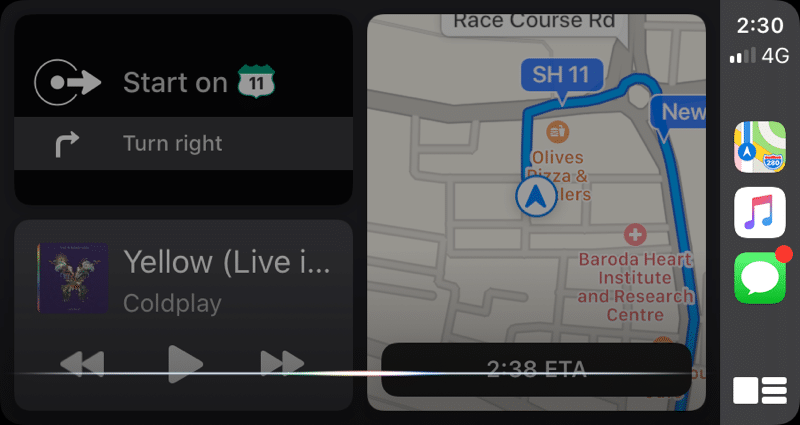


Siri no longer takes over the whole screen when you engage it. It now shows a slightly translucent layer on top of what you’re seeing. It works really well and we hope this feature comes to iPhone and iPad soon.
7. Screen Independence

CarPlay for iPhone finally has screen independence. Previously if your passenger took your iPhone and opened an app that wasn’t available on CarPlay, it would throw you directly to the icons home screen. This would disrupt your navigation view. Now, in iOS 13, CarPlay has screen independence. So this no longer happens.

You can open and use any app on the iPhone without affecting what’s on the iPhone’s screen. Now, a friend can take your iPhone and browse through songs on the Music app when you keep navigating on the CarPlay using Maps or any other app.
8. New Calendar App


CarPlay in iOS 13 has added a new app – Calendar. It’s a very simplified app. All you can see is the day’s events. That is all.
9. New Maps UI
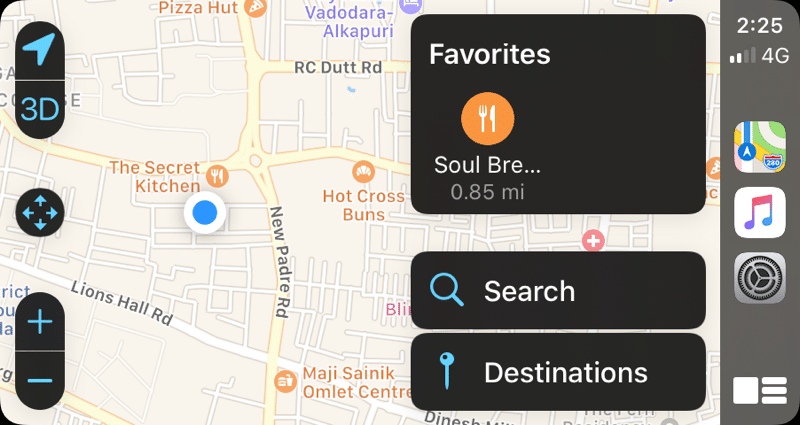


Just like iOS 13, the Maps app in CarPlay sees a big upgrade. All the new features from Maps app are here. When you open the Maps app, you’ll see shortcuts to your Favorite locations at the top. You can even browse through your Collections here.
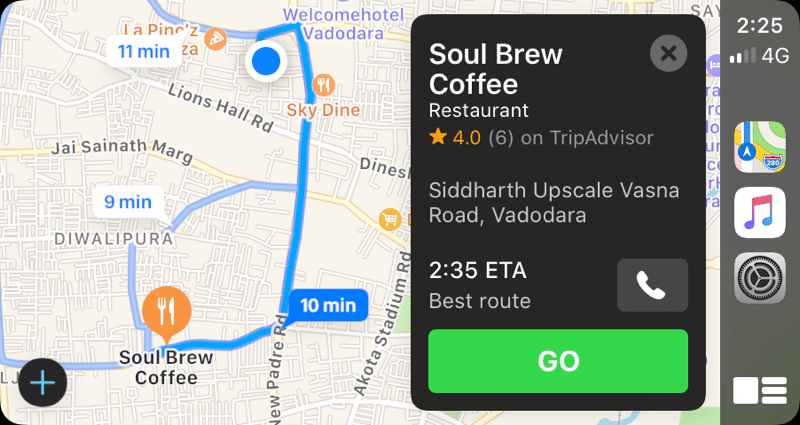


You can search for locations, or go to a previous destination. Tap on a location to open the detailed view. From here, you can choose a different route, and start the navigation.
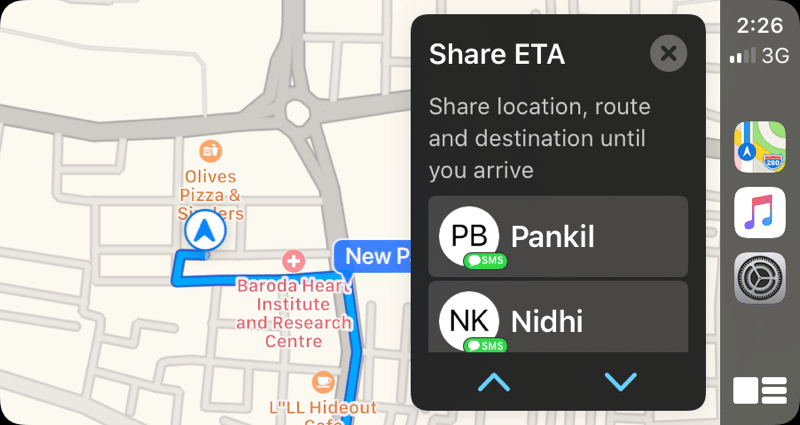


During navigation, you’ll see a new option called Share ETA. You can quickly share your ETA with a contact in Messages. You can continue monitoring your ETA after this as well.
10. New Messages View


The Messages app now opens to a list of your recent conversations. Once you tap on a conversation, Siri will start reading the latest message for you. Then you can reply to it using your voice. That part hasn’t changed.
11. Hey Siri and Always on Siri

Another big change in CarPlay? Hey Siri now works directly on the CarPlay UI. Plus, there’s support for Always On Siri. This is a change in the behavior of Siri. Previously, you’d have to wait for a second or two after hitting the Mic button on your car steering to call up Siri. Now, you can start talking as soon as you hit the button because Siri is always on in the background.

It will pick up your command as soon as you hit the button. This reduced the lag and the frustration of using Siri via your car interface.If you lost data after you updated to a new iPhone, you can always use Gihosoft iPhone Data Recovery to get the data back from the old iPhone or backup.You may also like: iphonerecovery.com


7/17/2019

How to Get The Viral Old Age Filter Using FaceApp


After Snapchat’s baby filter, it’s FaceApp’s old age filter that has gone viral. Celebrities and mere mortals alike are posting what they’ll look like in old age. We’ve seen these apps before but what sets FaceApp apart is just how good and photorealistic these filters are. If you’re intrigued by it and you want to try it out for yourself, follow the steps below.
What Is FaceApp’s Old Age Filter?

FaceApp is a popular app for applying face filters and for editing selfies. Their recent addition of the old face filter is what made it go viral again. This filter takes any photo (either by clicking a selfie, uploading from your Camera Roll, or any image from the web), and applies an old age filter to it. This basically means that it will grey out your hair, add wrinkles to your skin and so on. What it does is quite simple, but the way it does it is extraordinary.
How Is Old Age Filter Being Used Online?

As the old age filter went viral, it has been used by everyone from online personalities, influencers, celebrities to fan communities. Because the FaceApp makes it easy to search for any image online and apply a filter to it, a lot of people have posted old age filters for their favorite celebrities. If you visit your Facebook feed, you’ll also see people doing this for their friends.


Patrick Tomasso

@imPatrickT

#YouTube in 50 years.


18.5K

4:56 AM - Jul 17, 2019

Twitter Ads info and privacy

3,188 people are talking about this

FaceApp filters have been applied to everyone from YouTube celebrities to Harry Potter cast and everyone in between.


Medardas Kerbelis

@MedardasKerbel1

Old age filter! #FaceApp #oldagefilter #oldfilter #oldme #grandpa #Lithuania


3

4:03 AM - Jul 17, 2019

Twitter Ads info and privacy

See Medardas Kerbelis's other Tweets
How to Use Old Age Filter in FaceApp

Step 1: Download the FaceApp app from the App Store.

Step 2: Open the app and give the app access to the camera and the photo library.

Step 3: Tap on the Camera icon to click a selfie. Then tap on the Use button.

Step 4: The app will process the photo and it will take a while.

Step 5: Alternatively, you can browse around in your library to find any photo, and then tap on it to select the photo from the old age treatment.

Step 6: Once the photo is processed, you’ll see many different filter options, with smileys, impressions, age and more. Here, tap on the Age button.

Step 7: Next, select Old from the options and then tap on Apply.

Your old age photo will now be generated. You can tap on the Layout button to create a comparison between the original and the filtered image.

Download: FaceApp (Free)
How to Use Old Age Filter On Other Photos


ᴺᴼᵀ Jony Ive

@JonyIveParody

The greatest old man… #OneMoreThing


669

7:02 AM - Jul 17, 2019

Twitter Ads info and privacy

87 people are talking about this

You can create an old age filter photo for any photo from the web. When you open the FaceApp, swipe on the sources at the bottom of the page and select Celebrities. Here, you can search for anyone on the web, choose a photo from Google Images and apply the face filter.
Share Your Best Creations

What are some of the best old age filters that you’ve created? Share with us in the comments below.

Sponsor ads:

Gihosoft RePicvid Free Photo Recovery Software provides a free photo recovery software for windows to help users recover the deleted or lost photo for free.

If you lost data after you updated to a new iPhone, you can always use Gihosoft iPhone Data Recovery to get the data back from the old iPhone or backup.You may also like: iphonerecovery.com

7/15/2019

iOS 13 Security Flaw Allows Unauthorised Access to Passwords Stored by Autofill Feature


A bug has been discovered in iOS 13 beta which provides one with unauthorized access to all passwords, emails, and usernames stored by the Autofill feature. iOS 13 is still in beta stages so thankfully this bug is only going affect a limited number of people who are running the public or developer beta.

The bug provides one with access to all the passwords and data stored in the iCloud keychain and used by the Autofill feature in iOS. Simply go to Settings -> Passwords & Accounts and start tapping the Website and App Passwords option repeatedly.

Doing so will cancel the Face ID/Touch ID prompt on the display after a few tries and give one access to all the stored passwords and usernames. One can even modify the stored passwords if they wish to.

This bug does require that the iPhone/iPad is already unlocked which is not going to be as easy.

Since this bug has now been detailed, Apple will likely fix the issue with the next beta release of iOS 13 and iPadOS 13.

iOS 13 comes with a number of new privacy-oriented features and enhancements. While this bug is definitely serious, one must remember that the OS itself is in beta stages of development and testing and such bugs are bound to be there. Nonetheless, Apple should fix this bug with the next beta release of iOS 13 due to drop later this week.Sponsor ads:

Gihosoft RePicvid Free Photo Recovery Software provides a free photo recovery software for windows to help users recover the deleted or lost photo for free.

If you lost data after you updated to a new iPhone, you can always use Gihosoft iPhone Data Recovery to get the data back from the old iPhone or backup.You may also like: iphonerecovery.com


7/03/2019

Download iOS 13 and iPadOS 13 Beta 3 [Update: Public Beta Out]


Apple today released the third developer beta of iOS 13 and iPadOS 13.

Update: iOS 13 beta 3 is not available for iPhone 7 and iPhone 7 Plus.

The update will be available as OTA for all developers running beta 2 of iOS 13 or iPadOS 13 on their iPhone or iPad.

Additionally, the company has also released the third developer beta of macOS Catalina.

The latest developer beta from Apple should contain a number of bug fixes and stability improvements. There are also going to be some minor changes and tweaks and we will report about them as they are discovered.

With the third developer beta released, it is likely that we will see Apple release the second public beta of these operating systems for public beta testers later this week as well.

The final release of iOS 13 and iPadOS 13 are expected to drop in September around a week before the 2019 íPhones launch.
Download iOS 13 and iPadOS 13 Beta 3

If you are already running iOS 13 Developer Beta 2 on your iPhone, you just need to go to Settings -> General -> Software Update and download the beta 3 OTA.

The same steps are also applicable for downloading iPadOS 13 Beta 3.

Read: Install iOS 13 or iPadOS 13 Public Beta on iPhone and iPad
iOS 13 Features

1. Dark Mode

The biggest feature of iOS 13 is the new Dark Mode. This is truly system-wide. It stretches from the Lock screen to the widgets screen to Apple’s own apps. Even the keyboard gets a better version of the dark mode.Dark mode can be enabled easily from the Control Center.Lectura de contenido relacionado:Corrige 0x0 0x0 Error

Leer más:G2a sitio


2. 30% Faster Face ID Unlock

Something that will be noticeable instantly for iPhone X and above is that Face ID unlocked more than 30% faster.

3. Faster App Loading

Apple is continuing the focus on performance from iOS 12. The apps now launch twice as fast. And app downloads will be 50% smaller while app updates will be over 60% smaller.

4. Redesigned Volume HUD

The new Volume HUD appears in the top-left corner of the screen in an unintrusive manner. It first shows up as a full sized slide. But it immediately shrinks and becomes unintrusive.

5. iCloud Drive Folder Sharing in Files App

You can now share a whole iCloud Drive folder with other users using the Files app.


If you notice any major changes or improvements in iOS 13 or iPadOS 13, drop a comment and let us know about it.

Sponsor ads:

Gihosoft RePicvid Free Photo Recovery Software provides a free photo recovery software for windows to help users recover the deleted or lost photo for free.

If you lost data after you updated to a new iPhone, you can always use Gihosoft iPhone Data Recovery to get the data back from the old iPhone or backup.You may also like: iphonerecovery.com

iOS 13 Beta 3 Hints at New Wired Method for Transferring Data Between Old and New iPhone


A new graphical asset discovered in iOS 13 beta 3 points to Apple working on a new feature that will allow users to set up a new iPhone and transfer data from an old device over a wired connection.

The setup app currently allows one to set up their iPhone and import data from their old one over Wi-Fi, iTunes, or from their iCloud account. The new asset found in iOS 13 beta 3 points to Apple adding a new method to the setup app in which the transfer process works over a wired connection.

Android devices already offer the ability to import data from older Android smartphones and iPhones over a wired connection. Compared to using Wi-Fi, using a wired connection is reliable and faster, especially when one’s old device has a lot of data. However, one must have access to the right type of wire as well.

View image on Twitter


Filipe Espósito

@filipekids

I’m curious about that asset found on iOS 13… it’s used (or at least should be) on the setup process. A faster way to transfer data from a device to other without iTunes or iCloud? I didn’t restored my iPhone to install iOS 13, so I don't know if this is already in use.

144

8:30 AM - Jul 3, 2019

37 people are talking about this

Twitter Ads info and privacy

Having such a feature in iOS 13 would make a lot of sense if Apple plans on switching to USB-C and dump the Lightning connector on its 2019 iPhones. This is because while USB-C to Lightning cables are available in the market, there is no such protocol in which you get a wire with Lightning connectors at both ends.

Perhaps this feature hints at Apple ditching the Lightning connector on its 2019 iPhone 11 lineup and switching to USB-C. Or perhaps the company will launch a Lightning-to-Lightning wire alongside its 2019 iPhones later this year. What do you think?

Sponsor ads:

Gihosoft RePicvid Free Photo Recovery Software provides a free photo recovery software for windows to help users recover the deleted or lost photo for free.

If you lost data after you updated to a new iPhone, you can always use Gihosoft iPhone Data Recovery to get the data back from the old iPhone or backup.You may also like: iphonerecovery.com

Featured Post

Elephone M3 News

Elephone M3 comes in two versions, both with the integration of aviation aluminum body and have Rose Gold, Champagne Gold, Smoky Grey ...