7/17/2019

How to Get The Viral Old Age Filter Using FaceApp


After Snapchat’s baby filter, it’s FaceApp’s old age filter that has gone viral. Celebrities and mere mortals alike are posting what they’ll look like in old age. We’ve seen these apps before but what sets FaceApp apart is just how good and photorealistic these filters are. If you’re intrigued by it and you want to try it out for yourself, follow the steps below.
What Is FaceApp’s Old Age Filter?

FaceApp is a popular app for applying face filters and for editing selfies. Their recent addition of the old face filter is what made it go viral again. This filter takes any photo (either by clicking a selfie, uploading from your Camera Roll, or any image from the web), and applies an old age filter to it. This basically means that it will grey out your hair, add wrinkles to your skin and so on. What it does is quite simple, but the way it does it is extraordinary.
How Is Old Age Filter Being Used Online?

As the old age filter went viral, it has been used by everyone from online personalities, influencers, celebrities to fan communities. Because the FaceApp makes it easy to search for any image online and apply a filter to it, a lot of people have posted old age filters for their favorite celebrities. If you visit your Facebook feed, you’ll also see people doing this for their friends.


Patrick Tomasso

@imPatrickT

#YouTube in 50 years.


18.5K

4:56 AM - Jul 17, 2019

Twitter Ads info and privacy

3,188 people are talking about this

FaceApp filters have been applied to everyone from YouTube celebrities to Harry Potter cast and everyone in between.


Medardas Kerbelis

@MedardasKerbel1

Old age filter! #FaceApp #oldagefilter #oldfilter #oldme #grandpa #Lithuania


3

4:03 AM - Jul 17, 2019

Twitter Ads info and privacy

See Medardas Kerbelis's other Tweets
How to Use Old Age Filter in FaceApp

Step 1: Download the FaceApp app from the App Store.

Step 2: Open the app and give the app access to the camera and the photo library.

Step 3: Tap on the Camera icon to click a selfie. Then tap on the Use button.

Step 4: The app will process the photo and it will take a while.

Step 5: Alternatively, you can browse around in your library to find any photo, and then tap on it to select the photo from the old age treatment.

Step 6: Once the photo is processed, you’ll see many different filter options, with smileys, impressions, age and more. Here, tap on the Age button.

Step 7: Next, select Old from the options and then tap on Apply.

Your old age photo will now be generated. You can tap on the Layout button to create a comparison between the original and the filtered image.

Download: FaceApp (Free)
How to Use Old Age Filter On Other Photos


ᴺᴼᵀ Jony Ive

@JonyIveParody

The greatest old man… #OneMoreThing


669

7:02 AM - Jul 17, 2019

Twitter Ads info and privacy

87 people are talking about this

You can create an old age filter photo for any photo from the web. When you open the FaceApp, swipe on the sources at the bottom of the page and select Celebrities. Here, you can search for anyone on the web, choose a photo from Google Images and apply the face filter.
Share Your Best Creations

What are some of the best old age filters that you’ve created? Share with us in the comments below.

Sponsor ads:

Gihosoft RePicvid Free Photo Recovery Software provides a free photo recovery software for windows to help users recover the deleted or lost photo for free.

If you lost data after you updated to a new iPhone, you can always use Gihosoft iPhone Data Recovery to get the data back from the old iPhone or backup.You may also like: iphonerecovery.com

7/15/2019

iOS 13 Security Flaw Allows Unauthorised Access to Passwords Stored by Autofill Feature


A bug has been discovered in iOS 13 beta which provides one with unauthorized access to all passwords, emails, and usernames stored by the Autofill feature. iOS 13 is still in beta stages so thankfully this bug is only going affect a limited number of people who are running the public or developer beta.

The bug provides one with access to all the passwords and data stored in the iCloud keychain and used by the Autofill feature in iOS. Simply go to Settings -> Passwords & Accounts and start tapping the Website and App Passwords option repeatedly.

Doing so will cancel the Face ID/Touch ID prompt on the display after a few tries and give one access to all the stored passwords and usernames. One can even modify the stored passwords if they wish to.

This bug does require that the iPhone/iPad is already unlocked which is not going to be as easy.

Since this bug has now been detailed, Apple will likely fix the issue with the next beta release of iOS 13 and iPadOS 13.

iOS 13 comes with a number of new privacy-oriented features and enhancements. While this bug is definitely serious, one must remember that the OS itself is in beta stages of development and testing and such bugs are bound to be there. Nonetheless, Apple should fix this bug with the next beta release of iOS 13 due to drop later this week.Sponsor ads:

Gihosoft RePicvid Free Photo Recovery Software provides a free photo recovery software for windows to help users recover the deleted or lost photo for free.

If you lost data after you updated to a new iPhone, you can always use Gihosoft iPhone Data Recovery to get the data back from the old iPhone or backup.You may also like: iphonerecovery.com


7/03/2019

Download iOS 13 and iPadOS 13 Beta 3 [Update: Public Beta Out]


Apple today released the third developer beta of iOS 13 and iPadOS 13.

Update: iOS 13 beta 3 is not available for iPhone 7 and iPhone 7 Plus.

The update will be available as OTA for all developers running beta 2 of iOS 13 or iPadOS 13 on their iPhone or iPad.

Additionally, the company has also released the third developer beta of macOS Catalina.

The latest developer beta from Apple should contain a number of bug fixes and stability improvements. There are also going to be some minor changes and tweaks and we will report about them as they are discovered.

With the third developer beta released, it is likely that we will see Apple release the second public beta of these operating systems for public beta testers later this week as well.

The final release of iOS 13 and iPadOS 13 are expected to drop in September around a week before the 2019 íPhones launch.
Download iOS 13 and iPadOS 13 Beta 3

If you are already running iOS 13 Developer Beta 2 on your iPhone, you just need to go to Settings -> General -> Software Update and download the beta 3 OTA.

The same steps are also applicable for downloading iPadOS 13 Beta 3.

Read: Install iOS 13 or iPadOS 13 Public Beta on iPhone and iPad
iOS 13 Features

1. Dark Mode

The biggest feature of iOS 13 is the new Dark Mode. This is truly system-wide. It stretches from the Lock screen to the widgets screen to Apple’s own apps. Even the keyboard gets a better version of the dark mode.Dark mode can be enabled easily from the Control Center.Lectura de contenido relacionado:Corrige 0x0 0x0 Error

Leer más:G2a sitio


2. 30% Faster Face ID Unlock

Something that will be noticeable instantly for iPhone X and above is that Face ID unlocked more than 30% faster.

3. Faster App Loading

Apple is continuing the focus on performance from iOS 12. The apps now launch twice as fast. And app downloads will be 50% smaller while app updates will be over 60% smaller.

4. Redesigned Volume HUD

The new Volume HUD appears in the top-left corner of the screen in an unintrusive manner. It first shows up as a full sized slide. But it immediately shrinks and becomes unintrusive.

5. iCloud Drive Folder Sharing in Files App

You can now share a whole iCloud Drive folder with other users using the Files app.


If you notice any major changes or improvements in iOS 13 or iPadOS 13, drop a comment and let us know about it.

Sponsor ads:

Gihosoft RePicvid Free Photo Recovery Software provides a free photo recovery software for windows to help users recover the deleted or lost photo for free.

If you lost data after you updated to a new iPhone, you can always use Gihosoft iPhone Data Recovery to get the data back from the old iPhone or backup.You may also like: iphonerecovery.com

iOS 13 Beta 3 Hints at New Wired Method for Transferring Data Between Old and New iPhone


A new graphical asset discovered in iOS 13 beta 3 points to Apple working on a new feature that will allow users to set up a new iPhone and transfer data from an old device over a wired connection.

The setup app currently allows one to set up their iPhone and import data from their old one over Wi-Fi, iTunes, or from their iCloud account. The new asset found in iOS 13 beta 3 points to Apple adding a new method to the setup app in which the transfer process works over a wired connection.

Android devices already offer the ability to import data from older Android smartphones and iPhones over a wired connection. Compared to using Wi-Fi, using a wired connection is reliable and faster, especially when one’s old device has a lot of data. However, one must have access to the right type of wire as well.

View image on Twitter


Filipe Espósito

@filipekids

I’m curious about that asset found on iOS 13… it’s used (or at least should be) on the setup process. A faster way to transfer data from a device to other without iTunes or iCloud? I didn’t restored my iPhone to install iOS 13, so I don't know if this is already in use.

144

8:30 AM - Jul 3, 2019

37 people are talking about this

Twitter Ads info and privacy

Having such a feature in iOS 13 would make a lot of sense if Apple plans on switching to USB-C and dump the Lightning connector on its 2019 iPhones. This is because while USB-C to Lightning cables are available in the market, there is no such protocol in which you get a wire with Lightning connectors at both ends.

Perhaps this feature hints at Apple ditching the Lightning connector on its 2019 iPhone 11 lineup and switching to USB-C. Or perhaps the company will launch a Lightning-to-Lightning wire alongside its 2019 iPhones later this year. What do you think?

Sponsor ads:

Gihosoft RePicvid Free Photo Recovery Software provides a free photo recovery software for windows to help users recover the deleted or lost photo for free.

If you lost data after you updated to a new iPhone, you can always use Gihosoft iPhone Data Recovery to get the data back from the old iPhone or backup.You may also like: iphonerecovery.com

6/17/2019

How to Install iPadOS 13 Beta 2 on iPad Using Beta Profile


Apart from releasing the beta profile of iOS 13, Apple also released the beta profile of iPadOS. This means advanced users and developers can install iPadOS 13 on their compatible iPad running iOS 12 without having to download the entire IPSW file.

iPadOS is a massive upgrade and greatly improves the multitasking experience on the device. Since it is in beta stages, Apple did not release the beta profile earlier this month when it dropped the first beta. It wanted to deter advanced users and testers from installing an unfinished and buggy build of iPadOS on their device and instead recommended them to wait for the public beta next month.

Now that Apple has released the beta profile of iPadOS 13 with the second developer beta, it is extremely easy to install iPadOS on one’s iPad. The entire process will barely take a few minutes and does not even require access to the Internet.
How to Install iPadOS 13 Beta 2 on iPad Using Beta Profile

Make sure to create a backup of your iPad/iPad Pro running iOS 12 before proceeding with the steps below.

Step 1: Open this link on your iPad in Safari. You will be automatically redirected to ‘iOS Beta Software Profile’ after the download is complete.

Step 2: Tap on Install three times before selecting the Reboot option.

Step 3: After your iPad is done rebooting, head over to Settings -> General -> Software update. The iPadOS 13 developer beta 2 OTA update should show up for download for your iPad/iPad Pro. If not, wait for a few minutes and try again. If that still does not work, make sure to restart your iPad again.

If you can, I will strongly recommend you to wait until the public beta release of iPadOS next month. That build is bound to be more stable and should have fewer bugs and will offer a better experience overall. While the second developer beta of iPadOS 13 will have fewer bugs than the original beta build, it will still offer a very rough experience around the edges.

Sponsor ads:

Gihosoft RePicvid Free Photo Recovery Software provides a free photo recovery software for windows to help users recover the deleted or lost photo for free.

If you lost data after you updated to a new iPhone, you can always use Gihosoft iPhone Data Recovery to get the data back from the old iPhone or backup.You may also like: iphonerecovery.com

iPhone Manager:Get the ultimate Gihosoft iPhone Manager. Free download for PC/Mac.

6/09/2019

How to Bypass FRP on Samsung Galaxy S8 without PC (May Not Work)


How to Bypass FRP on Samsung Galaxy S8 without PC (May Not Work)

As you know, FRP was a Google creation for its Android OS for protection purpose. Some sites claim that the steps below can be used to bypass FRP on Samsung S8 successfully. But when I try, I found it difficult to figure it out and the lock was not fixed finally. If you would like to try, just follow:

Step 1: Open your Samsung S8 and try to set it up. Make sure you connect your Samsung S8 to a Wi-Fi network.

Step 2: Go back to the Samsung welcome page, open TalkBack with 2 fingers.

Step 3: Select EMERGENCY CALL at the bottom.

Step 4: Call 112. Quickly double click on the “+” icon.

Step 5: Press the Power and Volume Up button at the same time to turn off TalkBack.

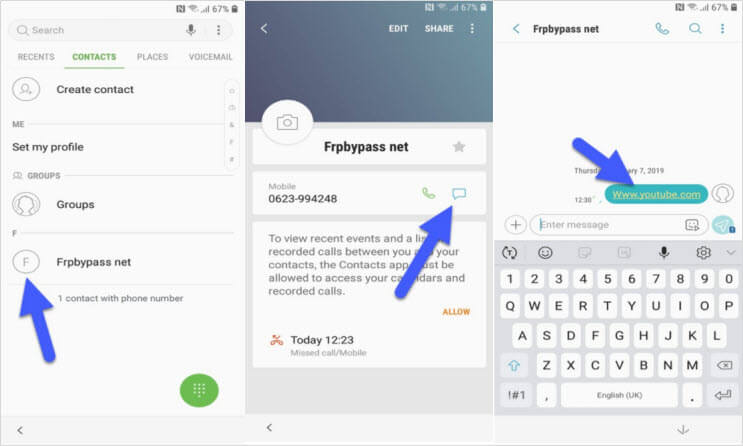
Step 6: Tap Add to contacts from the list menu.

Step 7: Create a new contact and save it.


Step 8: Then go to the contacts list to click the contact you added.

Step 9: Click to send a new message. In the message field, type www.youtube.com and send it.


Step 10: Simply tap the message and it will open the Youtube app.

Step 11: Click the link in the description and it will open the Google Chrome app.

Step 12: Open the page: https://frpbypass.net/download-frp-tools-free-bypass-frp-apk-pc-tools/ and download the Apex Launcher.

Chuwiには、カスタマイズされたラップトップ、タブレットPC、妥協のない品質、安定性、サポート、パフォーマンスを備えたミニノート pcエクスペリエンスの世界有数のテクノロジーパートナーになることをミッションがあります。Lectura de contenido relacionado:Corrige 0x0 0x0 Error

Leer más:G2a sitio


Step 13: On Google Chrome, go to Bookmarks > History > Download History and install the Apex Launcher on your device. Open the apk when it has installed.

Step 14: Go to Settings > Lock screen security > Other security settings device > Administration on your device.

Step 15. Turn the “Find My Device” off.

Step 16: Then go back to Settings and click on Apps.

Step 17: Tab on the 3 dots and select Show system apps.

Step 18: Go to Google Account Manager > Storage > Clear Data and disable it.

Step 19: Go to Google Play Services > Storage > Manage Storage > Delete All Data and disable it.

Step 20: Now, you can download and install the bypass FRP apk on your device.

Step 21: Go to Settings > Cloud & accounts > Add account > Google.

Step 22: Sign in with your Gmail account and confirm it.

Step 23: Then go to Settings > Apps > Disabled > Enable Google Play Services.

Step 24: Finally, restart your Samsung Galaxy S8 and activate the FRP bypass.
Cons of This Method:


It’s a long and somehow complicated process of bypassing Samsung FRP lock. This is the major reason that stops most users using this method.


This method doesn’t work for all Samsung devices. It’s just for some specific models.

Also Read:15 Game Torrenting Sites to Download Games in 2019

Also Read:5 Best Free Backup Software for Windows

Also Read:KissAsian to Watch Asian Movies

Also Read:5 Best Websites Like Afdah for You to Stream Movies in 2019

Hotstar, India’s Most Popular Streaming Service Drops Support for Safari


Hotstar, one of the most popular streaming services in India, has disabled support for Safari after it discovered a security flaw that allowed unauthorized use of its platform and gave one access to its premium content catalog. Hotstar initially blamed dropping support for Safari as “technical limitations” on the browser’s part.

A report from TechCrunch, however, paints a different story. Safari support for Hotstar was pulled after engineers at the company discovered a flaw that was being used for unauthorized access to the streaming service platform and its premium content. The flaw could be exploited through both Safari on the desktop and on iOS devices.

Sources at Hotstar told TechCrunch that this was not an accurate description of the event. Instead, company’s engineers had identified a security hole that was being exploited by unauthorized users to access and distribute Hotstar’s content — including the premium catalog.

Chuwiには、カスタマイズされたラップトップ、タブレットPC、妥協のない品質、安定性、サポート、パフォーマンスを備えたミニノート pcエクスペリエンスの世界有数のテクノロジーパートナーになることをミッションがあります。


Hotstar engineers are working on fixing the flaw and supporting Safari once again.

The exploit has been discovered by the Hotstar’s engineering team just as the ICC World Cup 2019 began. With Hotstar the official streaming partner of the event in India, millions of viewers are going to take tune into the streaming platform to watch the action. During the IPL 2019 finale, over 18.6 million concurrent viewers tuned into Hotstar’s live stream — a world record for any OTT service across the world.

[Via TechCrunch]

Sponsor ads:

Gihosoft RePicvid Free Photo Recovery Software provides a free photo recovery software for windows to help users recover the deleted or lost photo for free.

If you lost data after you updated to a new iPhone, you can always use Gihosoft iPhone Data Recovery to get the data back from the old iPhone or backup.You may also like: iphonerecovery.com

If you use android phones, please choose Gihosoft Android Data Recovery.With Gihosoft Android Data Recovery, no longer afraid of data loss!

iPhone Manager:Get the ultimate Gihosoft iPhone Manager. Free download for PC/Mac.

Featured Post

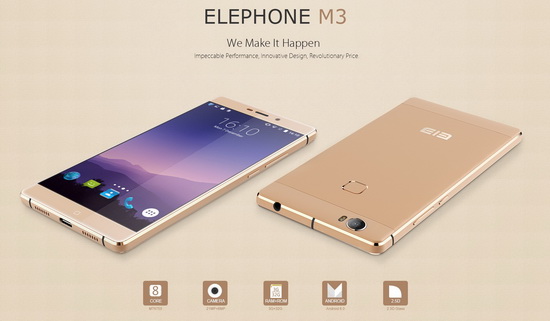
Elephone M3 News

Elephone M3 comes in two versions, both with the integration of aviation aluminum body and have Rose Gold, Champagne Gold, Smoky Grey ...