3/06/2019

Fitbit Unveils the $160 Versa Lite


Fitbit today announced a ‘lite’ version of the Fitbit Versa which skips on some features found on the regular model. Dubbed Fitbit Versa Lite, the fitness-oriented smartwatch is priced at $159.95. Fitbit hopes the lower price tag and the attractive new colors will help attract customers to Versa Lite.

Compared to the Fitbit Versa, the Versa Lite skimps on offering the ability to track one’s swimming session, store music locally for offline playback, Fitbit Pay support, and track the floors climbed. The Versa Lite will also not show workout details on its display. Other key features including sleep tracking, a heart rate monitor, and 4-day battery life are all still present on the Versa Lite.

The regular Fitbit Versa costs $199 and Fitbit was already undercutting Apple Watch with its pricing. With the lower price tag of the Fitbit Versa Lite, Fitbit is hoping to attract even more customers. It will be available in four different colors in a design that’s largely similar to the Versa itself.

In addition to the Versa Lite, Fitbit also announced that it will be giving the Fitbit app a major revamp which will make it easier to view one’s health data, fitness stats, exercise logs, and more. The Fitbit Versa Lite will go on sale in America, Asia Pacific, and other parts of the world from March 2019.
Our Take

With its lower price tag, the Fitbit Versa Lite is definitely going to do very well from a sales perspective. However, instead of Apple Watch, I think it will end up cannibalizing sales of the Fitbit Versa and Charge 3 itself. Fitbit simply does not have the resources to take on the Apple Watch so it is playing the price card to expand its user base.

[Via Fitbit]
Also Read:How to Permanently Delete Photos on Android Phone without Recovery


Also Read:Best Package & Shipment Tracking Apps for iPhone/iPad in 2019

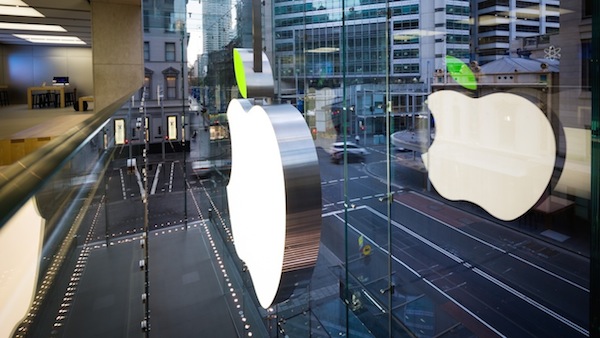
Apple Adding 1,200 New Tech Jobs to San Diego, CA Starting Later This Year

Apple Adding 1,200 New Tech Jobs to San Diego, CA Starting Later This Year


Apple touts its jobs numbers whenever it gets a chance, especially as it relates to developers. But of course, its retail and other hubs make a huge impact on that number as well.

And Apple is adding even more this year. Company spokespeople and San Diego’s mayor confirmed on Wednesday that it will be adding 1,200 new jobs in San Diego, California starting later this year. As a result of the new jobs, Apple will position San Diego as a primary hub for its engineering efforts, both software and hardware. (Related: Apple has been on a hiring spree for software engineers as of late.)

Apple’s Chief Executive Officer, Tim Cook, said he is proud of the presence the company will have in San Diego moving forward:

“Apple has been a part of San Diego for nearly 20 years through our retail presence and small, fast-growing teams – and with this new investment we are proud to play an even greater part in the city’s future. You don’t have to try too hard to convince people that San Diego is a great place to live, work and do business, and we’re confident our employees will have a great home among the community there.”

At the time of publication there is no specific word just yet on where this new hub will be located. However, KGTV out of San Diego believes the company is looking at a specific building that is located just southwest of Qualcomm’s main building in that region.

This announcement is a continuation of one Apple made in late 2018. Apple is looking to launch job opportunities across the United States. That includes a $1 billion new campus in Austin, Texas. As for these jobs, Apple will start to add the engineers later this year, with the first 200 expected to start work before the end of 2019.

[via KGTV; SD Gov]
Also Read:What to Do If Your Android Phone won’t Turn On or Charge?
Also Read:6 Best Sites to Download Royalty-Free 4K Movies or Ultra HD Videos


Also Read:How to Crop Images into Circle Shapes?

3/05/2019

Best 9 Cut Instagram Apps for Android


Among these different styles, it’s quite sure that the 9Cut split style photos on their Instagram feed have already blown your mind at least once. Well, we are definite that most of you guys too love to try such enticing styles on your Instagram timeline as well.

So, let us take a peek at some of the best 9 Cut Instagram apps lying around, which can assist you to cover your Instagram feed with excellent 9Cut grid photos.

Worth Reading: How to Split Pictures on Instagram And Make a Giant Square
Best 9 Cut Instagram Apps for Android:


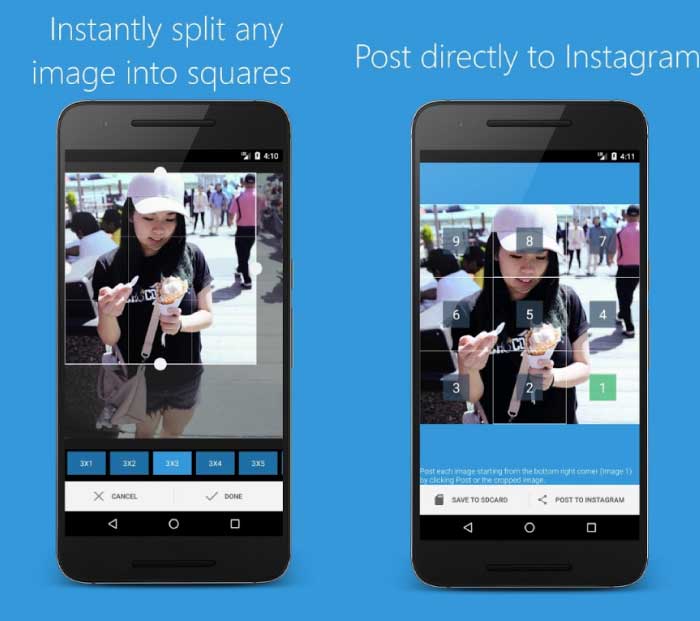
9Cut Insta – Grid for Instagram


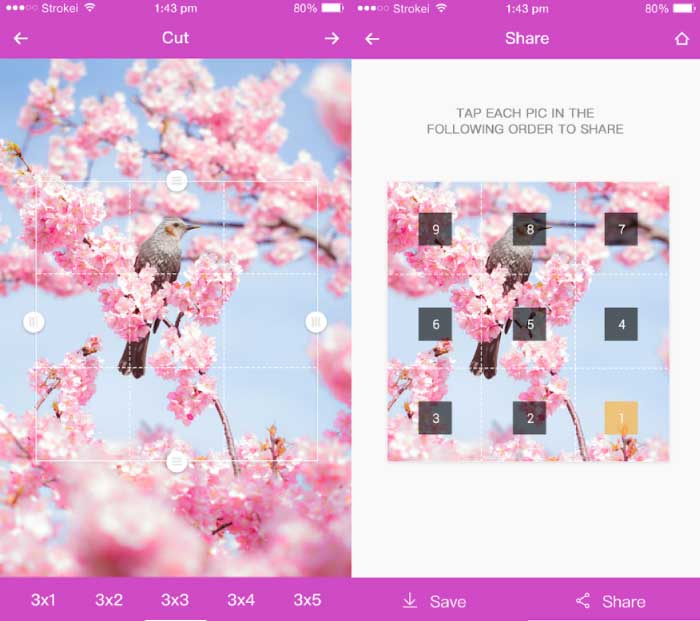
9square for Instagram


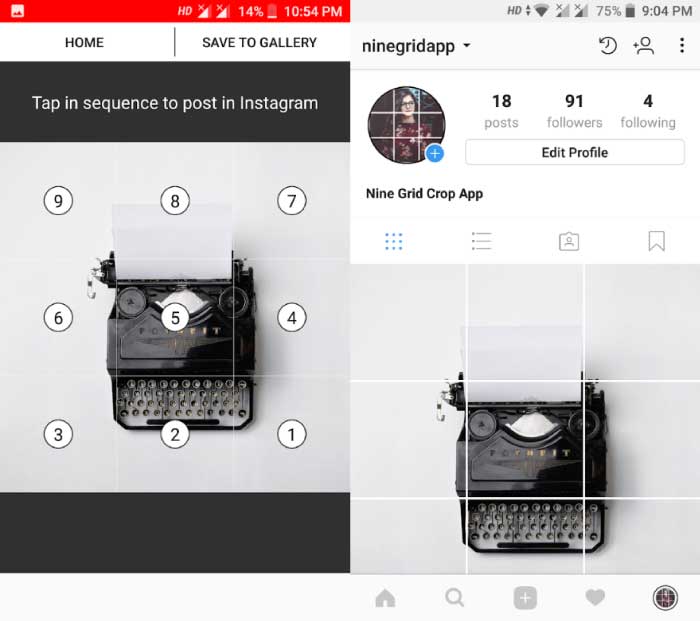
Nine Grid Crop for Instagram


9Cut for Instagram


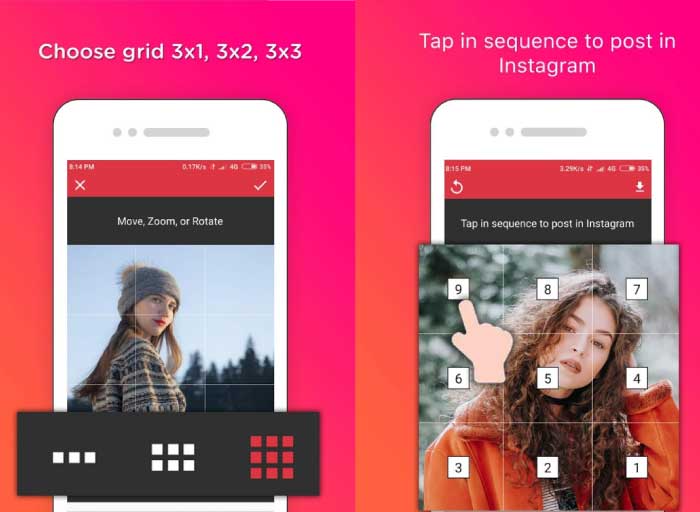
Grid photo maker for Instagram
1. 9Cut Insta – Grid for Instagram

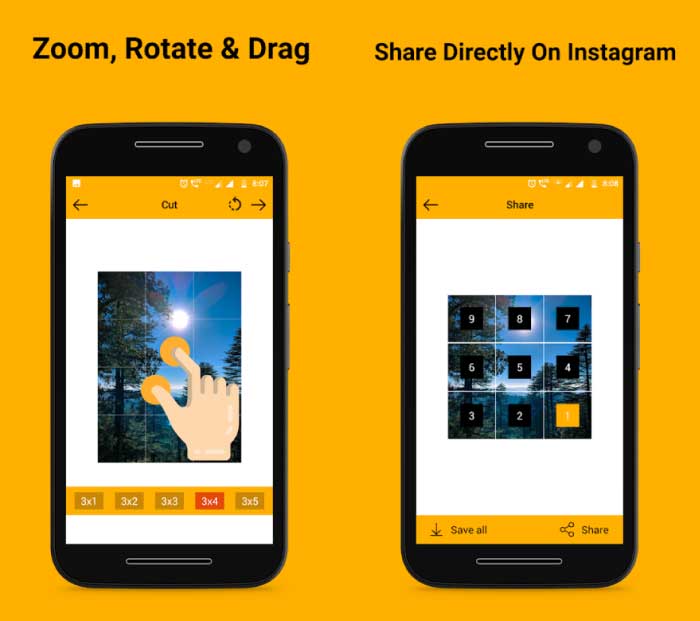
9Cut Insta is a simple app which helps you to create stylish grid photos for your Instagram feed. The app has a simple and direct user interface which immediately takes you to your photo gallery as soon as you open the app.

It hosts a total of 5 different grid styles in which you can choose from. You can also perform simple modifications to your photo using the zoom and rotate buttons provided.

The app presents photo outputs in decent quality and in a very low storage size which helps you save your memory without wasting it.


Main Features:


Easy Crop


Rotate Image


Zoom to fit


Direct post to Instagram

Download 9Cut Insta
2. 9square for Instagram

9square for Instagram is undoubtedly one of the best 9 cut Instagram apps which provide high-quality image outputs in bigger file size. Also Read:Top 5 Best Similar Sites to Kickass Torrents 2019

It sports a total of 10 different grid styles which makes it clear dominant compared to the all other 9 cut apps. The app also has some useful implements including zoom, rotate and mirror image to accommodate your photo accordingly.

The app also lets you choose images from your gallery as well as from your Camera app.


Main Features:


High-resolution images


Save to SD Card


Easy to handle


Post direct to Instagram

Download9square for Instagram
3. Nine Grid Crop for Instagram

Nine Grid Crop for Instagram is a nice 9Cut app which let you split out any images available in your phone storage.

The app has only 3 different grid styles along with added zoom and rotate functions in it. The UI seems a bit laggy but it still gives outputs of higher image resolution without consuming a huge amount of storage.

You can directly process the image from your gallery and upload it to Instagram using this single app.


Main Features:


Easy to use


Move pics


Quality Outputs

Also Read:How to Make Funny Memes on iPhone & Best Meme Maker Apps in 2019
Also Read:How to Convert SWF File to HD Video
Also Read:10 Best Photo Collage Apps for iPhone/iPad to Create Photo Collages 2019
Also Read:How to Post Instagram Story Longer than 15 Seconds on Android?
Direct Instagram Upload

DownloadNine Grid Crop for Instagram
4. 9Cut for Instagram

9Cut for Instagram is a cool 9Cut app with a Simple and Straight UI on top. It includes a total of 5 different grid variants to select from.

The app accepts image inputs from both gallery as well as your camera. Although the UI is simple and snappy, the images are sorted from the older to recent order which may feel annoying to some users, as you have to scroll all the way down to locate a recent picture of yours.


Main Features:


Five different Grids


Easy to Crop


Zoom in Pics


Instant Instagram Upload

Download9Cut for Instagram
5. Grid photo maker for Instagram

Grid photo maker is yet another amazing 9Cut app for Instagram which has the feature to access photos from both gallery and camera.

The app has a total of 3 different grid styles with added tools like zoom and rotates which helps you alter your image in a few clicks.

It gives out one of the highest quality image outputs without consuming a lot your phone memory.


Main Features:


Preview Split Images


Align, rotate and zoom pics


High-Resolution Images


Direct post to Instagram

DownloadGrid photo maker

These were our top picks for the best 9 cut Instagram apps for your Android device. Hope you enjoyed the content, don’t forget to share it with your friends as well.
Also Read:10 Best Weather Apps for Your Apple Watch in 2019
Also Read:How to Schedule SMS Messages on Android Phone
Also Read:How to Download YouTube Age Restricted Video
Also Read:Mirror Android Screen to TV Wirelessly or with Cable

Pwn20wnd to add full A7-A8 support to iOS 12 2019

Pwn20wnd to add full A7-A8 support to iOS 12 2019

Pwn20wnd recently announced a new unc0ver update that will bring full A7/A8 support to iOS 12. Here’s all you need to know about it.

Table of Contents


4K support coming soon to iOS 12


How to prepare your A7/A8-chip device for unc0ver jailbreak


1. Remove OTA update


2. Download Cydia Impactor


3. Follow us on Twitter
4K SUPPORT COMING SOON TO IOS 12

Pwn20wnd, the developer behind unc0ver jailbreak, has confirmed full support for A7-A8 devices running iOS 12.

The upcoming unc0ver beta update – Beta 40 – will add full-blown Cydia and Substrate support for 4K models.

For the uninitiated, 4K devices like the iPhone 5S and 6 are those which contain 4K virtual pages for the kernel of the operating system.

Though devices with an A7-A8 (4K) chip are theoretically already compatible with iOS 12, they lack Cydia and Substrate compatibility.

Thankfully, Saurik, the godfather of jailbreaking, came through in the clutch just in time and upgraded Substrate.

Here’s what Pwn20wnd posted on his personal Twitter handle.


Pwn20wnd@Pwn20wnd

unc0ver v3.0.0~b40 will soon be released with full support for all A7-A11 devices.


Special thanks to @saurik for updating Cydia Substrate and making this possible.https://twitter.com/sbingner/status/1102513380013662209?s=21 …

Sam Bingner@sbingner

Just pushed a build of substrate and updated patchfinder64 on the develeop branch of unc0ver that supports A8 - once it gets tested pwn should be able to do a release.

2,930

6:36 PM - Mar 4, 2019

Twitter Ads info and privacy

1,143 people are talking about this

In a short Reddit post, the hacker also confirmed that Saurik needs to update Cydia Substrate for PAC for A12-chip devices.

As far as exploits go, the new beta update will likely utilize the all-new mach_swap exploit by Meridian developer Ben Sparkes. The mach_swap exploit is ultra-reliable and supports A7-A11 chip devices.

In initial tests, this exploit was able to jailbreak a device in under four seconds, something which is unheard of in the jailbreak community!
HOW TO PREPARE YOUR A7/A8-CHIP DEVICE FOR UNC0VER JAILBREAK
1. REMOVE OTA UPDATE

First things first, you should delete any OTA update that’s currently occupying space on your device.

The development team behind unc0ver has strictly warned users that devices must not have any OTA update during installation.

An OTA update will cause unc0ver to fail and may cause serious damage to your Apple device.

So, remove it before you attempt to jailbreak your device by following the steps given below.


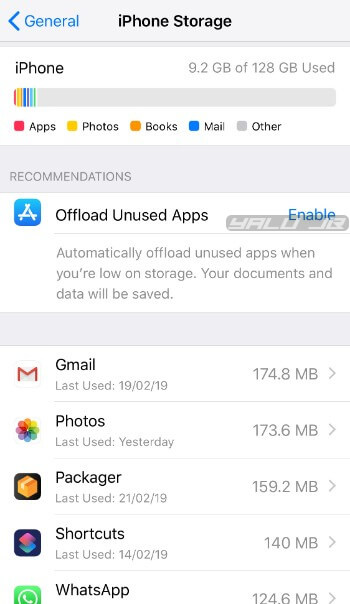
Open the Settings app.


Go to General > iPhone Storage.


Remove any OTA firmware update present in this section.


Reboot your iPhone/iPad.

2. DOWNLOAD CYDIA IMPACTOR

Cydia Impactor is essential for sideloading the app onto your device.


If you don’t have it installed on your PC or Mac, then please do yourself a favor and download it before the jailbreak drops from this link.
3. FOLLOW US ON TWITTER

If you are into jailbreaking and haven’t followed us on Twitter yet, please press that follow button. We post new scene releases and updates over on Twitter that you can’t find here.

View image on Twitter



Yalu Jailbreak@Yalujb

unc0ver jailbreak v3.0.0 Beta 40 coming soon with full support for A7-A8 devices (dev - @Pwn20wnd). #unc0ver #jailbreak

193

7:43 PM - Mar 4, 2019

36 people are talking about this

Twitter Ads info and privacy

We also recommend bookmarking this page just in case. Remember! Check the compatibility sheet and ensure your iPhone, iPad or iPod is present therein before you jailbreak it.Also Read:jihosoft Free iPhone Data RecoveryAlso Read:Best 6 Photo Organizer – Photo Organizing Software for Windows & Mac
Also Read:How to Fix Insufficient Storage Available Problem on Android
Also Read:5 Best Photo Resizer Apps for Android 2019
Also Read:10 Best Translation App for iPhone or iPad in 2019

Sponsor ads:

Gihosoft Free iPhone Data Recovery:https://www.gihosoft.com/iphone-data-recovery-free.html

Gihosoft iPhone Data Recovery Free

Free iPhone Data Recovery Software for Windows/Mac

Recover up to 12+ types of files, including contacts, SMS, photos, WhatsApp, Viber, notes, etc.

Restore lost data from iOS devices directly or from iTunes and iCloud backup

Recover iPhone data lost due to iOS upgrade/jailbreak, accidental deletion, device lost or broken

Support all the latest iPhone, iPad and iPod Touch

Both Free and Pro version.

If you lost data after you updated to a new iPhone, you can always use Gihosoft iPhone Data Recovery to get the data back from the old iPhone or backup.You may also like: iphonerecovery.com

If you use android phones, please choose Gihosoft Android Data Recovery.

With Gihosoft Android Data Recovery, no longer afraid of data loss!

Must read:Youtube video downloader for pc

Gihosoft RePicvid Free Photo Recovery Software provides a free photo recovery software for windows to help users recover the deleted or lost photo for free.

Jihosoft Android Data Recovery: the best Android Data Recovery software for Windows and Mac to recover deleted contacts, messages, photos, videos, WhatsApp and etc from Android devices.Tips:How to transfer messages from iPhone to iPhone


3/04/2019

9 Ways to Fix iTunes “Back Up Now” Not Working/Greyed out after Mac OS Upgrade

Backing up your iPhone into a Mac though iTunes should be a ‘piece of cake’ under general circumstances. However, some users have encountered with an error when trying to initiate a backup through iTunes. For instance, some iOS device users have noticed that their iTunes backup not working or no backup option in iTunes. When iTunes backup greyed out, you cannot initiate the backup process. If you have ever experienced this issue afetr Mac OS update, this article will be of great use for you. Even if you have not experienced this annoying issue so far, this writing may be helpful in future.
  • Part 1: Fix iTunes “Back Up Now” Not Working/Greyed out after Mac OS Upgrade
  • Part 2: Alternative for iTunes to Make Backup Files on Mac

Part 1: Fix iTunes “Back Up Now” Not Working/Greyed out after Mac OS Upgrade

From this point onwards, let’s take a look at how to fix “iTunes backup now greyed out Mac” issue. Instead of one method, we present top easy methods to fix the said issue.
  • Update iTunes to the Latest Version on Mac
  • Restart Both of Your iOS Device and Mac
  • Change a Workable USB Cable
  • Update Apps on Your iPhone
  • Make Sure There’s Enough Space On Your Mac
  • Check Your Mac’s Security Software
  • Delete Corrupted Old iTunes Backups on Mac
  • Delete the iTunes Preferences File on Mac

1Update iTunes to the Latest Version on Mac

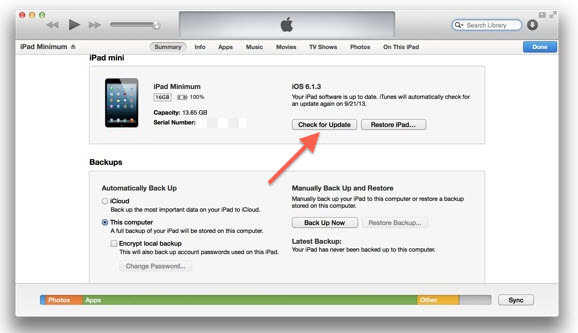
Generally, iTunes notifies you in the event of a release of a new version. You can simply click in the popup menu and follow the onscreen instructions to get it done. However, if the notification doesn’t appear and you still want to update iTunes on your mac to fix “iTunes backup not working” issue, you should follow these steps.
  1. Go to App Store.
  2. Go to the “Updates” tab. Select “Software Updates” and click on “More”.
  3. Locate the button called “Update” next to iTunes.
  4. The new version will be updated automatically.
  5. Launch iTunes to try the newest version.
  6. check-itunes-update

2Restart Both of Your iOS Device and Mac

If the problem doesn’t work even after an update, you should try restarting both the iOS device and Mac to fix “iTunes backup greyed out” issue. Here’s how to do it.

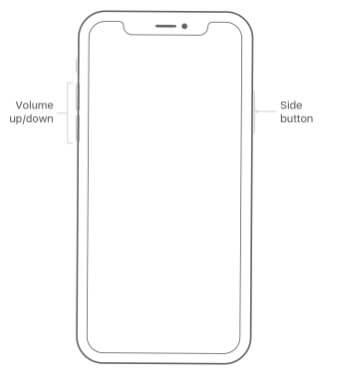
To restart your iPhone X

  1. Hold the Side button with a volume button to get the slider appeared.
  2. Drag it to turn off the phone.
  3. Press and hold the Side button to start the device again.
  4. restart iphone x

To restart iPhone 8 or older devices (including iPads)

  1. Hold the top or side button to get the slider appeared.
  2. Drag it to turn off the device.
  3. Press and hold the side or top button to start the device.
  4. restart iphone

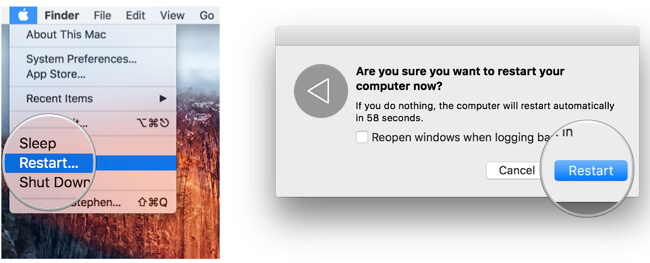
To restart Mac

  • Hit Apple key and click on Restart option to restart your Mac.
  • restart-mac

3Change a Workable USB Cable

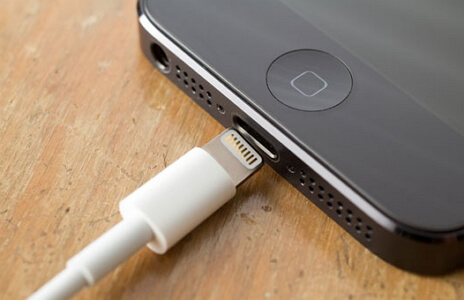
Sometimes the “iTunes backup now greyed out mac” can occur due to a bad USB cable. In this case, you should replace the USB cable with a new one and give it a try. If the problem persists, you should connect the USB cable into different ports.
check-iphone-usb-cable

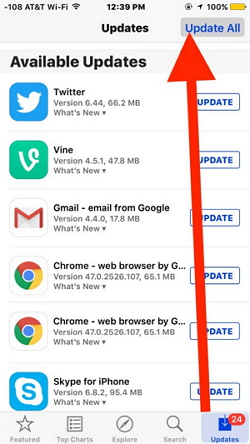
4Update Apps on Your iPhone

Sometimes, outdated apps can be the reason behind “no backup option in iTunes” issue. In this case, you have to fix it by updating the apps.
  1. Go to iPhone’s App Store icon.
  2. Tap the Updates icon.
  3. Select “Update All”.
  4. Enter password when prompted.
  5. update-all-apps-iphone

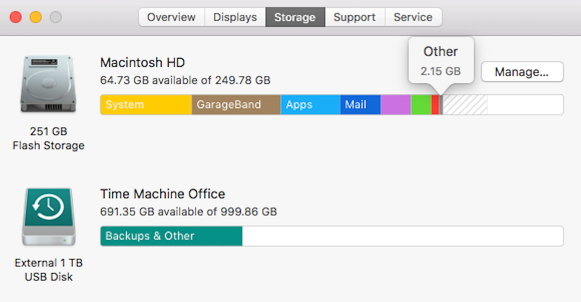
5Make Sure There’s Enough Space On Your Mac

iTunes backup will not work if you Mac doesn’t have enough space. To check the space, you should:
  1. Go to Apple Menu and select “About This Mac” option.
  2. Select “More Info”.
  3. Click “Storage” to see the available space.
  4. check-mac-storage-space

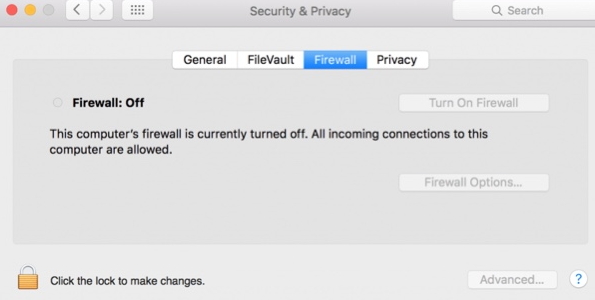
6Check Your Mac’s Security Software

If the security software blocks iTunes, it will not permit to backup. To check it, you should:
  1. Go to System Preferences.
  2. Security (or Security & Privacy) icon.
  3. Go to the Firewall tab and check if iTunes is blocked.
  4. deactivate-mac-firewall

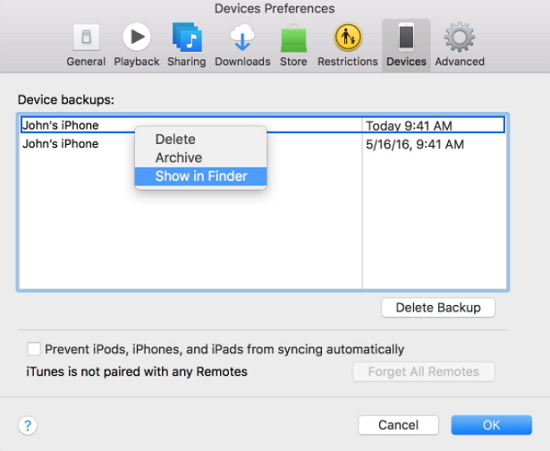
7Delete Corrupted Old iTunes Backups on Mac

A corrupted iTunes backup can cause problems and prevent you from backing up iTunes. Here’s how to delete it and fix it.
  1. Go to iTunes and select “Devices” under “Preferences”.
  2. Under Device Backups, you will find the old backup.
  3. Click on it and delete it.
  4. delete itunes backup

8Delete the iTunes Preferences File on Mac

If you have changed the iTunes preferences on the Mac, you will experience some issues in creating backups. You can fix this issue simply by deleting the iTunes preference file. To do this, you should:
  1. Go to Finder.

    Also Read:8 Best PDF Reader & Editor Apps for iPhone and iPad in 2019

    Also Read:How to Transfer Photos & Pictures from iPhone to iPhone/iPad
  2. Press Alt/Option and click on Go.
  3. Go to “Preferences” under “Library”.
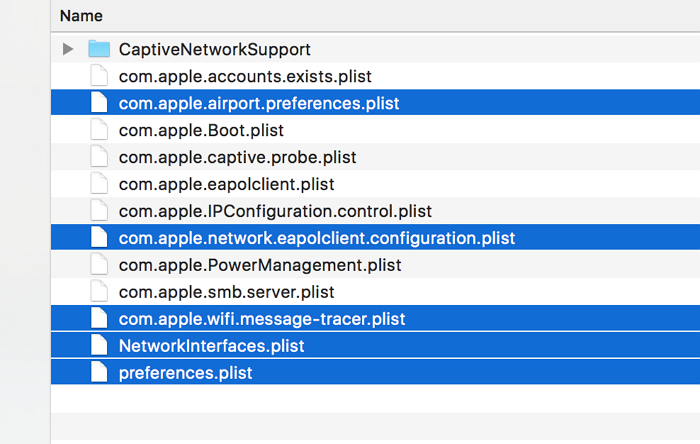
  4. Locate com.apple.iTunes.plist file and delete it.
  5. Restart to finish the process.
  6. plist-mac

Part 2: Alternative for iTunes to Make Backup Files on Mac

The methods we mentioned above are basic ones. If none of those methods really work for you, and you have no other way to back up your iTunes, you will have to go for an advanced option using a sophisticated software called iMyFone iTransor which is a professional backup & restore tool (renamed from iMyFone D-Port Pro).
Sponsor ads:
Gihosoft iPhone Data Recovery Free
Free iPhone Data Recovery Software for Windows/Mac
Recover up to 12+ types of files, including contacts, SMS, photos, WhatsApp, Viber, notes, etc.
Restore lost data from iOS devices directly or from iTunes and iCloud backup
Recover iPhone data lost due to iOS upgrade/jailbreak, accidental deletion, device lost or broken
Support all the latest iPhone, iPad and iPod Touch
Both Free and Pro version.
If you lost data after you updated to a new iPhone, you can always use Gihosoft iPhone Data Recovery to get the data back from the old iPhone or backup.You may also like: iphonerecovery.com
If you use android phones, please choose Gihosoft Android Data Recovery.
With Gihosoft Android Data Recovery, no longer afraid of data loss!
Gihosoft RePicvid Free Photo Recovery Software provides a free photo recovery software for windows to help users recover the deleted or lost photo for free.
Jihosoft Android Data Recovery: the best Android Data Recovery software for Windows and Mac to recover deleted contacts, messages, photos, videos, WhatsApp and etc from Android devices.Tips:How to transfer messages from iPhone to iPhone

How to Perform an iPhone System Reset from Settings - Recoverable 2019


How to Perform an iPhone System Reset from Settings - Recoverable

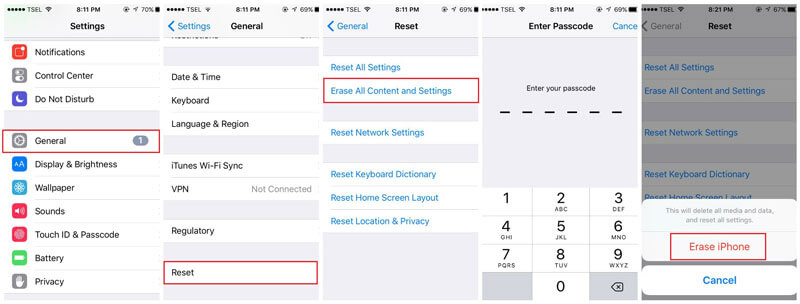
If you don’t think a complete iPhone system reset is necessary and safe for your, you can choose to do a normal iPhone system reset from your iPhone settings directly. It is also an effective way of resetting your iPhone. Going back to the basic way of resetting your iPhone, here are steps in detail on how to reset your iPhone.

Step 1:The first thing to do is go to “Settings” on your phone, then go to “General”, next, scroll down till you see “Reset”.

Step 2: Secondly, click on Erase All Content and Settings.

Step 3: Next would be entering your Apple ID Password.

Step 4: Confirm your choice to erase data.


This process can take minutes to complete. After this is done, you will see the ‘Welcome Screen’ asking you to continue.

It is important to know just as I’ve stated before that using the reset from the settings is not advisable because even though this would clean up your iPhone, the data cleaned can still be recovered, instead you should use the iMyFone iPhone Eraser as this tool can clean up your device, deleting data and making them unrecoverable.


So, I’m sure you do not only understand that there are two ways to do an iPhone system reset, you’ve also learned how to use these two to reset your phone and more importantly, you’ve learnt that it is better to use a tool that do not only delete data but makes them unrecoverable.Also Read:jihosoft Free iPhone Data Recovery

Sponsor ads:

Gihosoft Free iPhone Data Recovery:https://www.gihosoft.com/iphone-data-recovery-free.html

Gihosoft iPhone Data Recovery Free

Free iPhone Data Recovery Software for Windows/Mac

Recover up to 12+ types of files, including contacts, SMS, photos, WhatsApp, Viber, notes, etc.

Restore lost data from iOS devices directly or from iTunes and iCloud backup

Recover iPhone data lost due to iOS upgrade/jailbreak, accidental deletion, device lost or broken

Support all the latest iPhone, iPad and iPod Touch

Both Free and Pro version.

If you lost data after you updated to a new iPhone, you can always use Gihosoft iPhone Data Recovery to get the data back from the old iPhone or backup.You may also like: iphonerecovery.com

If you use android phones, please choose Gihosoft Android Data Recovery.

With Gihosoft Android Data Recovery, no longer afraid of data loss!

Must read:Youtube video downloader for pc

Gihosoft RePicvid Free Photo Recovery Software provides a free photo recovery software for windows to help users recover the deleted or lost photo for free.

Jihosoft Android Data Recovery: the best Android Data Recovery software for Windows and Mac to recover deleted contacts, messages, photos, videos, WhatsApp and etc from Android devices.Tips:How to transfer messages from iPhone to iPhone
iTunes Not Accepting Password


Solutions for the Issue

Following are some other solutions you can try to fix iTunes not accepting password:
1. Verify That Your Password is Correct

It may be possible that the password you are using to sign into iTunes is incorrect. There are ways to verify that your password is correct. It is recommended that you use one of those ways.

Follow these instructions:

Step 1: Visit https://appleid.apple.com/ in a web browser of your choice.


Step 2: Now sign in using the same Apple ID and password that you use on iTunes.

Step 3: If your password is correct, then your account page will open. And if the password is incorrect, then an error message will appear.
2. Reset iTunes Cache

Some users have reported that resetting iTunes cache has solved iTunes not accepting password. So, it is worth a try. You can reset iTunes cache by visiting the Preferences section of iTunes.

Follow these instructions:

Step 1: Launch iTunes and navigate to Preferences > Advanced.


Step 2: Now find and click the Reset Cache button.

Step 3: After resetting the cache, close iTunes and then reopen it again. The problem should be solved now.
3. Delete the Wrong Feed in iTunes

If you have mistakenly clicked on a premium feed that you don’t have an active subscription for, then your credentials will not work and iTunes will continue asking for a valid username and password. The solution is to delete that feed in iTunes.

Follow these instructions:

Step 1: On iTunes, navigate to your podcast list and find and select the premium feed that you do not want.


Step 2: Now choose the Unsubscribe option. It will be shown at the bottom of the screen.

Step 3: It would also be a good idea to delete the feed. You can use the delete key and then click ‘yes’ to do this.

Step 4: Close iTunes afterwards and then relaunch and sign in. The problem should be solved now.


Also Read:jihosoft Free iPhone Data Recovery

Sponsor ads:

Gihosoft Free iPhone Data Recovery:https://www.gihosoft.com/iphone-data-recovery-free.html

Gihosoft iPhone Data Recovery Free

Free iPhone Data Recovery Software for Windows/Mac

Recover up to 12+ types of files, including contacts, SMS, photos, WhatsApp, Viber, notes, etc.

Restore lost data from iOS devices directly or from iTunes and iCloud backup

Recover iPhone data lost due to iOS upgrade/jailbreak, accidental deletion, device lost or broken

Support all the latest iPhone, iPad and iPod Touch

Both Free and Pro version.

If you lost data after you updated to a new iPhone, you can always use Gihosoft iPhone Data Recovery to get the data back from the old iPhone or backup.You may also like: iphonerecovery.com

If you use android phones, please choose Gihosoft Android Data Recovery.

With Gihosoft Android Data Recovery, no longer afraid of data loss!

Must read:Youtube video downloader for pc

Gihosoft RePicvid Free Photo Recovery Software provides a free photo recovery software for windows to help users recover the deleted or lost photo for free.

Jihosoft Android Data Recovery: the best Android Data Recovery software for Windows and Mac to recover deleted contacts, messages, photos, videos, WhatsApp and etc from Android devices.Tips:How to transfer messages from iPhone to iPhone
Featured Post

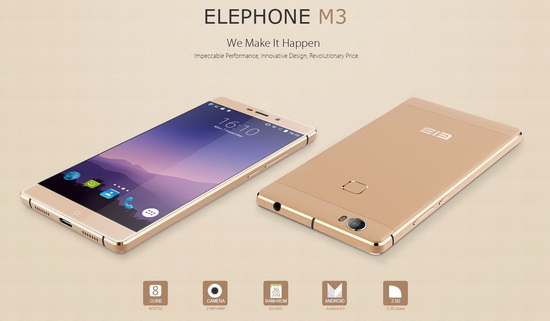
Elephone M3 News

Elephone M3 comes in two versions, both with the integration of aviation aluminum body and have Rose Gold, Champagne Gold, Smoky Grey ...