3/04/2019

How to Remove Icons from iPhone X/8/7/6/6s/5/4?


How to Remove Icons from iPhone X/8/7/6/6s/5/4?
Delete Apple's Built-in Apps

On iOS 10 and later versions, you can delete built-in apps of Apple from your iDevice. Although the built-in apps do not take much space, you can remove them to get rid of their icons from your iDevice's home screen.

Note

Keep in mind that removing such apps will not delete their data. It also doesn't free up storage space on your iDevice.

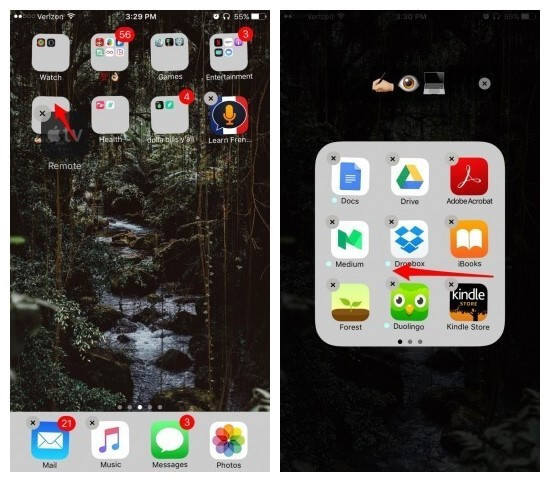
Step 1. On the home screen of your iDevice, touch the icon of the app that you wish to remove and hold it until the icon jiggles. Press the icon lightly, otherwise it won't jiggle.

Step 2. You will see an option to remove the app. Tap the Remove option to proceed. On newer iOS versions, you will need to tap the 'X'.


Step 3. Now press the Home button of your iDevice to finish.

There are certain built-in apps from Apple that you can remove via this method. Not all built-in apps can be removed. Following are the built-in apps you can remove:


Weather


Watch app


Voice Memos

Also Read:Top 6 Best Vumoo Alternative Sites for You to Watch and Download Movies 2019

Also Read:How to Access and Unlock Android Phone with Broken Screen

Also Read:How to Download Songs from Spotify with 4 Best Spotify Music Downloaders 2019

Videos or TV


Tips


Stocks


Reminders


Podcasts


Notes


News


Music


Maps


Mail


iTunes Store


iCloud Drive


iBooks


Home


Find My Friends


FaceTime


Contacts


Compass


Calendar


Calculator
If You Simply Want to Hide Icons

If you only need to hide icons but keep the apps installed on your iPhone, then you will be glad to know that there is a way to do that as well. You can hide the icons by creating a folder on the home screen of your iPhone and keeping the unwanted apps on the second page of the folder. Follow these instructions:

Step 1. Create a folder on the second or third Home screen of your iPhone. To create a folder, tap an app on the Home screen and hold it until its icon wiggles. Then move that app towards another app that you want to place in a folder. When both apps overlap, the view will be zoomed in and a folder will be created.


Step 2. If you truly want to hide the app icon, then it is recommended that you place at least eight to ten apps in your folder that you are fine with others seeing. Then move the app that you wish to hide to the second page of the folder.

It is obvious that this method does not completely hide the apps, however it does make it difficult to accidentally come across them.

Don't Miss: Also Read:How to Fix AC3 Audio Format Not Supported Error in MX Player
Also Read:How to Add Background Music to Video Online for Free
Also Read:10 Best Free Audiobook Apps for Your iPhone or iPad in 2019
Also Read:How to take a screenshot on any Android phone
Also Read:Top 7 Best Free DVD Burner for Mac You Should Know | 2019 Edition
Also Read:How to Download Twitch Videos for Free

Samsung Galaxy S10 Vs Galaxy S10E: What's The Difference?


Samsung’s Galaxy S10 range is turning heads, but their prices are also dropping jaws. By far the cheapest option is the new Galaxy S10e, but is it a smarter upgrade than the Galaxy S10 or a false economy? You might be surprised by their differences…
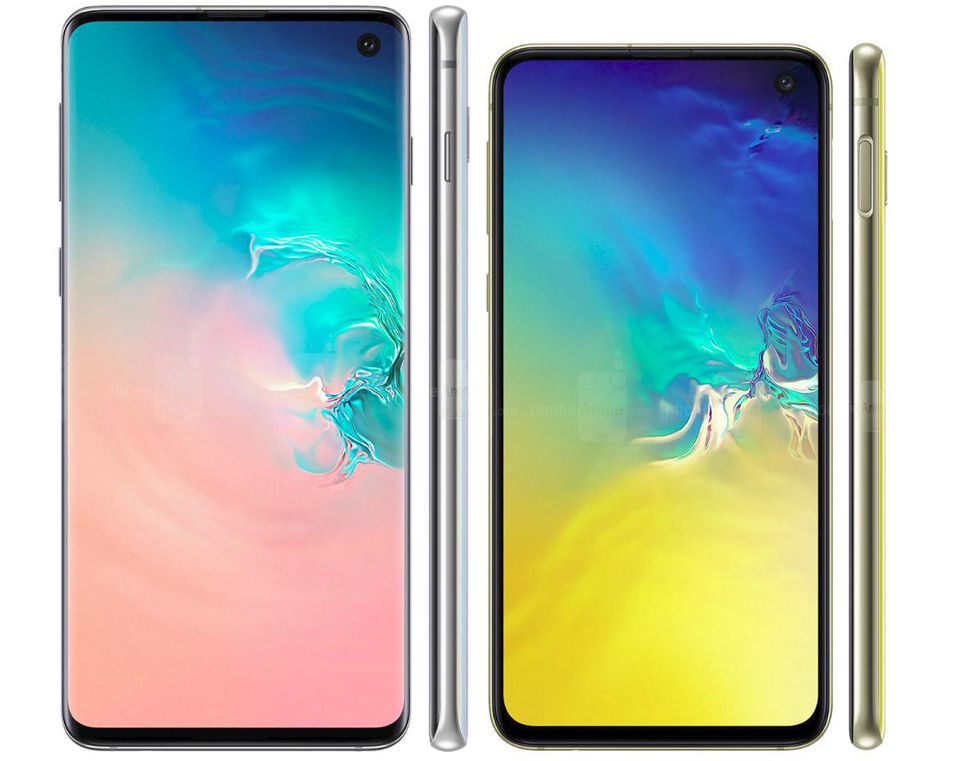


Displays - Size Matters


Galaxy S10 - 6.1-inch Dynamic AMOLED+, 19:9 aspect ratio, 1440 x 3040 pixels (550 ppi), 1200 nits brightness, Gorilla Glass 6 (front screen), Gorilla Glass 5 (rear)


Galaxy S10e - 5.8-inch Dynamic AMOLED+, 19:9 aspect ratio, 1080 x 2280 pixels (438 ppi), 1200 nits brightness, Gorilla Glass 5 (front and back)

Yes, you get a smaller display on Galaxy S10e and it is also flat but curved edges divide opinion and smartphone displays have become so large some will prefer the budget option. Especially since both sport the same bezel-trimming ‘punch-hole’ displays.

Where the Galaxy S10 stands out is its higher resolution display and toughened Gorilla Glass 6 front panel. But not so fast. These phones run lower resolutions by default and the human eye struggles to see a difference above 300ppi anyway. As for the glass, most people put their phones in a protective case.
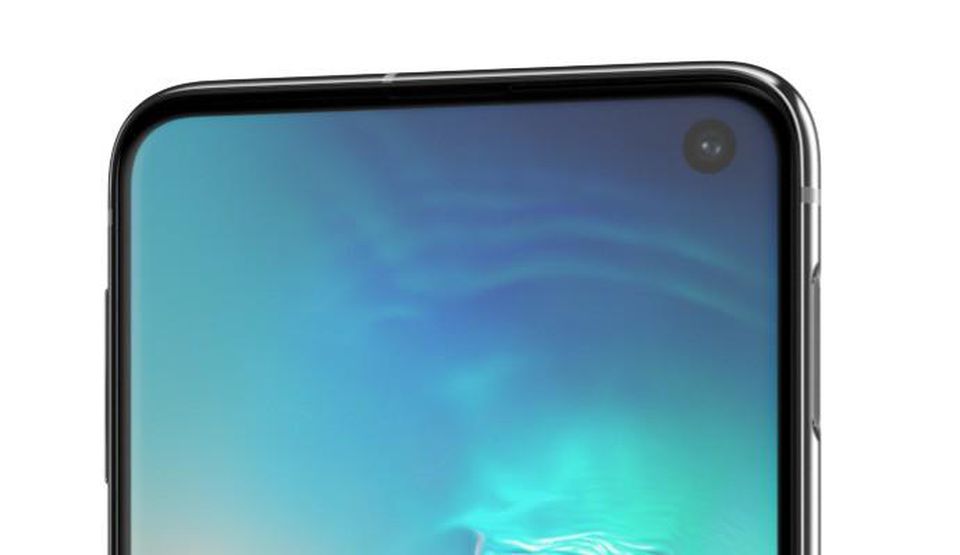


The Galaxy S10 does have a higher screen-to-body ratio (88.3% vs 83.3%) due to its slimmer bezels, but it’s a minimal difference I suspect most people can live with. (note: Samsung claims 91% and 93% ratios but doesn’t count the punch-hole).


Also Read: Samsung Galaxy Fold vs Huawei Mate X: Which Foldable Phone is Better?


As such, the real win for the Galaxy S10 is its in-display Ultrasonic fingerprint reader. It uses acoustic vibrations to create a 3D model of your fingerprint and it’s much faster and more secure than any previous reader. It’s also undeniably cool. Galaxy S10e owners have to settle for a reader built into its power button.


Design - Premium Stablemates


Galaxy S10 - 149.9 x 70.4 x 7.8 mm (5.90 x 2.77 x 0.31-inch), 157 g (5.54 oz)


Galaxy S10e - 142.2 x 69.9 x 7.9 mm (5.60 x 2.75 x 0.31 in), 150 g (5.29 oz)

Predictably, the Galaxy S10e is the smaller and lighter phone thanks to its smaller display but it is also notably more compact than the 5.8-inch Galaxy S9 (147.7 x 68.7 x 8.5 mm, 163 g) making for a very portable phone by today’s standards.

Elsewhere, both new models also retain the best bits of their predecessor: IP68 water resistance, stereo speakers (bottom grill + an amplified earpiece), USB-C, microSD and the headphone jack survives again.

Both phones also gain the ability to repurpose their microSD slot as a second sim, which makes them ideal for simultaneous home/work or personal/travel phone numbers.


Hybrid Sim is supported on all new Galaxy S10 modelsSAMSUNG

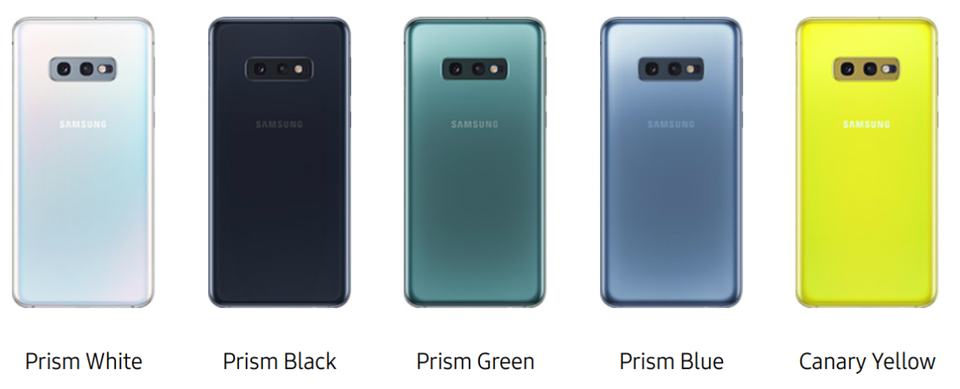
Finally, you’ll find the Galaxy S10e and Galaxy S10 launch in: Prism White, Prism Black, Prism Green, Prism Blue, and Flamingo Pink while the S10e also has Canary Yellow.

Note: the Galaxy S10 Plus also offers black or white ceramic finishes for its 1TB edition.

Cameras - Three Vs One


Galaxy S10e Rear: Primary - 12MP, f/1.5-2.4, 26mm (wide), 1/2.55", 1.4µm, Dual Pixel PDAF, OIS; Secondary - 16MP, f/2.2, 12mm (123-degree ultrawide) lens


Galaxy S10 Rear - as above, plus Tertiary - 12MP, f/2.4, 52mm (telephoto), 1/3.6", 1.0µm, AF, OIS, 2x optical zoom

So the Galaxy S10e misses out on the Galaxy S10’s 2x optical zoom, but I don’t think this matters greatly. While the ultrawide lens is ideal for panoramas and shooting indoors, in most scenarios the loss of optical zoom can be mitigated by simply walking close to your subject.
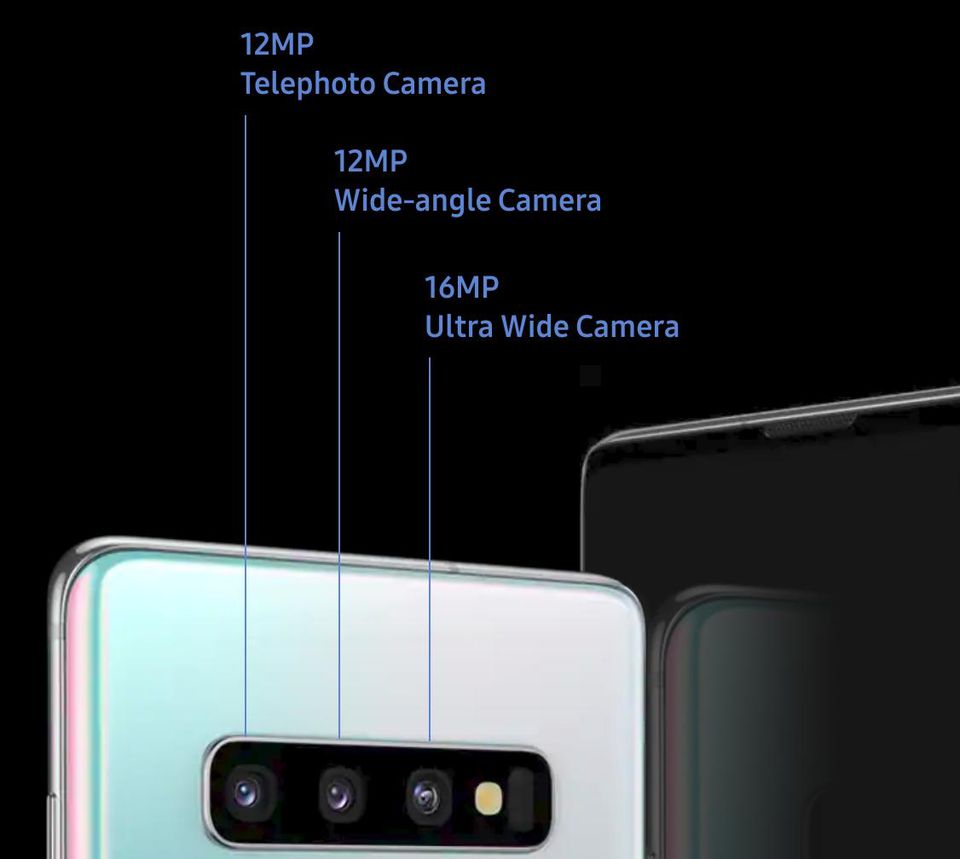


Meanwhile, the downsides are shared by both phones: they don’t appear to have changed their hardware from the Galaxy S9. While it is true that image processing has become the dominant factor in smartphone camera quality, it is still a disappointing development and the Pixel 3 retains its point-and-shoot camera crown.


From a hardware perspective, little has changed on the front either.


Galaxy S10, Galaxy S10e Front: 10MP, f/1.9, 26mm (wide), Dual Pixel PDAF


Galaxy S9 Front: 8MP, f/1.7, 25mm (wide), Dual Pixel PDAF


Here the Galaxy S10 and Galaxy S10e have identical hardware and a slight resolution bump from the Galaxy S9. That said, they also have a slower aperture (f/1,9) than the Galaxy S9 (f/1.7) which is a strange decision.


Lost data from your Samsung device? Here is a free data recovery software for Android that can help you recover them quickly.


User Guide: How to Recover Deleted Data from Samsung Galaxy S10/ Note 9/S9/S8+


Where Samsung has stepped up is the introduction of HDR video recording. Like its camera equivalent, this blends different exposures to retain detail in low and bright light simultaneously and the results are superb. Better still, both model models get this.
Also Read:5 Best Music Player for PC to Free Download 2019Also Read:Top 6 Best Alternative Sites to YTS Torrent Movie Website 2019

Tip: the Galaxy S10 Plus has two front-facing cameras.

Performance - Memory Games


Both models: EMEA - Exynos 9820 Octa (8 nm), CPU: Octa-core (2x2.7 GHz Mongoose M4 & 2x2.3 GHz Cortex-A75 & 4x1.9 GHz Cortex-A55), GPU: Mali-G76


Both models: US, China - Qualcomm SDM855 Snapdragon 855 (7 nm), CPU: Octa-core (1x2.8 GHz Kryo 485 & 3x2.4 GHz Kryo 485 & 4x1.7 GHz Kryo 485), GPU: Adreno 640

While identical, it’s worth noting the improvements the Galaxy S10 and Galaxy S10e get from their new hardware. Samsung claims 29% and 37% CPU and GPU boosts respectively over the Galaxy S9 while they also run cooler thanks to their die shrink.

Where there is a difference is RAM. The Galaxy S10 has a sizeable 8GB, regardless of which option you buy (128/512GB), while storage determines what you get in the Galaxy S10e: 128GB gives you 6GB, 256GB bumps you to 8GB, there is no 512GB model.

Tip: the Galaxy S10 Plus goes up to 12GB RAM and 1TB storage.
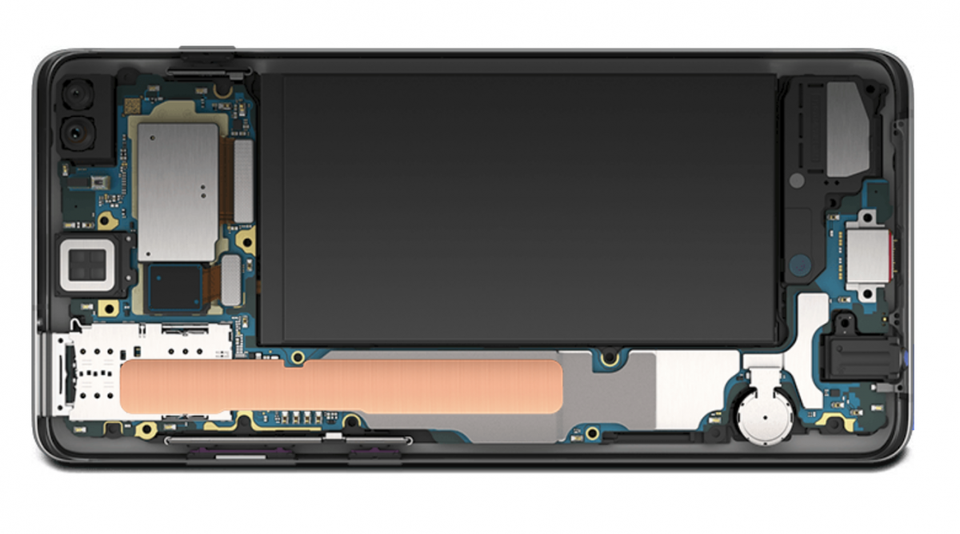


Where the Galaxy S10 and Galaxy S10e do line-up again, however, is connectivity. While Apple gives the iPhone XR inferior 4G, both Samsung’s new models have upgraded 4G for enhanced reception and performance (up to a theoretical 2Gbps) as well as the all-new WiFi 6standard which has improved speed and range.

‘Wireless PowerShare’ features on both models as well. This is a useful new feature which enables Qi-compatible devices to receive charge from your phone when placed against their back. To work you must have a minimum of 30% left in your phone.

As for software, both models have Samsung’s cleaner and more intuitive ‘One UI’. But be warned: familiar shortcomings suggest Android updates won’t arrive any faster.

Battery Life - Capacious Upgrade


Galaxy S10 - 3400 mAh


Galaxy S10e - 3100 mAh

While the Galaxy S10’s battery is almost 10% larger than the Galaxy S10e, the real world differences are minor due to its larger screen and higher resolution. Both also represent improvements from the Galaxy S9 (3000 mAh) and Samsung promises almost 24-hours of battery life from a single charge.


Download the Latest Version of Samsung Kies for PC and Mac OS
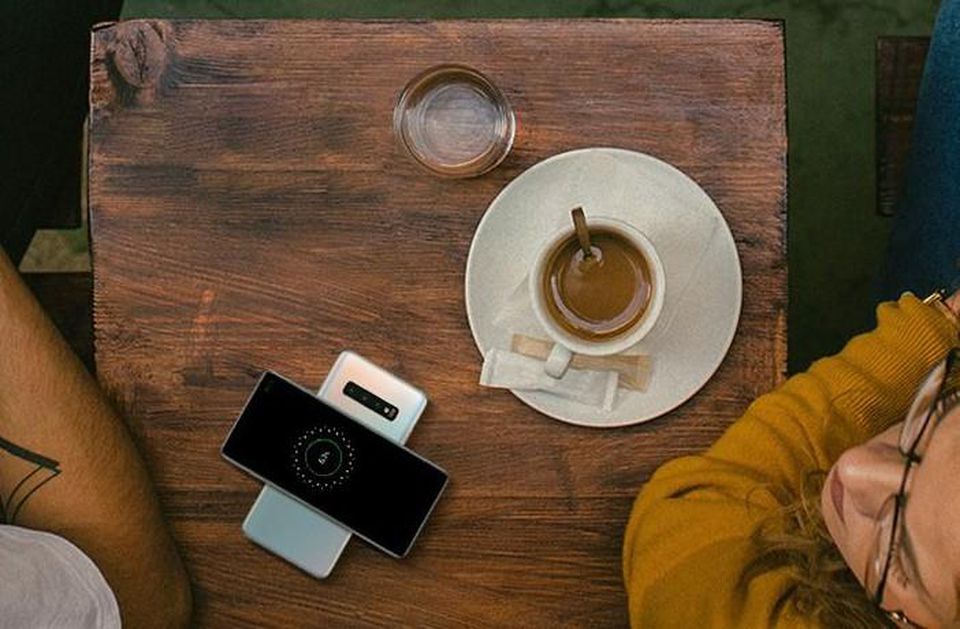


Both models also have matching 18W wired and 15W wireless charging. This is fine, though faster wired charging has started to appear from rivals (notably OnePlus). Samsung will launch a 5G Galaxy S10 later in the year with 25W wired charging, which rubs this in for Galaxy S10 and S10e buyers.

Tip: the Galaxy S10 Plus is the range’s battery life king by far.

Price And Storage - Mix And Match


Galaxy S10 - $899 (128GB / 8GB RAM), $999 (512GB / 8GB RAM)


Galaxy S10e - $749 (128GB / 6GB RAM), $849 (256GB / 8GB RAM)

For my money, given its support of microSD, the 128GB Galaxy S10e is the best value option but - conversely - microSD also means the 128GB Galaxy S10 is worth its $50 premium over the 256GB Galaxy S10e.

Tip: watch out for launch deals. Samsung is bundling a free pair of wireless $130 Galaxy Buds and you should expect further savings within a few months.


Early Verdict

These phones share a lot more in common than you might expect. If you’re on a budget, the 128GB Galaxy S10e is the phone to buy. 6GB RAM is more than enough, and it retains almost all the best features of the Galaxy S10 while matching performance.

Step up the range, however, and (again thanks to its microSD slot) you’re better off buying a 128GB Galaxy S10 for $50 more than a 256GB Galaxy S10e. You’ll bag its superb Ultrasonic fingerprint reader, those slimmer bezels and the 2x optical zoom lens.

Download the Latest Version of Odin Flash Tool for Samsung Devices

My complaints are both phones fail to improve their cameras as much as I’d like and their punch-hole designs will be polarising. That said, there’s no doubt they live up to their 10th-anniversary billing.

Tip: if money is no object, the Galaxy S10 Plus is the best phone in the range.
Also Read:How to Fix AC3 Audio Format Not Supported Error in MX Player
Also Read:How to Add Background Music to Video Online for Free
Also Read:10 Best Free Audiobook Apps for Your iPhone or iPad in 2019
Also Read:How to take a screenshot on any Android phone
Also Read:Top 7 Best Free DVD Burner for Mac You Should Know | 2019 EditionAlso Read:How to Download Twitch Videos for Free

___

App to Delete Contacts on iPhone X/8/7/6/5 Free (Highly Recommended) 2019


Is your iPhone getting sick with an overloaded contact list? Do you want to get rid of the duplicate contacts on your iPhone? In both the cases, what will you do? Majority of iPhone users set out on a mission to delete the contacts one by one but end up getting frustrated and putting their device aside. Then again, they gather courage and begin the process but end-up trashing it mid-way. Have you ever tried to find out an interesting way to get rid of multiple contacts on your iPhone? Well, if not, then you’re at the right place. In this post, we will talk about how to delete contacts on iPhone X/8/7/6/5 for free. Keep reading to know more.


Part 1: App to Delete Contacts on iPhone X/8/7/6/5 Free (Highly Recommended)


Part 2: Delete Contacts on iPhone X/8/7/6/5 in Official Methods
1: App to Delete Contacts on iPhone X/8/7/6/5 Free (Highly Recommended)

If you’re looking for a surefire way or a robust app to delete contact on iPhone free, then you’re in for some good news.

iMyFone App for iOS has been crafted for solving all issues related to management of data on your iPhone. With it, you can:


Delete duplicate contacts and merge them under one contact


Find irrelevant and incomplete contacts and remove them


Form batches and delete contacts selectively


How to delete contacts on iPhone with iMyFone App for iOS - a free app?

Follow these steps to delete contact on iPhone using iMyFone App for iOS:


Install the free iMyFone App for iOS on your iPhone.


On the home screen, click “Manage Contacts”.


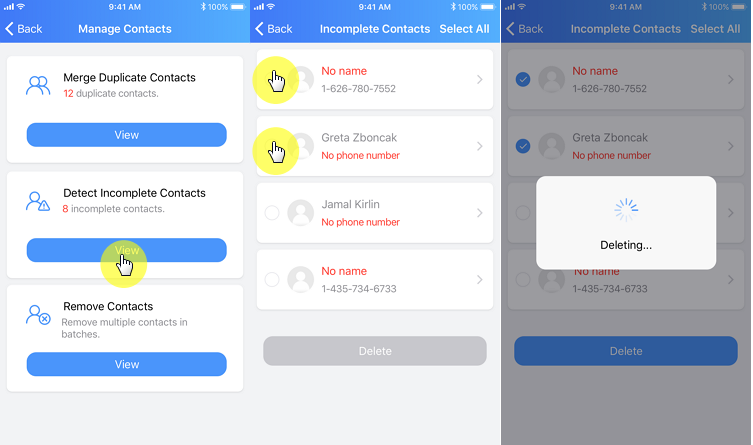
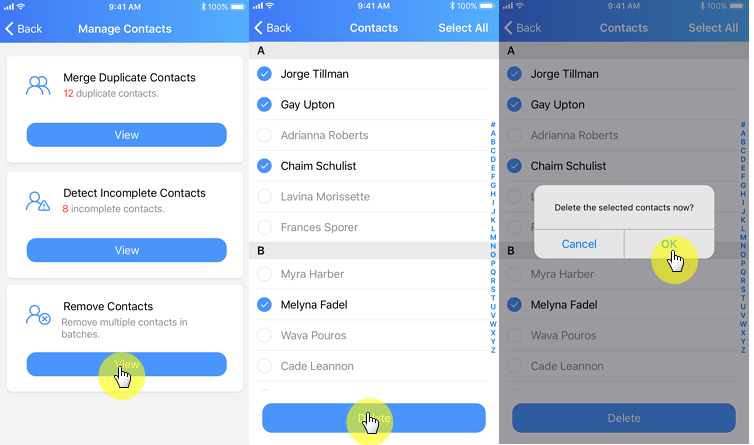
Three options will be displayed on your screen - Merge Duplicate Contacts, Detect Incomplete Contacts, and Remove Contacts.


To delete contacts with incomplete details, click “Detect Incomplete Contacts”. Then select the “Incomplete Contacts” you wish to delete and hit the “Delete” button.


To delete contact in bulk, click “Remove Contacts”, select the contacts you wish to remove and hit the “Delete” button.


2: Delete Contacts on iPhone X/8/7/6/5 in Official Methods

In case you do not wish to use the free app and try the official Apple method instead, carefully read this section to understand the important steps involved to delete contacts on iPhone X/8/7/6/5.


How to Delete Contacts on iPhone X/8/7/6/5 Directly?


Delete More than One Contact on iPhone X/8/7/6/5 via iCloud


Delete Contacts on iPhone X/8/7/6/5 via Mac
1How to Delete Contacts on iPhone X/8/7/6/5 Directly?

Well, there’s no Einstein theory involved in deleting contacts on iPhone the official way. You’ll have to pick and delete the contacts one by one. Apple does not support deleting contacts in batches (multiple or all).

While this method is time-consuming and exhausting, it can help you gain an understanding on your contact list and help you decide what you wish to do with a contact there and then.
How to delete contacts on iPhone one by one


It’s very easy. Follow these steps to delete contact on your iPhone by picking them one by one.


Open the “Contacts app” on your iPhone.


Pick the contact you wish to delete and click “Edit” icon on the top right-corner of the contact page.


Scroll down and tap on “Delete Contact”.


How to delete contacts on iPhone in bulk?

As already mentioned above, Apple does not allow users to delete contacts in bulk, so the only option that you’re left is using a tool like iMyFone app for iOS to delete contacts from iPhone in bulk. Follow the steps mentioned in the second section of the post “App to Delete Contacts on iPhone X/8/7/6/5 Free (Highly Recommended)” to delete contacts on iPhone in bulk.
2Delete More than One Contact on iPhone X/8/7/6/5 via iCloud

There’s another option using which you can delete contacts in bulk from your iPhone. However, it involves iCloud and the process is different on a Mac versus the Windows system.
How to delete contacts on iPhone via iCloud on Mac

Let’s first look at how you can delete contacts on iPhone in bulk via iCloud on Mac. Follow these steps:


Open “iCloud.com” on Safari and login with your iCloud details.


Tap on the “Contacts app” on the iCloud Home Screen.


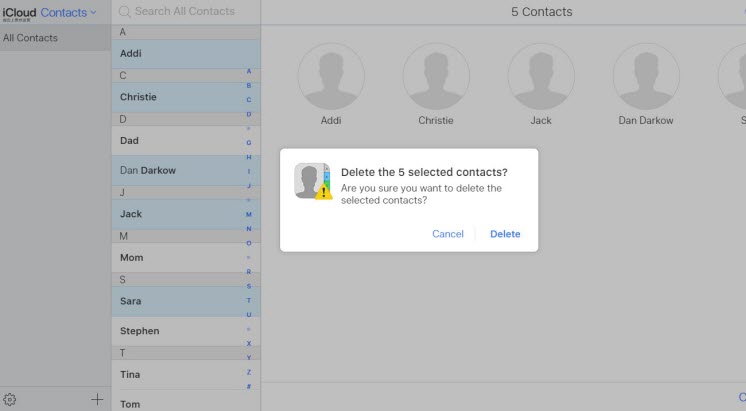
Press and hold the “Command” key on your keyboard, followed by the contact names you wish to delete one by one.


Once you’ve selected all the contacts for deletion, tap on the “Settings” button at the bottom left-extreme of the screen and pick “Delete” from the menu.


In the prompt box, again click “Delete” to confirm.


That’s it. The bulk selected contacts will disappear from iCloud!
How to delete contacts on iPhone via iCloud on Windows

Let’s now dive-deep into how you can delete contacts on iPhone in bulk via iCloud on Windows PC. Follow these steps:


Open “iCloud.com” on Chrome or Firefox, and login with the same Apple credentials you’re signed in with on your iPhone.


Tap on the “Contacts app” on the iCloud Home Screen.


Press and hold the “Command” key on your keyboard, followed by the contact names you wish to delete one by one.


Once you’ve selected all the contacts for deletion, tap on the “Settings” button at the bottom left-extreme of the screen and pick “Delete” from the menu.


In the prompt box, again click “Delete” to confirm.


That’s it. The bulk selected contacts will disappear from iCloud!
Advantages of the method:


No need to download a third-party app to delete the contacts.


Easily delete multiple contacts permanently.


Can be done from anywhere using your iCloud account.
Disadvantages of the method:


You require a PC to complete this activity.


iCloud sign-in which takes time is a must.
3Delete Contacts on iPhone X/8/7/6/5 via Mac

You can also delete multiple contacts on your Mac using an iPhone. To complete this activity, the first thing you need to do is log into your iCloud account using your Mac. Follow these steps to delete contacts on iPhone X/8/7/6/5 using your Mac:


Sign-in using your iCloud credentials.


Open the contacts app on your Mac.


Keep holding in the “Command” button while pressing the down arrow key until all the contacts you want to delete are selected.


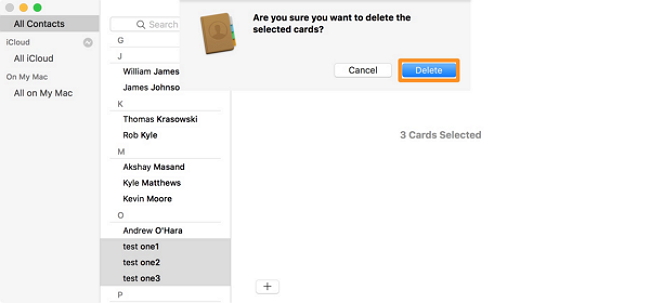
Once all the contacts are selected, right click and pick “Delete”.


Advantages of the method:


No need to download a third-party app to delete the contacts.


Can be done from anywhere using your iCloud account.
Disadvantages of the method:


You have to sync your iPhone with your Mac to access contacts.


You must own a Mac to perform this activity.Also Read:How to Change Message/iMessage Background on iPhone with/without Jailbreak

Also Read:What is iTunes Helper & How to Disable it from Windows/Mac PC

3/03/2019

4 Tips to Fix iTunes Error 3194

4 Tips to Fix iTunes Error 3194

2.1. Check Your Hosts File

iTunes error 3194 that appears when you are restoring or updating iPhone or iPad because iTunes cannot connect to Apple server properly. In this tip, you should check your hosts file to ensure that the update server can communicate with your computer.
On Windows computer –
Please check the guide here to reset the hosts file. If it is a business computer, consult your IT department if necessary.
On your Mac computer –
  • Browse 'Finder' > 'Applications' > 'Utilities'.
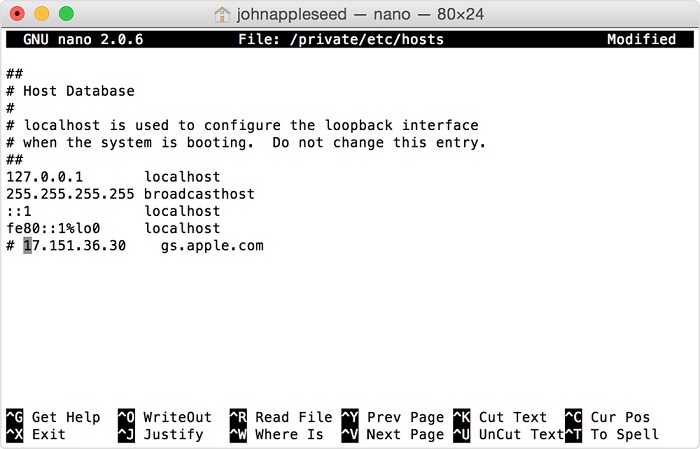
  • Go to 'Terminal' and type 'sudo nano /private/etc/hosts' > 'Return' > key in password > 'Return'.
  • You can see the hosts file in 'Terminal' > 'gs.apple.com' > Add '#' and one space before 'gs.apple.com' > Control-O. It will save the file.
  • When prompted for a name > click 'Return' > Control-X > Restart Mac. You can restore the iPhone now.
  • reset hosts file
After you reset the hosts file, try updating or restoring your iPhone or iPad again. This will positively avoid iTunes error 3194.


2.2. Temporarily Uninstall the Security Software

Security software mostly disrupts the connection between the iTunes and the Apple servers. Therefore, you can temporarily get rid of the software or disable it to allow iTunes connecting properly with your iPhone and Apple servers. Or alternatively, you can uninstall the software and fix the iTunes error 3194 that occurs when you are updating or restoring iPhone or iPad.
security software


2.3. Update iTunes to the Latest Version to Avoid Unknown Error 3194

It is also recommended that you update your iTunes to the latest version in order to fix the iPhone or iPad restore or update error 3194. In order to update iTunes to the latest version on your computer follow the below mentioned steps.
For a Mac –
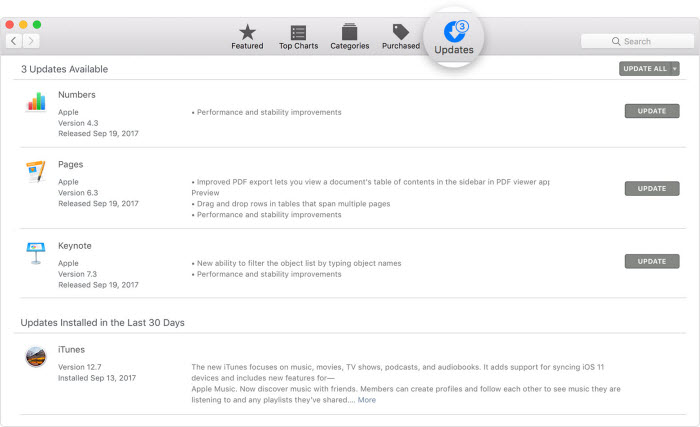
  • Launch 'App Store' > 'Updates' > 'Install'.
update iTunes
For a Windows computer –
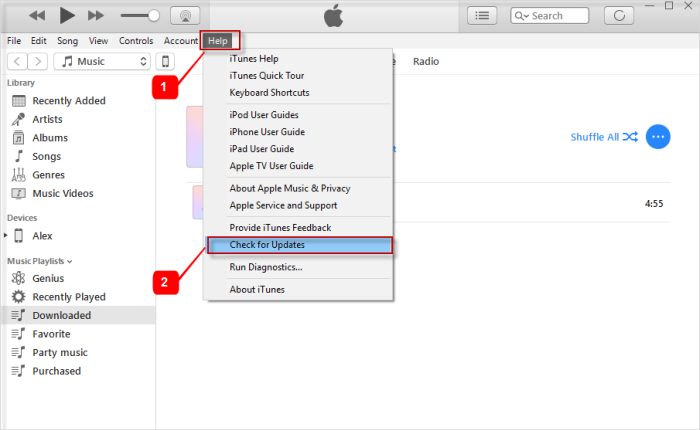
  • Launch 'iTunes' if downloaded from Apple website > 'Help' > 'Updates' > 'Install' following the onscreen steps.
update iTunes


2.4. Restore iPhone or iPad using Recovery Mode (Data Erased)

You can also use the recovery mode to restore your iPhone or iPad and get rid of the iPhone or iPad restore error 3194. Here are the steps –
  • Put your iPhone or iPad in recovery mode by holding 'Power' and 'Home' buttons together and connect your iPhone or iPad to the PC. Wait the Apple logo to change to iTunes logo. If you are using iPhone 7 and iPhone 8, please check the guide here.
  • Now that your iPhone or iPad is in recovery mode, you can see a dialog box on iTunes interface. Tap on the 'Restore' button here to restore your iPhone or iPad. This might avoid iTunes error 3194.
restore iPhone using iTunes

You may also like:Sponsor ads:

Sponsor ads:7 Best Twitch Streaming Software (Free and Paid) for You 2019

Also Read:Fix iTunes Error 1671 When Updating iPhone/iPad
Gihosoft iPhone Data Recovery Free
Free iPhone Data Recovery Software for Windows/Mac
Recover up to 12+ types of files, including contacts, SMS, photos, WhatsApp, Viber, notes, etc.
Restore lost data from iOS devices directly or from iTunes and iCloud backup
Recover iPhone data lost due to iOS upgrade/jailbreak, accidental deletion, device lost or broken
Support all the latest iPhone, iPad and iPod Touch
Both Free and Pro version.
If you lost data after you updated to a new iPhone, you can always use Gihosoft iPhone Data Recovery to get the data back from the old iPhone or backup.You may also like: iphonerecovery.com
If you use android phones, please choose Gihosoft Android Data Recovery.
With Gihosoft Android Data Recovery, no longer afraid of data loss!
Gihosoft RePicvid Free Photo Recovery Software provides a free photo recovery software for windows to help users recover the deleted or lost photo for free.
Jihosoft Android Data Recovery: the best Android Data Recovery software for Windows and Mac to recover deleted contacts, messages, photos, videos, WhatsApp and etc from Android devices.Tips:How to transfer messages from iPhone to iPhone

3/02/2019

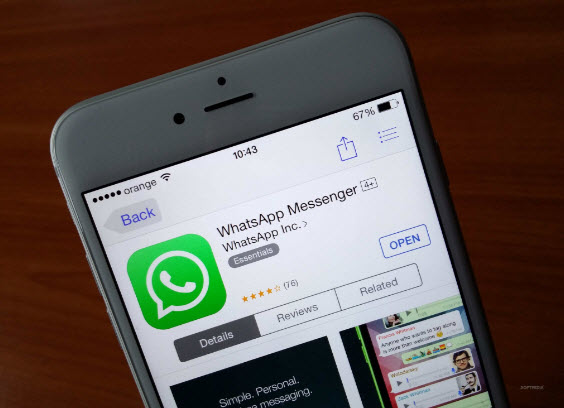
Top 8 Ways to Fix WhatsApp Won’t Open on iPhone/iPad


1: Top 8 Ways to Fix WhatsApp Won’t Open on iPhone/iPad


Restart iPhone/iPad


Force Quit WhatsApp


Change Network on iPhone/iPad


Reset Network Settings


Uninstall & Reinstall The Latest WhatsApp


Erase All Content and Settings


Fix WhatsApp Won't Open on iPhone/iPad via Third-Party Tool


Contact the Developer of WhatsApp
1Restart iPhone/iPad

WhatsApp may fail to open on your iOS device simply because of an iOS bug. From our experience, restarting the device can fix this bug. Restarting an iOS device is easy. Follow the steps below:
iPhone X

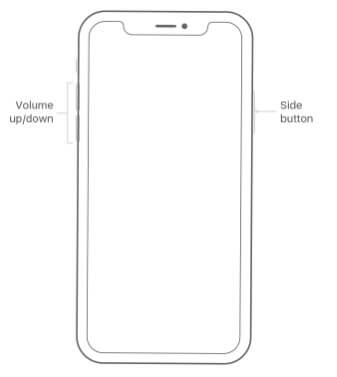
Step 1: Press both your iPhone Side button and either volume up or down buttons. Hold the two buttons until a slider appears. Drag this slider to turn your iPhone X off.

Step 2: Press the side button after the device is off and keep holding it until an Apple logo appears.


iPad, iPhone 8 and Below, or iPod Touch

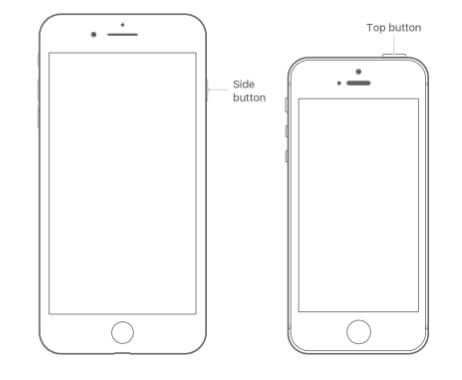
Step 1: Press the side (or top) button until you see a slider. Drag that slider to turn your device off.

Step 2: Press and then keep holding the side (or top) button after your device is completely off until the Apple logo shows.


2Force Quit WhatsApp

Sometimes, your iOS WhatsApp may become unresponsive. To fix this issue, you need to force it to close. Here is how you can do it:
iPhone 8 and Earlier

Step 1: Double tap your Home button for you to see the apps you have used recently.

Step 2: Swipe either left or right until you locate WhatsApp. Swipe on WhatsApp’s preview to close it.
iPhone X

Step 1: From the device Home screen, swipe up and then pause.

Step 2: Swipe left or right to locate WhatsApp.

Step 3: Touch WhatsApp and then hold it. Tap the red minus sign (-) to close the app.


3Change Network on iPhone/iPad

There are occasions when iPhone WhatsApp won’t open because of a poor network connection. In such cases, all you need to do is to switch between Wi-Fi and mobile internet. Here is how you do it:

Step 1: From your screen bottom, swipe up to get the control center.

Step 2: Tap the Wi-Fi icon to disable it and then enable the Cellular icon.


4Reset Network Settings

If you switch between Wi-Fi and mobile internet and still your WhatsApp won’t open, you may need to reset the network settings. Follow the steps below to reset the network settings:

Step 1: Go to Settings and then tap General.

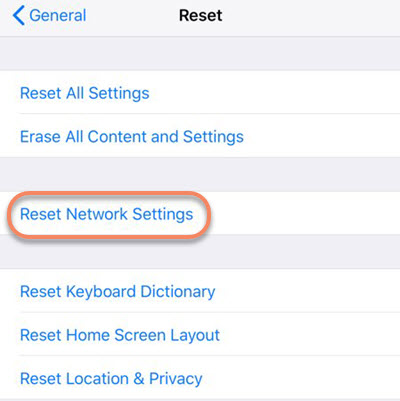
Step 2: At the menu bottom, tap Reset and then Reset Network Settings.


5Uninstall & Reinstall The Latest WhatsApp

WhatsApp itself may have a bug that is causing it not to open. To eliminate this bug, you will need to uninstall and reinstall WhatsApp by following the steps below:

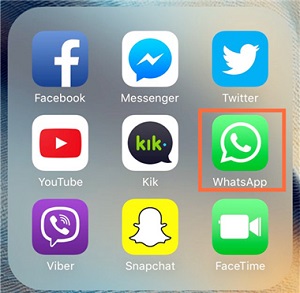
Step 1: Tap and hold WhatsApp icon until the device vibrates. Your apps should begin to jiggle too.

Step 2: Tap the X icon and tap delete to Uninstall WhatsApp.

Step 3: Visit App store and locate the latest WhatsApp version. Download and install it.


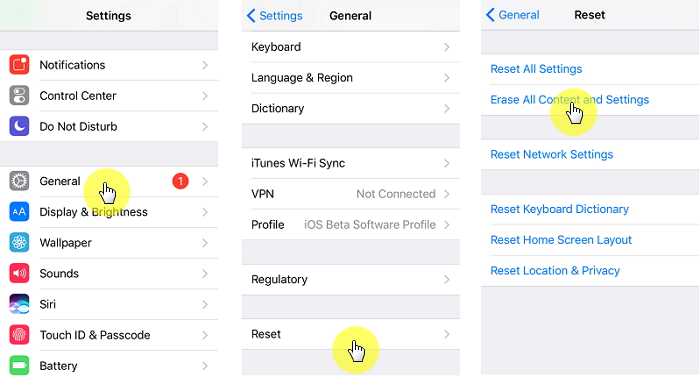
6Erase All Content and Settings

If the above methods won’t fix the iPhone WhatsApp won’t open issue, you can restore factory settings on your iOS device. This should be a last resort. Follow the steps below to use this fix:
Also Read:Transfer Data from HTC to Samsung Galaxy S7/S7 Edge/Note7Also Read:Top 8 Secure Encrypted Messaging Apps for Android and iOS 2019

Step 1: Visit Settings, select General, tap on Reset, and then click Erase All Content and Settings.

Step 2: Enter your device passcode. Click Erase iPhone to confirm you want to reset your device.


7Fix WhatsApp Won't Open on iPhone/iPad via Third-Party Tool

A much better way you can use to fix the iPhone WhatsApp won’t open problem without data loss is through a third-party tool known as the iMyFone iOS System Recovery. To use this tool, you have to install it on your computer, launch it and then connect your device.

Step 1: Set the Device to Recovery/DFU Mode Sponsor ads:

Gihosoft Free iPhone Data Recovery:https://www.gihosoft.com/iphone-data-recovery-free.html

Gihosoft iPhone Data Recovery Free

Free iPhone Data Recovery Software for Windows/Mac

Recover up to 12+ types of files, including contacts, SMS, photos, WhatsApp, Viber, notes, etc.

Restore lost data from iOS devices directly or from iTunes and iCloud backup

Recover iPhone data lost due to iOS upgrade/jailbreak, accidental deletion, device lost or broken

Support all the latest iPhone, iPad and iPod Touch

Both Free and Pro version.

If you lost data after you updated to a new iPhone, you can always use Gihosoft iPhone Data Recovery to get the data back from the old iPhone or backup.You may also like: iphonerecovery.com

If you use android phones, please choose Gihosoft Android Data Recovery.

With Gihosoft Android Data Recovery, no longer afraid of data loss!

Must read:Youtube video downloader for pc

Gihosoft RePicvid Free Photo Recovery Software provides a free photo recovery software for windows to help users recover the deleted or lost photo for free.

Jihosoft Android Data Recovery: the best Android Data Recovery software for Windows and Mac to recover deleted contacts, messages, photos, videos, WhatsApp and etc from Android devices.Tips:How to transfer messages from iPhone to iPhone

jihosoft Free iPhone Data Recovery

3/01/2019

iPhone Keeps Switching to Silent, How to Fix It


iPhone Keeps Switching to Silent, How to Fix It
There are very few things that frustrate you more than when technology just doesn't work as it's supposed. A common complaint when it comes to iPhones is when it automatically switches to silent, even when you don't want it to. It leads people to miss vital phone calls, not be alerted to reminders and be unaware of important text messages.

Luckily, though, we're here to give you some solutions to iPhone keeps switching to silent. But, before we do that, we must remind you to try a little trick which fixes an abundance of iPhone problems – restart your iPhone. If the problem still persists, then you can try these methods.


Adjust Your Sound Settings on iPhone


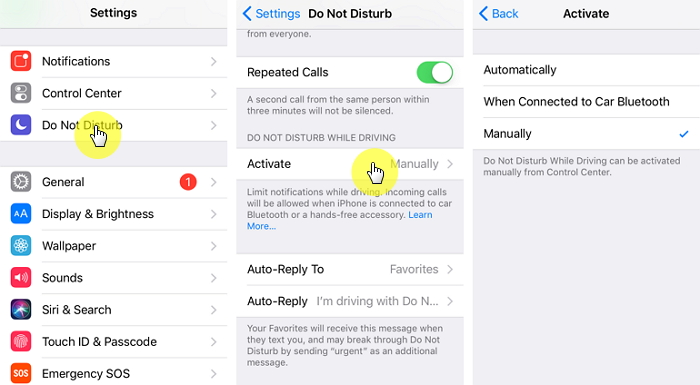
Use Do Not Disturb Function


Update iOS to Latest, If It's Not


Repair iOS to Fix iPhone with Sound Issues
1. Adjust Your Sound Settings on iPhone

Head into your Settings app and then select 'Sounds'. Once you're in there, you need to locate the 'Ringer and Alerts' section. If the 'Change with Buttons' tab is showing as green, you can turn it off, which will stop the ringer function from interfering.AlsoRead:Top 5 Software to Download YouTube 60fps Videos on PC & Mac


2. Use Do Not Disturb Function

Bizarrely, you can even restart your iPhone by activating one of the in-built functions – Bold Text. If you go into your settings app, hit 'General', then 'Accessibility', and then turn the 'Bold text' feature on. As soon as you slide the toggle, you'll receive a popup that states it will restart your iPhone – just tap 'Continue' and your phone will restart.


3. Update iOS to Latest, If It's Not

Every time Apple brings out an iOS update, they fill it with a vast array of fixes for common bugs that they've received complaints about. So, you may find that just updating to the latest version of iOS will do the trick to solve iPhone keeps switching to silent. If you're not aware of the best way to update your device, click here.


4. Repair iOS to Fix iPhone with Sound Issues

If you're experiencing the problem – your iPhone still keeps switching to silent automatically after trying the above tips, then probably there is iOS issues on your iPhone and you may to resort to a specialist tool. Our strong recommendation is to use the iMyFone iOS System Recovery to repair the issue. Here's why:Sponsor ads:

Gihosoft Free iPhone Data Recovery:https://www.gihosoft.com/iphone-data-recovery-free.html

Gihosoft iPhone Data Recovery Free

Free iPhone Data Recovery Software for Windows/Mac

Recover up to 12+ types of files, including contacts, SMS, photos, WhatsApp, Viber, notes, etc.

Restore lost data from iOS devices directly or from iTunes and iCloud backup

Recover iPhone data lost due to iOS upgrade/jailbreak, accidental deletion, device lost or broken

Support all the latest iPhone, iPad and iPod Touch

Both Free and Pro version.

If you lost data after you updated to a new iPhone, you can always use Gihosoft iPhone Data Recovery to get the data back from the old iPhone or backup.You may also like: iphonerecovery.com

If you use android phones, please choose Gihosoft Android Data Recovery.

With Gihosoft Android Data Recovery, no longer afraid of data loss!

Must read:Youtube video downloader for pc

Gihosoft RePicvid Free Photo Recovery Software provides a free photo recovery software for windows to help users recover the deleted or lost photo for free.

Jihosoft Android Data Recovery: the best Android Data Recovery software for Windows and Mac to recover deleted contacts, messages, photos, videos, WhatsApp and etc from Android devices.Tips:How to transfer messages from iPhone to iPhone

jihosoft Free iPhone Data Recovery

iPhone Keeps Dropping Calls, How to Fix?

iPhone Keeps Dropping Calls, How to Fix?

Is your iPhone occurring the problem of dropping the call? It might retrieve you to little stress while you were calling to some certain issues. Anyway, your stress is over now and here we are offering a complete guide to resolve the issue of iPhone keeps dropping calls as it is just a technical glitch. Follow the suitable way as per the frequency of problem occurs.


The First-Aid Method – Turn on Wi-Fi Calling


Reinstall SIM Card


Restart Your iPhone


Reset Network Settings


Solve iPhone keeps dropping calls by Fixing iOS Issue
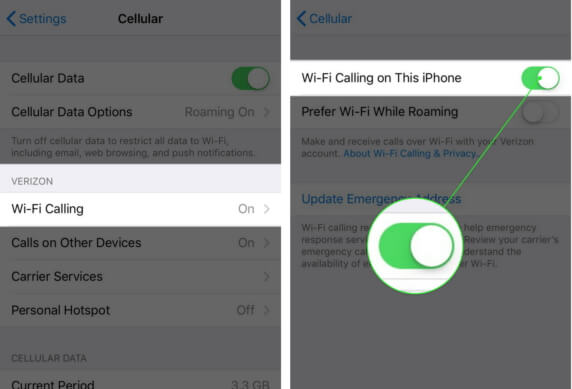
1. The First-Aid Method – Turn on Wi-Fi Calling

It is the temporary way to resolve while you were working on the situation. You can turn on Wi-Fi Calling immediately and it will connect your call to Wi-Fi connection directly. So, iPhone calling will be active as your active Wi-Fi connection. Here are the few steps to do when you need to turn it on.


Step 1. Go to the Setting options on your iPhone.


Step 2. Tap Cellular and then find Wi-Fi Calling.


Step 3. Now simple enable the option Wi-Fi calling on this iPhone


Before going with this method, you must ensure first that your iPhone supports this service or not. Unluckily, some old versions of iPhone may not offer this feature, then go with the Way 2 for urgent calls.
2. Reinstall SIM Card

SIM Card is a little device who is playing with your cellular network. When you insert your SIM Card in iPhone, it automatically connects you with your carrier’s and all phone numbers. So, if your phone has dropped the calls few times, Then it is an emergency aid to reconnect your cellular network for the strong connection.

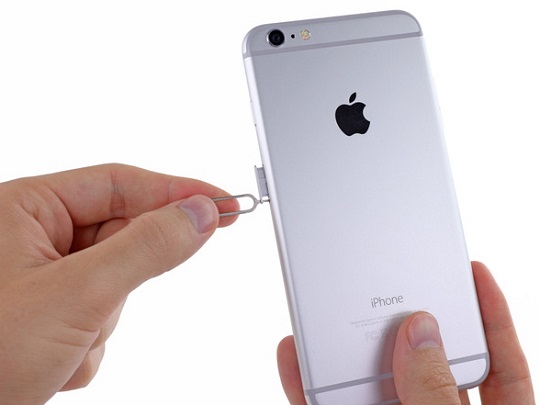
For emergency communications and urgent calls, try this method to eject the SIM card and reinstall it.


3. Restart Your iPhone

If you iPhone keeps dropping calls a few times, then do not worry at all. A little technical glitch can easily be resolved by just restarting the device. Give your iPhone a reboot and let it work more efficiently again.


Step 1: Long press the power button.


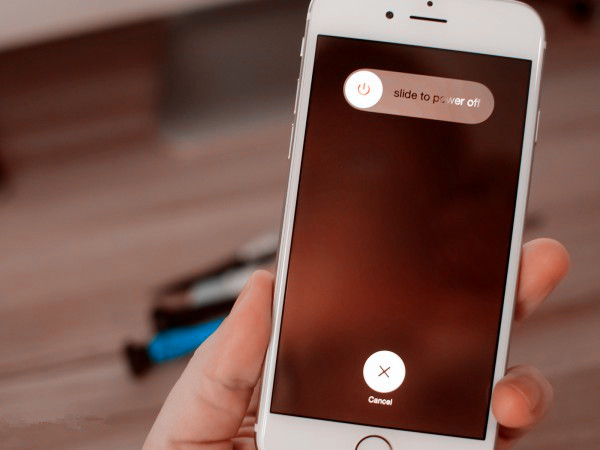
Step 2: It will appear a slider saying, “Slide to Power off”.


Step 3: Slide it to right and let your iPhone turn off.


Step 4: after just 15 seconds, again press and hold the power button.


Your iPhone has been restarted. Enjoy the better calling!
4. Reset Network Settings

After all the above 3 ways, your iPhone is still troubling of dropping the calls? Then you need to work with your network setting. It will restore all settings and that networking glitch will automatically resolve with the new setup.

Note

Make sure to write down or store your all Wi-Fi passwords anywhere first. After resetting, your network setting will be restored your iPhone to defaults.


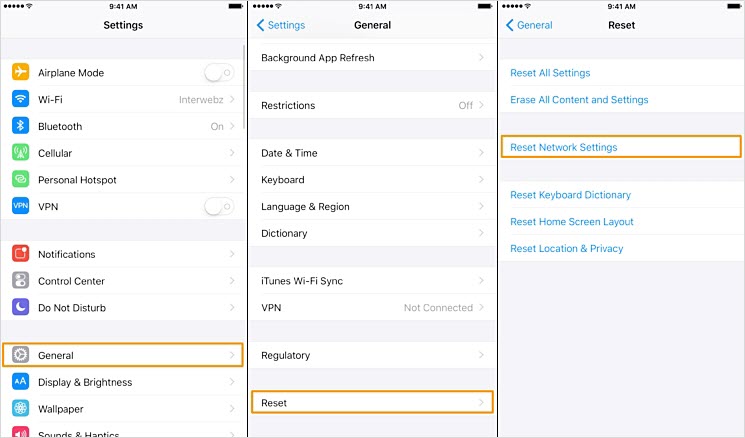
Step 1: Go to the Settings.


Step 2: tap on General then, Reset.


Step 3: Tap on Reset Network Setting.


Step 4: A confirmation window will appear for tapping on Reset Network Settings.


Your iPhone will start immediately after completing the reset process. Now, you must re-enter all your Wi-Fi passwords to start the network again.
5. Solve iPhone Keeps Dropping Calls by Fixing iOS Issue

If you have tried all the methods but your iPhone keeps dropping calls, still, then probably there is iOS issues on your device. Here we have a solution to all type of iOS system issues and you can secure your iPhone and get it back to normal with the complete solution of iMyFone iOS system recovery.Sponsor ads:

Gihosoft Free iPhone Data Recovery:https://www.gihosoft.com/iphone-data-recovery-free.html

Gihosoft iPhone Data Recovery Free

Free iPhone Data Recovery Software for Windows/Mac

Recover up to 12+ types of files, including contacts, SMS, photos, WhatsApp, Viber, notes, etc.

Restore lost data from iOS devices directly or from iTunes and iCloud backup

Recover iPhone data lost due to iOS upgrade/jailbreak, accidental deletion, device lost or broken

Support all the latest iPhone, iPad and iPod Touch

Both Free and Pro version.

If you lost data after you updated to a new iPhone, you can always use Gihosoft iPhone Data Recovery to get the data back from the old iPhone or backup.You may also like: iphonerecovery.com

If you use android phones, please choose Gihosoft Android Data Recovery.

With Gihosoft Android Data Recovery, no longer afraid of data loss!

Must read:Youtube video downloader for pc

Gihosoft RePicvid Free Photo Recovery Software provides a free photo recovery software for windows to help users recover the deleted or lost photo for free.

Jihosoft Android Data Recovery: the best Android Data Recovery software for Windows and Mac to recover deleted contacts, messages, photos, videos, WhatsApp and etc from Android devices.Tips:How to transfer messages from iPhone to iPhone

jihosoft Free iPhone Data Recovery

Featured Post

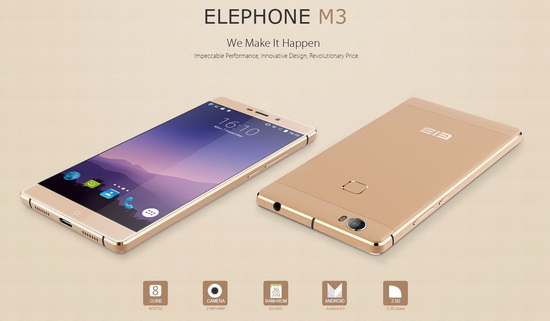
Elephone M3 News

Elephone M3 comes in two versions, both with the integration of aviation aluminum body and have Rose Gold, Champagne Gold, Smoky Grey ...